

How to Authenticate Wireless Clients at Remote Sites with WPA2 Enterprise
Overview
Network administrators can enforce the same authentication protocol used at the main office at remote sites using site-to-site VPN between Meraki peers. Administrators can authenticate wireless clients on the remote side of the VPN with Wi-Fi Protected Access 2 (WPA2 Enterpise), without deploying a RADIUS server on-site. The VPN connects a Cisco Meraki MX WAN appliance at the main office with an MX60W or Z1 teleworker gateway at the remote site.
Step-by-step instructions
- Configure the site-to-site VPN connection.
- Test the connection to the RADIUS server.
- Configure the desired SSIDs with WPA2 Enterprise authentication.
- Add the MAC address of the Z1 or MX60W as a RADIUS client on your RADIUS server.
Configure the site-to-site VPN connection
Click here for detailed instructions on configuring a site-to-site VPN between Meraki peers.
Test the connection to the RADIUS server
Ping the RADIUS server from the MX on Security & SD-WAN > Monitor > Appliance Status > Tools > Ping to ensure the RADIUS server is reachable over the VPN.

Configure the desired SSIDs with WPA2 Enterprise authentication
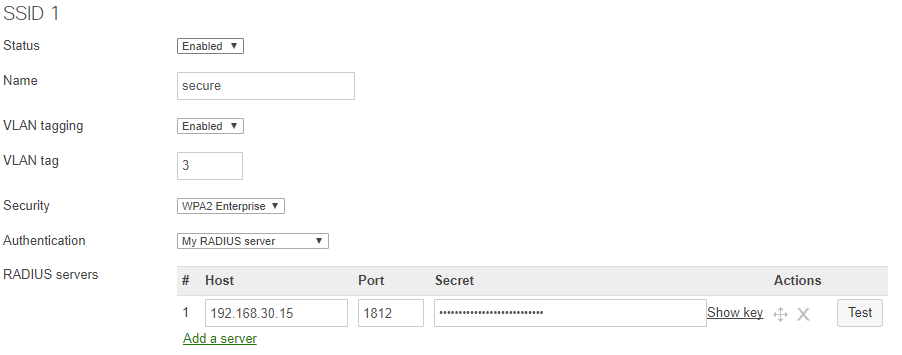
Configure the SSID to use WPA2 Enterprise Authentication with My RADIUS server on Wireless > Configure > Access Control. Click here for detailed instructions on configuring the RADIUS option.
Add the MAC address as a RADIUS client on your RADIUS server
Click here for detailed instructions.
Click the following articles for more information on configuring RADIUS authentication with User Based Authentication or Machine Based Authentication.