

Client VPN OS Configuration
Overview
This article outlines instructions to configure a client VPN connection on commonly used operating systems.
Learn more with these free online training courses on the Networking Learning Hub:
Prerequisites and limitations
Firmware requirements
Internet Key Exchange version 2 (IKEv2) requires Cisco Meraki MX WAN appliance firmware version 26.1.2 or higher. MX firmware version 26.1.2 and higher supports IKEv2 for client VPN. For MX configuration details, refer to this article
The following requirements apply to IKEv2 connections:
- Hostname: Use the MX's hostname, found in the Meraki dashboard under Security & SD-WAN > Client VPN.
- The host name use the format xyz-123abc123abc.dynamic-m.com
- Authentication: IKEv2 uses certificate-based authentication for the server and EAP-MSCHAPv2 ffor user authentication through RADIUS. There is no Pre-Shared Key (PSK) used for IKEv2 connections. At the time of this writing, only RADIUS authentication is supported for IKEv2
- Local ID: Enter your VPN username
Limitations
Android devices running Android 12 and above do not support Layer 2 Tunneling Protocol/Internet Protocol Security (L2TP/IPsec) VPNs. Devices with existing configurations will continue to work. L2TP Client VPN connection cannot be configured on new devices. To check the Android version of a device, refer to Check & update your Android version in Google Support.
Configuration Steps
Android
To configure an Android device to connect to the client VPN, refer to Connect to a virtual private network (VPN) on Android in Google Support.
You need the following VPN information to complete the setup:
Configure L2TP on Android
- Name: Enter any name you want for the connection, for example, "Work VPN."
- Type: Select L2TP/IPsec PSK.
- Server address: Enter the hostname (for example, abc-abcd.dynamic-m.com) or the active WAN IP (for example, a.b.c.d). Using the hostname is recommended for L2TP to improve reliability during WAN failover. Find this information in the dashboard under Security & SD-WAN > Monitor > Appliance status.
- IPsec pre-shared key: Enter the pre-shared key that the administrator created in Security & SD-WAN > Configure > Client VPN.
Configure IKEv2 on Android
- Name: Enter any name you want for the connection, for example, "Work VPN."
- Type: Select IKEv2/IPsec MSCHAPv2.
- Server address: Enter the hostname (for example, abc-abcd.dynamic-m.com). Using the hostname is required for IKEv2. Find this information in the dashboard under Security & SD-WAN > Monitor > Appliance status.
- IPsec Identifier: Enter your VPN username.
Chrome OS
To configure a Chrome OS device to connect to client VPN, refer to Set up virtual private networks (VPNs) in Google Support.
You need the following VPN information to complete the setup:
Configure L2TP on Chrome OS
- Service name: Enter a name you want for the connection, for example, "Work VPN."
- Provider type: Select L2TP/IPsec PSK.
- Server hostname (or Remote Identity): Enter the hostname or the active WAN IP. Using the hostname is recommended for L2TP to improve reliability during WAN failover. This information is located in the Meraki dashboard under Security & SD-WAN > Monitor > Appliance status
- Authentication type: Select Pre-shared key.
- Pre-shared key: Enter the shared secret that the administrator created in Security & SD-WAN > Configure > Client VPN.
- Username: Enter the credentials for connecting to the VPN. If you use Meraki authentication, enter an email address.
- Password: Enter the credentials for connecting to the VPN.
Configure IKEv2 on Chrome OS
- Service name: Enter a name you want for the connection, for example, "Work VPN."
- Provider type: Select IKEv2/IPsec MSCHAPv2.
- Server hostname (or Remote Identity): Enter the hostname or the active WAN IP. Using the hostname is required for IKEv2. Find this information in the dashboard under Security & SD-WAN > Monitor > Appliance status.
- IPsec Identifier (or Local Identity): Enter your VPN username.
- Username: Enter the credentials for connecting to the VPN. If you use Meraki authentication, enter an email address.
- Password: Enter the credentials for connecting to the VPN.
iOS
To configure an iOS device to connect to the client VPN, follow these steps:
-
Navigate to Settings > General > VPN & Device Management > VPN > Add VPN Configuration
-
Enter the VPN information described below.
Configure L2TP on iOS
- Type: Set to L2TP.
- Description: Enter a name you want for the connection, for example, "Work VPN."
- Server: Enter the hostname (for example: abc-abcd.dynamic-m.com) or the active WAN IP (for example: a.b.c.d). Using the hostname is recommended for L2TP to improve reliability during WAN failover. This information is located in the Meraki dashboard under Security & SD-WAN > Monitor > Appliance status
- Account: Enter the username.
- Password: Enter the password, if desired. If you leave the password blank, you must enter it each time the device attempts to connect to the client VPN.
- Secret: Enter the shared secret that the administrator created in Security & SD-WAN > Configure > Client VPN.
- Set Send All Traffic to on.
- Save the configuration.
Configure IKEv2 on iOS
- Type: Set to IKEv2.
- Description: Enter a name for the connection, for example, "Work VPN."
- Server: Enter the hostname (for example: abc-abcd.dynamic-m.com) or the active WAN IP (for example: a.b.c.d). Using the hostname is required for IKEv2. Find this information in the dashboard under Security & SD-WAN > Monitor > Appliance status.
- Remote ID: Enter the hostname (for example, abc-abcd.dynamic-m.com).
- Local ID: Enter your VPN username.
- Account: Enter the username.
- Password: Enter the password, if desired. If you leave the password blank, you must enter it each time the device attempts to connect to the client VPN.
- Set Send All Traffic to on.
- Save the configuration.
macOS
Ensure that the MACs network adapter service order includes the VPN interface as the first item (in the list) otherwise all the traffic will not leave on the Client VPN tunnel. For more reference, see Change the order of the network services your Mac uses in Apple support.
Windows supports the following authentication methods:
- User authentication: AD, RADIUS, or Meraki-hosted authentication.
- Machine authentication: Pre-shared keys.
When you use Meraki-hosted authentication, set the VPN account and username to the user's email address entered in the dashboard.
To configure a Windows 10 or Windows 11 device to connect to the client VPN, refer to Connect to a VPN in Windows in Microsoft Support page. support page for configuration details.
Configure L2TP on Windows
- In the Settings app, select Network & internet > VPN > Add VPN.
- Set VPN provider to Windows (built-in).
- Enter a Connection name, for example, "Work VPN."
- For Server name or address, Enter the hostname (for example: abc-abcd.dynamic-m.com) or the active WAN IP (for example: a.b.c.d). Using the hostname is recommended for L2TP to improve reliability during WAN failover. This information is located in the Meraki dashboard under Security & SD-WAN > Monitor > Appliance status
- Set VPN type to L2TP/IPsec.
- Optionally, enter a User name and Password.

Configure IKEv2 on Windows
You must change additional settings on Windows devices to connect using IKEv2, because the default settings are not secure. Refer to this article on the Microsoft support page for configuration details.
The following example shows supported security settings for configuring a Windows device using IKEv2:
- Encryption Algorithm: AES256
- Integrity (Hash) Algorithm: SHA256
- Diffie-Hellman Group (Key Size): DH14
To configure the connection:
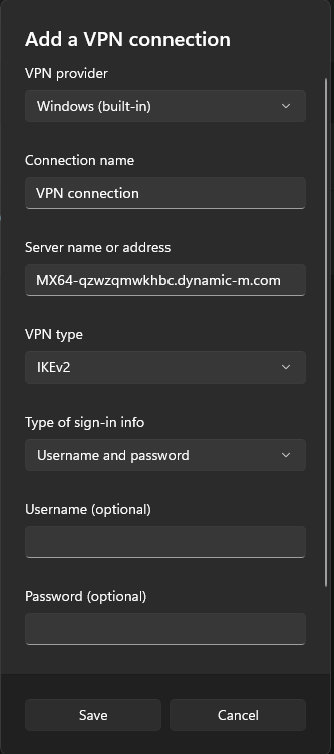
- In the Settings app, select Network & internet > VPN > Add VPN.
- Set VPN provider to Windows (built-in).
- Enter a Connection name, for example, "Work VPN."
- For Server name or address, Enter the hostname (for example: abc-abcd.dynamic-m.com) or the active WAN IP (for example: a.b.c.d). Using the hostname is required for IKEv2. Find this information in the dashboard under Security & SD-WAN > Monitor > Appliance status.
- Set VPN type to IKE v2.
- Optionally, enter a User name and Password.
Set the authentication protocol
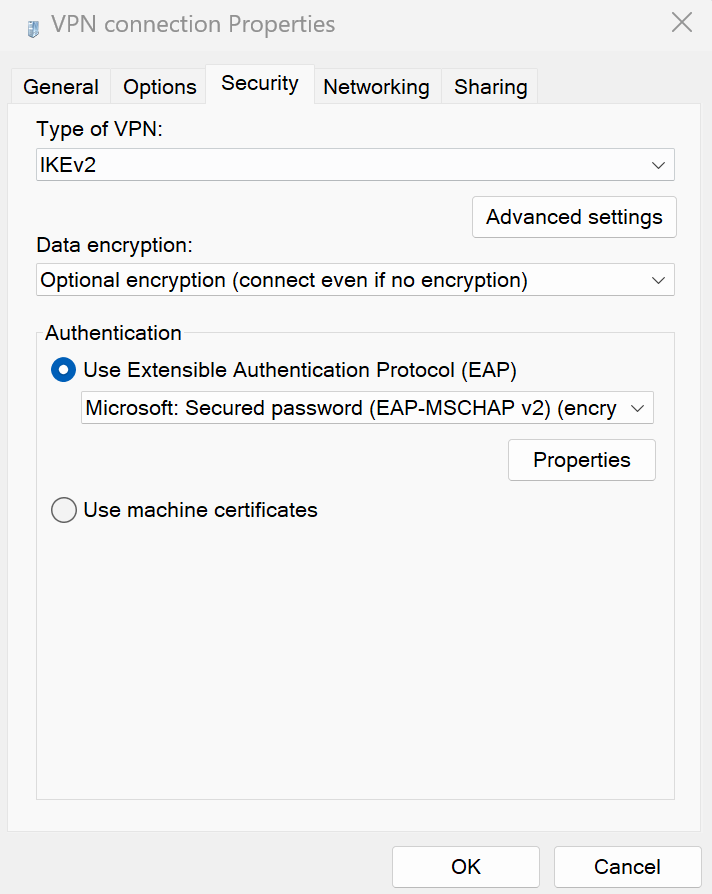
You must set the authentication protocol for both L2TP and IKEv2 connections. After you create the VPN connection, set the authentication protocol:
- Select the VPN connection, then select Advanced options > More VPN properties > Edit > Security tab. Alternatively, run ncpa.cpl from Search or Command Prompt to access your VPN adapters directly.
- On the Security tab, under Data encryption, select Require encryption (disconnect if server declines).
- Under Authentication, select Allow these protocols, then select the Unencrypted password (PAP) check box.
- Verify that no other protocols are selected.

Linux
To configure a Red Hat Linux device to connect to client VPN, refer to Configuring a VPN connection in Red Hat Documentation.
To configure an Ubuntu Linux device to connect to client VPN, refer to Connect to a VPN in Ubuntu Documentation.
The following packages, and their dependencies, are minimum requirements for Linux:
- xl2tpd to implement L2TP
- strongswan or libreswan to implement IPSec
GUI management of the connection requires the network-manager-l2tp-gnome VPN plugin.