

Cellular Data Management
Cellular Data Management
Cellular Data Management is a SIM data management capability within the Meraki Dashboard that enables organizations to centrally define, manage, and enforce cellular data usage policies across their fleet of supported devices, such as MG Cellular Gateways.
This feature provides administrators with granular control over how cellular data is consumed across the organization, helping to prevent unexpected costs, ensure consistent policy enforcement, and simplify the management of cellular connectivity at scale.
Device Requirements
|
Requirement |
Details |
|
Supported Devices |
MG41, MG51, MG52 |
|
Firmware Version |
Devices must be running firmware 26.1.1 or above |
Note: Not all devices support Cellular Data Profiles. The profiles will validate device compatibility during profile assignment and prevent assignment to unsupported devices.
Creating a Cellular Data Profile
To access the Cellular Data Profiles feature:
-
Log in to the Cisco Meraki Dashboard
-
From the left navigation menu, click Organization
-
Select SIM Cards from the dropdown menu
-
Click on the Cellular Data Profile tab
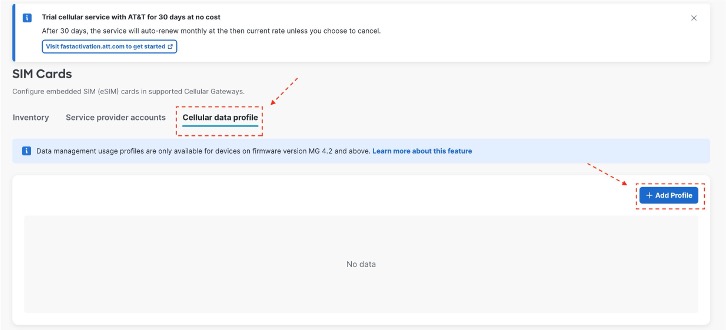
Use the following steps to create a new Cellular Data Profile:
Step 1: Initiate Profile Creation
-
Navigate to Organization → SIM Cards → Cellular Data Profile
-
Click the Add Profile button

Step 2: Configure General Settings
The General Settings section captures the basic identifying information for your profile.
Fields to Complete
|
Field |
Description |
|
Profile Name
|
A unique, descriptive name for the profile
|
|
Description
|
A brief explanation of the profile's purpose
|
After providing the profile name and description, select Next to continue to the data plan configuration.
Step 3: Define Data Plans
The Data Plans section allows you to configure the specific data usage parameters for this profile.

Configuration Options
|
Settings |
Descriptions |
|
SIM Card Slot |
SIM1, SIM2 or eSIM |
|
Data Cap |
Data limit for an individual SIM's service plan |
| Data Reset Frequency | The period over which the data cap applies. This can be monthly, weekly or daily |
| Reset on | The date when the reset needs to happen |
| Data Usage Thresholds | Percentage of data cap that can be consumed before a defined action is triggered. |
Once configured, data usage thresholds can trigger predefined actions based on the SIM role.
Primary SIM
When the Primary SIM reaches its configured usage threshold, the following actions can be applied:
-
Alert – A notification is generated to inform users that the configured usage threshold has been met.
-
Failover – The device automatically switches connectivity from the Primary SIM to the Secondary SIM to help prevent exceeding the data cap or incurring overage charges.
Secondary SIM
When the Secondary SIM reaches its configured usage threshold, the following actions can be applied:
-
Alert – A notification is generated once the defined usage threshold is reached.
-
Failback – The device switches connectivity back to the Primary SIM, if available and within its allowable usage limits.
These actions allow users to proactively manage data consumption and automate SIM switching based on defined policy thresholds.
Once the data plan settings are configured, select Next to proceed to the device assignment step.
Step 4: Assign Devices
The Assign Device section enables association of the profile with specific supported devices.
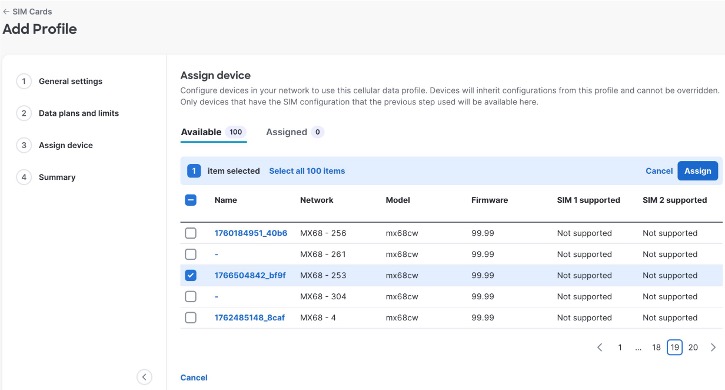
Device Selection Process
-
Review the list of available devices in your organization
-
Identify the device(s) you want to assign to this profile
-
Select the appropriate device(s) from the assignment list
-
Click “Assign” to move devices from ‘Available’ to ‘Assigned’ section
Note: Skipping this step will result in selected devices not being assigned the profile.
-
Click “Next” to proceed
Note: Each device can be assigned only one Cellular Data Profile at a time.
Select the appropriate MG cellular gateway (or other supported device) from the list, then click Next to proceed to the Summary page.
Step 5: Review Summary and Save
The Summary Page provides a comprehensive overview of all settings before the profile is saved.

Click Save to create the profile
Edit or Delete a Cellular Data Profile
Under the Cellular Data Profiles tab, all configured data profiles are displayed for review and management.

Select the three-dot (⋮) menu next to a profile to access the following options:
-
Edit – Modify the settings of the selected profile
-
Delete – Remove the selected profile
-
Assign – Assign one or more devices to the selected profile
Summary Page
To provide clear visibility into data consumption, the Summary page includes a dedicated Cellular Data Usage section.
The Data Usage feature incorporates two visual indicators: a Meter Gauge and a Bar Graph. These tools use color-coded ranges and percentage-based thresholds to clearly display proximity to the configured data cap.

Meter Gauge Colors
The circular meter gauge displays total data usage as a percentage of the configured data plan.
To simplify interpretation, the gauge automatically changes color based on the percentage of the data cap that has been consumed:
-
Green (0% – 70%)
Data usage is well within the plan limits.
-
Yellow (>70% – 90%)
Data usage is approaching the data limit. Monitoring remaining usage is recommended
-
Red (>90% – 100%)
Data usage is at or near the plan limit.
This color progression provides a clear visual indicator of whether current usage is within safe limits, approaching a critical threshold, or requires immediate attention.
A bar graph is also available to display total data usage across multiple time intervals, including the current month, week, day, and the last two hours. This enables visibility into both long-term consumption trends and recent activity patterns.
Monitoring Data Usage Without an Assigned Profile
If a device is not assigned a usage profile, data monitoring remains available. The Summary page will continue to display SIM-level usage details, allowing visibility into current consumption, historical trends, and overall utilization.
While threshold-based alerts, automated actions (such as SIM failover), or policy enforcement require an assigned profile, users can still monitor SIM activity and manually track data usage directly from the Summary page.
