

Using the Ping Live Tool
Overview
Use the Ping Live tool to verify client and network reachability when troubleshooting connectivity issues. Although all Cisco Meraki devices include the Ping Live tool, its behavior varies by platform. This article explains where to find the Ping Live tool, how to run a ping test, and how the tool behaves across supported Cisco Meraki platforms.
A separate tool to ping the device is also located next to the live ping tool. The ping device tool pings the selected device from Meraki dashboard services and reports back results.
Learn more with these free online training courses on the Networking Learning Hub:
Step-by-step instructions
Locate the Ping live tool
Navigate to the appropriate location in the Meraki dashboard based on your device type:
| Device | Dashboard navigation path |
| MX | Security & SD-WAN > Monitor > Appliance Status > Tools |
| MS | Switching > Monitor > Switches > (Select a switch) > Tools |
| MR | Wireless > Monitor > Access points > (Select an AP) > Tools |
| MG | Cellular Gateway > Monitor >Cellular Gateways > (Select an MG) > Tools |
| MV | Cameras > Monitor > Cameras > (Select a Camera) > Network |
The following screenshot shows the location of the Ping tool on a Cisco Meraki device

Run a Ping test
To perform a ping from a specific device:
- Navigate to the status page for the device.
- Under Tools, locate the Ping section.
- Enter a destination, such as an IP address or DNS hostname.
- Click Ping.
The Ping Live tool displays the following information while the test is running:
- Packet loss percentage
- Average latency
- A latency graph
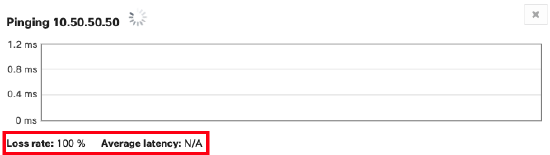
The results section displays the percentage of packets lost, average latency, and a graph of latency to the device while the test is running .

If the Ping tool reports 100% packet loss, either the ping request did not reach the destination or the Cisco Meraki device did not receive the reply.
Review MX WAN appliance Ping tool behavior
The Cisco Meraki MX WAN appliance Ping tool accepts the following destination types:
- IP address
- DNS hostname
- Client MAC address
Note: Entering a client MAC address does not cause the WAN appliance to perform an ARP ping. Instead, the WAN appliance maps the client MAC address to a known IP address by using its ARP table and then initiates an IP ping.
MX firmware 15.11 or lower
For MX WAN appliances running MX firmware 15.11 or earlier, the source IP address used for the ping depends on the destination.
- For destinations on the local network, the WAN appliance uses the VLAN interface IP address of the highest VLAN ID as the source IP address.
- If the destination is across a VPN, the WAN appliance uses the VLAN interface IP address of the highest VLAN ID participating in the VPN.

MX firmware 15.12 or higher
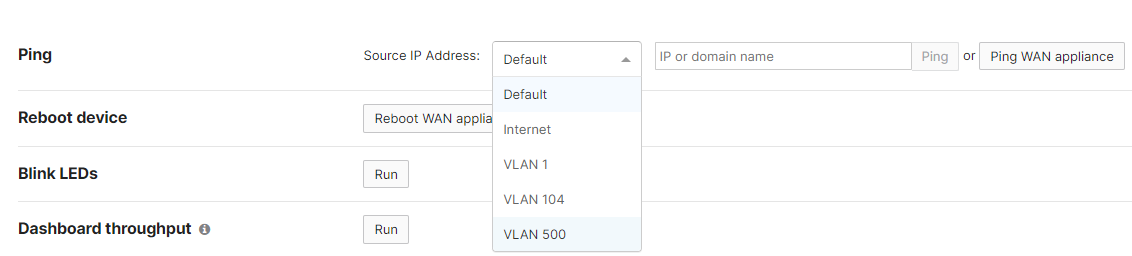
For WAN Appliances running firmware MX 15.12 or higher, additional ping options have been added to the live tool. The ping tool now has a drop down to select the source IP address for pinging destinations from the WAN Appliance.
Source IP Address Options:
Default. The WAN appliance uses its routing table to dynamically select the source IP address that is closest to the destination IP address.
Examples:
- LAN: If the destination IP address is in VLAN A, the WAN appliance uses the VLAN A interface IP address as the source IP address.
- Site-to-site VPN: If the destination IP address is across a site-to-site VPN, the WAN appliance uses the VLAN interface IP address of the highest VLAN ID participating in the VPN.
- Internet: If the destination IP address is on the WAN or internet, the WAN appliance uses the configured primary uplink defined in SD-WAN and Traffic Shaping.
Internet #. Uses the selected WAN IP address as the source IP address. The ping follows the same routing path as clients connected to the LAN of the WAN appliance.
VLAN #. Uses the selected VLAN IP address as the source IP address. The ping follows the same routing path as clients connected to the LAN of the WAN appliance.
Note:
If you select a VLAN source interface, ping traffic cannot traverse the WAN appliance Network Address Translation (NAT).
- For example, if you select a VLAN source interface, pings to WAN destinations such as 8.8.8.8 or google.com always report 100% packet loss.
If VLANs are disabled while the WAN appliance operates in routed mode, the LAN source interface is named VLAN 0.
MX in passthrough mode
If the WAN appliance operates in passthrough mode, such as a one-armed VPN concentrator, the source IP address is generally the MX WAN interface IP address.
Review MS switch Ping tool behavior
The Cisco Meraki MS Ping tool accepts the following destination types:
- IP address
- DNS hostname
The source interface used for the ping depends on the switch configuration.
- If the MS switch or switch stack is configured for Layer 2 switching only, the Ping tool uses the management interface as the source.
- If the MS switch or switch stack has a Layer 3 routing configuration, the Ping tool uses the Layer 3 interface selected from the Source IP drop-down menu.
Review of MR and MV Ping tool behavior
The Cisco Meraki MR and MV Ping tool accepts the following destination types:
- IP address
- DNS hostname
On MR access points and MV cameras, the Ping tool uses the device management interface as the source for all ping requests.
Note: If you ping a client that is wirelessly connected to the same MR access point from which the ping originates, the ping traffic travels directly between the access point and the wireless client. This behavior applies regardless of the VLAN configured for the SSID.