

How to Use and Manage Video Exports
Overview
This article explains video exports and describes how to create, manage, download, combine, and troubleshoot them.
Video exports can only be performed if the camera is online and reachable, it is a downloadable MP4 video file generated from a Cisco Meraki MV smart camera's recorded footage. The camera stores standard video on local hardware. The system uploads an export to the Meraki cloud. This upload lets administrators share, download, and archive specific incidents without consuming local camera storage or requiring the camera to remain online for viewing.
The Meraki cloud retains exports for up to one year unless an authorized administrator deletes the files earlier. Customers manage downloaded copies retained outside the Meraki dashboard.
There are three types of exports:
- Single Export: A clip from one camera for a specific time range.
- Combined Export: Multiple clips merged into a single chronological file.
- Scheduled Export: Clips automatically generated based on a recurring schedule.
The 'View and export any footage' permission is required to create or delete exports. Learn more about camera permissions here.
Step-by-step instructions
Creating an export
Users can create exports from the Vision Portal, Dashboard, or Mobile app. Before you can manage or download video from the Exports page, you must first generate a clip from a camera's timeline.
- Navigate to your desired camera.
- Locate the required footage on the video timeline.
- Export your footage:
- Dashboard: Select the Share button (square with an arrow) and select Export.


- Vision Portal: Select Export from the side Drawer.
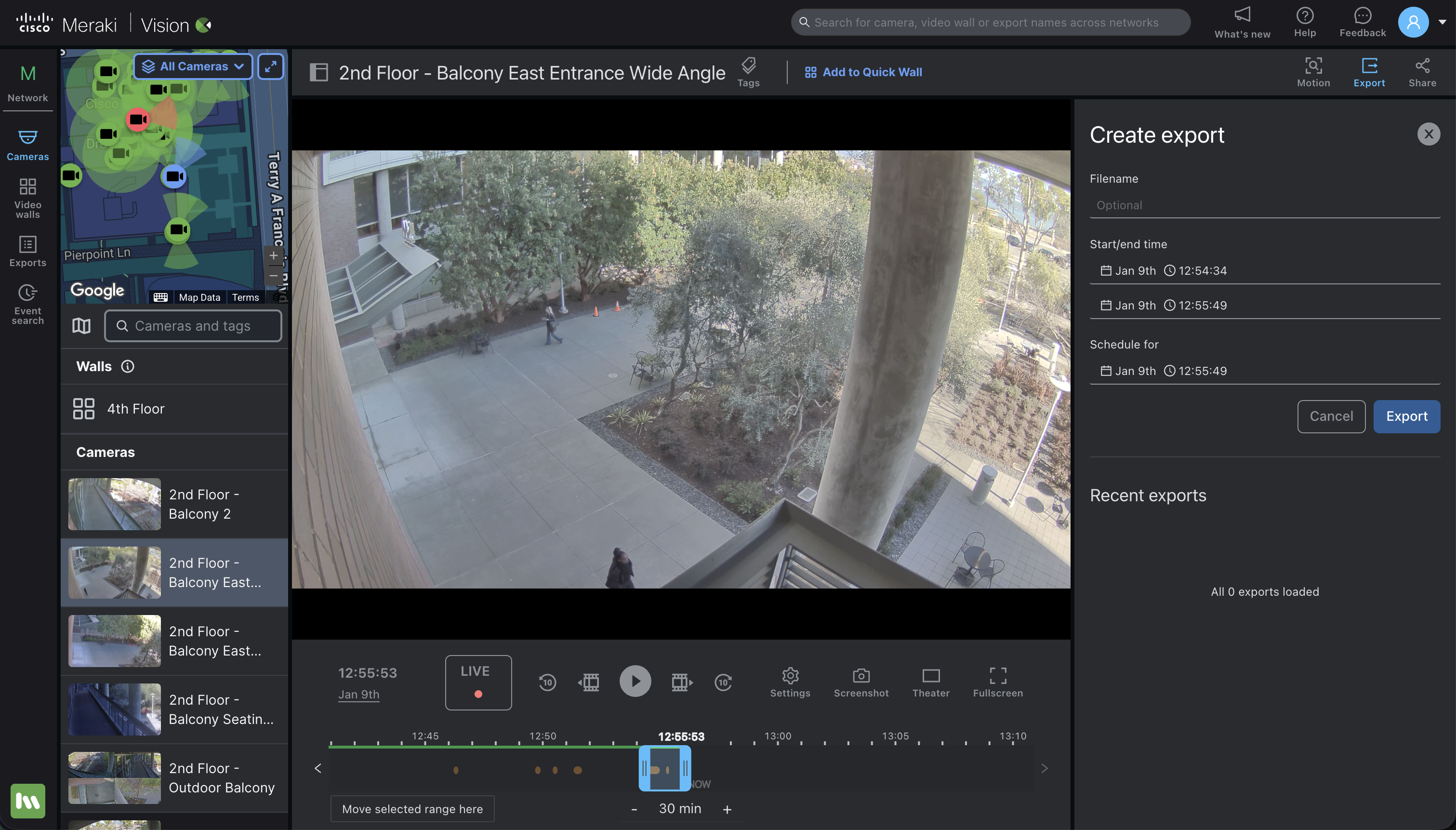
- Mobile: Select Share icon at the top of the video player, and in the Exports page, select a desired duration.


- Define the Range:
- Dashboard + Vision: Use the sliders on the video player or enter a specific date and time.
- Mobile: Define the the duration.
- Note: Clips can be between 5 seconds and 12 hours long.
- Select Export: The system fetches the video from the camera and uploads the file to the Meraki cloud. Track progress on the Exports page.
The Exports page
The Exports page provides a central view of all exports in the network. Users can combine, manage, and monitor these exports, and create a single playable file for the entire incident. You can manage all your saved clips through: The Vision Portal, Dashboard, or Mobile App.
Vision Portal: Select the Exports icon in the left-hand sidebar.

Dashboard: Navigate to Cameras > Monitor > Exports.

Mobile: Navigate to Cameras > Exports

This page provides a list of all exports from the network, including the below details:
- Camera: The camera the export was taken from.
-
Type: Single or multiple exports (see Combining Exports section).
-
User: Displays the user account that created the export.
-
Created: Shows the export creation time. Defaults to the scheduled time if a specific start time wasn't assigned.
-
Scheduled: The time at which the export was scheduled, or the current time if no specific start time was assigned.
-
Selected times: Time ranges of exported video.
-
Status: Displays the status of the export as well as a description of any error, if applicable.
The current minimum time allowed for a single export is 5 seconds and the maximum time allowed is 12 hours. The system trims video exports to the requested size with no buffer. If a user selects an invalid time range, the export defaults back to 30 seconds to provide a valid export. The download link for an export is valid for one hour from the time of page load. Refreshing the dashboard page generates a new download link. The system automatically divides video exports exceeding 3 hours into segments, each containing up to 3 hours of footage.
Managing exports
Date filter and text search
The Exports page allows users to filter exports by timeframe and search for specific cameras (by name) or combined exports (by filename).
Vision Portal

Dashboard

Mobile
The mobile app does not offer date and text filter options.
Downloading exports
Single camera downloads
Selecting an individual export allows users to download the file, copy a shareable link to the clipboard, calculate checksums, or delete the export.
Vision Portal

Dashboard

Mobile

Bulk downloads
To download multiple exports select one or more clips with an 'Export Complete' status and select the Download button. Users can select and download up to 100 exports at the same time.

The download button is enabled only when:
- One or more exports are selected.
- The export status is complete.
Priority exports
On the Vision Portal's Exports page, you can immediately start a scheduled or queued export by selecting Start Now, overriding the current queue. This prioritizes the selected export if its scheduled time is more than two minutes away. Prioritizing may affect the processing time of other exports, and a confirmation dialogue will appear.
The Priority Exports feature is only available on Vision Portal.


Combining exports
Combining video evidence from multiple cameras is crucial for building a cohesive incident story. For example, a theft investigation might require footage of the suspect's entry, the theft itself, and their exit. The combine feature makes this easy by merging individual exports into a single sequence. Here's how:

- Log in to the Vision Portal with a user account that has appropriate permissions by navigating to Cameras > Monitor > Meraki Vision Portal
- Navigate to the Exports page from the icon, and check the boxes next to the exports you want to combine.
- Select the Combine Exports button in the top left corner.
- Add a name (optional) for the combined export, such as 'Bike_Theft_Mon_June_8'.
After selecting your exports, you can rearrange them to create the desired sequence. This allows you to present a clear and chronological story of the incident, making analysis easier.
Vision Portal

Dashboard

Vision Portal

Dashboard

Vision Portal

Dashboard

Example of a combined and exported video (Fast-Forwarded in this clip)

Troubleshooting
Error messages and retry
If an export fails, an error message appears in the dashboard and Vision Portal. In the Vision Portal, hover over the exclamation icon to see the reason for the failure. The table below lists common errors and actions to resolve them.
Vision Portal

Dashboard

| Error Message | Action |
|---|---|
| No footage exists for the selected time range. Adjust the start and end times to a range which contains recorded footage, and try again. | Adjust the start and end times to a range that contains recorded footage, and try again. Ensure a video is available for the time you are exporting. Check retention duration and motion-based retention settings. |
| Camera was offline. Ensure the camera is powered on and able to connect to the dashboard, then try again. | Ensure the camera is powered on and able to connect to the dashboard, then try again. Ensure the camera was powered on and recording video during the timeframe you are exporting. Once confirmed, retry the export using the retry button. |
| Network connection from the camera was interrupted during video export. Check the camera's uplink connection, then try again. | Check the camera's uplink connection, then try again. Ensure the camera status is green and there are no network interruptions between the camera and the Meraki cloud. Once confirmed, retry the export by selecting the retry button. |
| Unexpected error, contact support. | If you have followed the above steps and the error persists, select the retry button once again. If the export continues to fail, contact Meraki Support for further assistance and troubleshooting. |