

Suggested Actions on Unreachable Devices Alert
Unreachable Device
An unreachable device is a Meraki device that was previously online but is no longer communicating with the Meraki cloud currently. This document will walk through troubleshooting steps to get the device back online.
Alerts
The Meraki dashboard alert is triggered when there is a problem in the path from the node to the Meraki cloud. You can find the alerts in the following sections of the dashboard. Clicking on the unreachable device link within the alert will open the suggested actions.
- Product page: A banner with the unreachable device information will be visible under the device name.
- Top navigation bar: The notification (bell) icon will display an unread notification for all alerts including suggested actions for unreachable devices.
.jpg?revision=1)
- Alerts: Additionally, an alerts page can be found under both Assurance and Organization tabs that displays all types alerts including those for unreachable devices.


Guided Suggested Actions
To access the guided troubleshooting workflow, click See details in the unreachable device banner or simply click Suggested actions within the alerts under notifications.
Mark each step complete and the next suggested action will automatically expand.

-
Check for outages: On a separate tab, open the Meraki Status page and check if an outage is already reported on the device. If outage has been reported, follow the status page for further guidance.
-
Check for upstream devices: The system automatically attempts to identify the upstream neighbor of your device.
-
If a Meraki device is identified: You will see the device name, its current status (e.g., Online/Offline), and a hyperlink to that device’s page. If the upstream device is offline, click the link and follow the suggested troubleshooting steps on that device instead.
-
If the device is not identified or is non-Meraki: The system will prompt you to manually verify the upstream neighbor. Please check the operational status and port activity of the connected upstream device.
-
Packet Capture: Regardless of the device type, if you have access to the upstream neighbor, perform a packet capture to review traffic.
-
For step-by-step guide on packet capture troubleshooting, refer to Packet Captures to Troubleshoot Offline Devices article.
-
Collected capture: Select this button if you have successfully collected a packet capture; you will be prompted to attach the file when submitting your support case.
-
Can't collect a capture: Select this button if you are unable to perform a packet capture on the neighboring device.
-
-
-
Cable test: Review the network cable of the offline device:
-
Verify connection: Ensure the cable is securely connected at both ends and is not physically damaged.
-
Replace if necessary: If the cable is suspected to be faulty, replace it with a known working cable.
-
Select Verified connection if the cable is secure, or Replaced cable if you have swapped it for a new one.
-
-
Check device power: Check the device LED status. If green or rainbow, it is ON. If LED is off or Red, try a different power source and select the right button. If LEDs are off, continue to create a Support Case.
-
LEDs are On
-
LEDs are still OFF
-
Can't Check LEDs
-
-
Access Local Status Page: Check the Cisco Meraki Device Local Status Page (LSP) for instructions on how to open the page for each device type.
-
Check if the right IP address is assigned to the device and there are no firewall rules blocking traffic.
-
Take a screenshot of the connection tab and share it within the case once created.
-
If you are unable to open the local status page, indicate so by clicking the below button:
-
Unable to Open LSP
-
-
-
Collect Support Data Bundle (SDB): Download the Support Data Bundle by following instructions in the Using Support Data Bundle article. Save the SDB and attach to the support case if created.
-
Reboot/Reset Device: Please be aware that rebooting the device will delete all volatile logs and debug information, which will prevent our team from performing a Root Cause Analysis. Only proceed with the below steps if restoring network connectivity is urgently required.
-
Reboot the device and wait 15 minutes.
-
If device is still offline, factory reset the device and wait 15 minutes. (Note: This will clear any static IP configuration. Review the LAN IP section of the node's details page to reconfigure it if needed).
-
If the issue persists, collect a new Support Data Bundle (SDB). Share this within the case once created.
-
If you wish to not reboot/reset the device, indicate so by clicking the below button:
-
Skipped
-
-
-
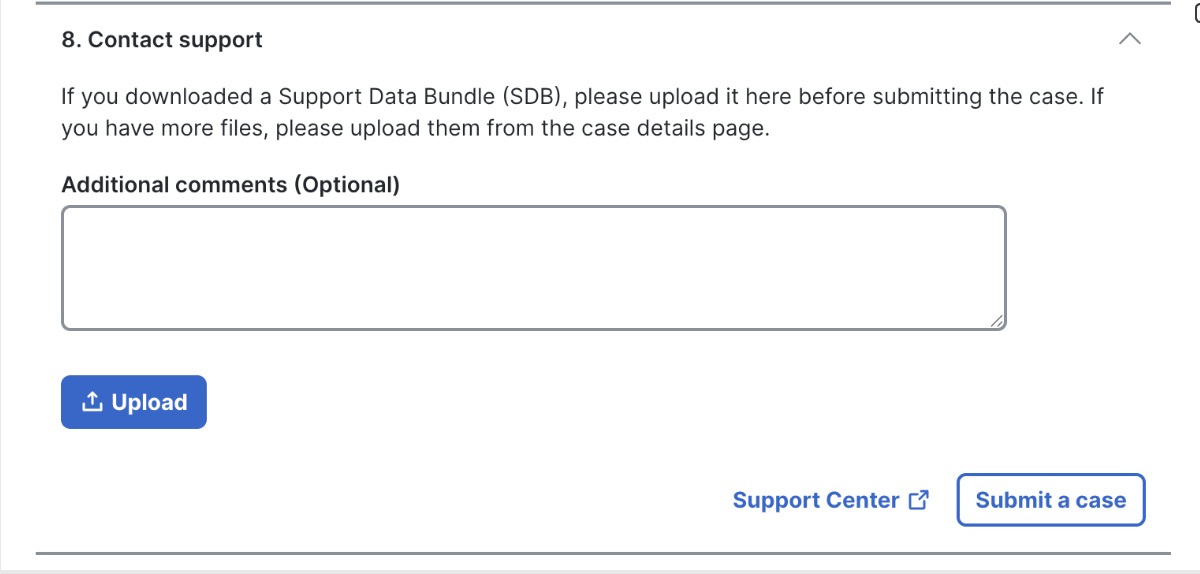
Contact Support: If after completing all the suggested actions, the device is still not on, continue to create a Support Case by simply clicking the Submit a case button.
-
Use the optional comments section to include any relevant troubleshooting notes or additional context before submitting your case.
-
If Support Data Bundle (SDB) was downloaded during the troubleshooting, please upload it before case submission.
-
The case will automatically capture all the troubleshooting steps completed, so no information needs to be repeated.
-
After the case is created, use the Upload button within the case details section to attach remaining troubleshooting documentation, including packet captures.
-
For immediate assistance, use the Call us button with case details.
-