

Packet Captures to Troubleshoot Offline Devices
Introduction
This document describes how to collect and analyze packet captures to investigate unreachable or offline devices.
Read on if:
- You have the topology below and want to understand why the offline device, marked with a red cross is offline, and the last known upstream neighbor (marked with the blue arrow/circle) is an online Meraki device.

- Or, the offline device does not have a Meraki neighbor, but the default gateway is a managed MX:

You can take a packet capture from the upstream neighbor or the MX to investigate why the offline device is having problems. The next section explains how to do it.
How to Collect a Packet Capture to Investigate an Offline Device
Step 1. Identify the upstream neighbor of the offline device.
Note: If the upstream neighbor is also offline, please move the troubleshooting process to that offline device.
If the upstream neighbor is a Meraki switch, we suggest that you take a port mirror capture, as it may provide extra information not visible on a dashboard capture. For details about how to perform a capture using port-mirror, follow the document Packet Captures and Port Mirroring on the MS Switch.
If you are not able to collect a port-mirror capture at this time, continue to step 2.
Note: If your upstream neighbor is a non-Meraki device but your offline device is an MS running MS16+, you can take the capture using the Local Status Page (LSP), for more details please review the document Cisco Meraki Local Status Page: MS Switches.
If your upstream neighbor is a non-Meraki device and the offline device doesn't have the option to collect a capture using th LSP, please review the device vendor's documentation.
Step 2. Prepare to take a packet capture on the upstream neighbor.
Go to Network-wide > Monitor > Packet Capture / Intelligent capture.
From the drop-down select the upstream neighbor category:
| Upstream Neighbor Device Model | Select |
| MX | for security appliances |
| MS or CS | for switches |
| MR or CW | for access points |
| MG | for cellular gateways |
| CG | for campus gateways |
- From the list of devices, select the identified upstream neighbor.
- On the interface, select the device's interface where your offline device is connected to.
- For output, if using intelligent capture you can choose Save to cloud and analyze the capture from the dashboard itself. For regular Packet capture, we suggest select Download .pcap file. You'll need to have wireshark to open the file and analyze it.
- On duration, select 300 seconds.

Step 3. If possible, disconnect the network cable of the offline device from the upstream neighbor. Then start the packet capture for ~5 minutes.
Step 4. Right after you start the packet capture reconnect the offline device cable.
Step 5. Wait for the capture to finish.
For more details about the packet capture feature, check Packet Capture Overview.
How to Review Packet Capture
Step 1. Find and make note of the offline device's MAC address.
You will find it under the device's name. If the offline device is an MX and you are trying to capture traffic coming from one of its WAN interfaces, use Calculating MX WAN MAC Addresses.

Step 2. Open the .pcap file.
For .pcaps downloaded to your computer, you can use Wireshark.
If you used Intelligent capture and saved the output to the cloud, you can find your capture on Network-wide > Monitor > Intelligent Capture > Store captures, and open it directly on the dashboard.
Step 3. Filter the capture to focus on the offline device traffic.
Use this filter:
cdp.deviceid == aaaabbbbcccc or lldp.chassis.id.mac == aaaabbbbcccc or (eth.addr == aaaabbbbcccc and (arp||dhcp||dns||tcp.port == 443))
Where aaaabbbbcccc is your offline device's MAC address, all lower case and no separation between octets. Example:

The next sections describe the packets you should see to confirm the offline device is present and trying to establish a connection to the Meraki cloud.
CDP/LLDP Packets
The presence of CDP (Cisco Discovery Protocol) and/or LLDP (Link Layer Discovery Protocol) packets sent by the offline device confirm the offline device is present, powered on, connected to the expected port and establishing Layer 2 network connection.
This is how a CDP packet sent by a device with MAC address 0c:8d:db:0b:f9:07 looks like:

Example of an LLDP Packet:

If you don't even see CDP and/or LLDP packets sent by the offline device, most likely the device is either disconnected, powered off or has some other hardware problem. Please go on-site to do a physical check of the offline device.
DHCP Packets
If your device is configured to use an static IP address you may or may not see DHCP (Dynamic Host Configuration Protocol) packets as the static IP falls back to DHCP when the static IP is not able to reach the dashboard. You can expect to see the full DORA (Discover, Offer, Request, Acknowledge) exchange.

If you don't see Offers, ensure the port where the offline device is connected to has the right VLAN configuration.
If instead of Offers or Ack packets, you see Nacks or something else, review your DHCP server logs to check why it may be denying an IP address to your offline device.
ARP Packets
Once the device has an IP address, it sends an ARP request for the default gateway's IP address. You expect to see a reply from the gateway's IP address with its MAC address information.

If you see a request but not a reply, ensure the DHCP server is providing the correct default gateway information, and that the default gateway is reachable by the offline device.
DNS Packets
Once the device confirms it can reach the default gateway, it should send a DNS (Domain Name System) to resolve the dashboard server's domain name. You can expect see DNS queries with this format:
<region>[...].meraki.com
Region refers to the region where the offline device's network is hosted. For example, devices that are associated to networks hosted on the United States send DNS requests for us[...].meraki.com
The exact domain name can look different on your capture, but should follow the same <region>[...].meraki.com format. Refer to the Firewall info section for organization-specific domain name / IP addresses.

If you don't see DNS responses, ensure your DNS server is reachable and able to resolve meraki.com domains.
TCP Packets
TCP packets may not appear on captures taken from dashboard. If you suspect the problem could be at the TCP stage please collect a port-span capture or contact Meraki Support if they are not available.
TCP Packets - 3-way-Handshake
If the device was able to resolve the dashboard servers, then the device opens a TCP session with the IP address resolved from the DNS response, in this case, 209.206.52.53. The device sends a TCP SYN packet, then you should see a SYN, ACK packet coming the dashboard's IP address, followed by an ACK.

If you only see SYN packets sent by the offline divice and never see an ACK coming from a Meraki public IP most likely there's a intermediate device between your offline device and your ISP (Internet Service Provider) that is blocking the traffic. The traffic could be blocked from the device to the cloud, or from the cloud to your device.
TCP Packets - mTLS Authentication
If the device was able to comple the TCP 3-way-handshake, it moves on to the mTLS (Mutual Transport Layer Security) process. This example shows the expected packet flow.

If you see all these packets and the device is still having problems to communicate with the cloud, ensure there certificate sent by the Meraki cloud was signed by Meraki. To review that, open the certificate packet sent by the cloud (The destination IP should be the offline device):

Open the packet's section Transport Layer Security > TLSv1.2 > Handshake Protocol: Certificate > Certificates. Expand the three certs and confirm the issuer looks similar to this:

If you see something other than Meraki, most likely the offline device traffic is going through SSL inspection, breaking the authentication with the Meraki cloud and preventing the device to go online. Ensure all Meraki device's traffic is excluded from SSL inspection.
Firewall Information Page
The upstream firewall requirements can vary by product, firmware, region, and enabled services. For the most accurate per-organization Firewall information, navigate to the list in Dashboard under Help > Firewall info.
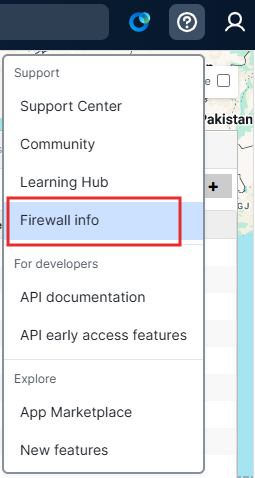
Note the destination IP addresses and ports for the following entries to be used when reviewing and filtering packet capture(s) to troubleshoot cloud connectivity issues:
- Meraki cloud communication
- Backup Meraki cloud communication
- Backup configuration downloads
- NTP time synchronization
- Uplink connection monitor
For more details, check Upstream Firewall Rules for Cloud Connectivity.