

How to Enable Dynamic DNS (DDNS) on the MX WAN Appliance
Overview
The Cisco Meraki MX Security Appliance uses Dynamic DNS (DDNS) to update its DNS host record automatically each time its public IP address changes. This feature is useful because it allows the administrator to configure applications such as client VPN to access the MX by its hostname which is static instead of an IP address that may change over time.
The Cisco Meraki MX WAN appliance uses Dynamic DNS (DDNS) to update its DNS host record automatically each time its public IP address changes. Administrators can use this feature to configure applications such as client VPN to access the MX by its hostname. The hostname remains static, unlike the public IP address, which may change over time.
MX appliances bound to template networks cannot have their DDNS settings modified.
DDNS hostnames are tied to the network that the MX belongs to. If the MX is moved to a different organization or network, the hostname will change.
The default naming behavior for the DDNS Hostname feature was changed due to a concern about revealing potentially sensitive information.
When DDNS is enabled, the hostname uses the encrypted version of the network name instead. This is the same encrypted name visible in the URL for the page and can be seen in the image below.

This behavior will be seen on any networks that have DDNS enabled after November 2024. Networks with DDNS already enabled will not be affected by this change.
Prerequisites
MXs in Passthrough or VPN concentrator mode do not support Dynamic DNS (DDNS) on firmware below MX 16.X
Starting on MX26.1.1 if the MX WAN Appliance has an IPv6 on its WAN(s) an IPv6 AAAA DNS record will be created in addition to the regular IPv4 A record.
Step-by-step instructions
Enabling route mode
To use DDNS on the MX WAN appliance, first set the MX to Routed mode. Navigate to Security & SD-WAN > Configure > Addressing & VLANs in the Meraki dashboard.
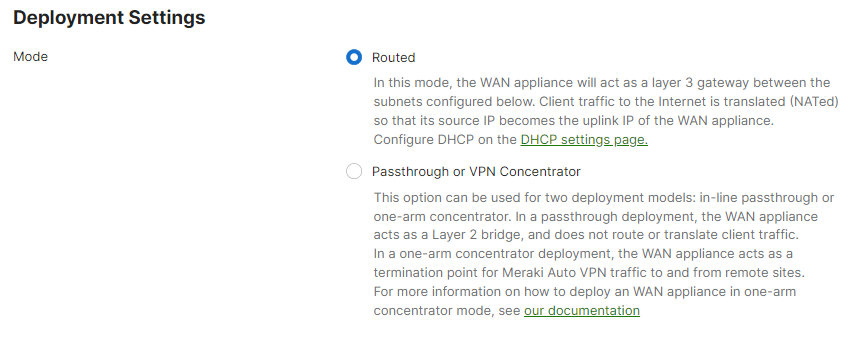
Once the MX is set to Routed mode, the DDNS section appears at the bottom of the Security & SD-WAN > Configure > Addressing & VLANs page, with a link to Security & SD-WAN > Monitor > Appliance status.
Enabling DDNS
On the Security & SD-WAN > Monitor > Appliance status page, select the pencil icon next to Hostname. The Hostname field is located between the WAN IP and Serial Number on the left side of the page.
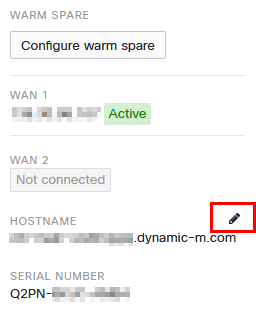
A dialog box appears for configuring DDNS. Select Enabled in the dialog box, enter a public domain name if necessary, then select Update.
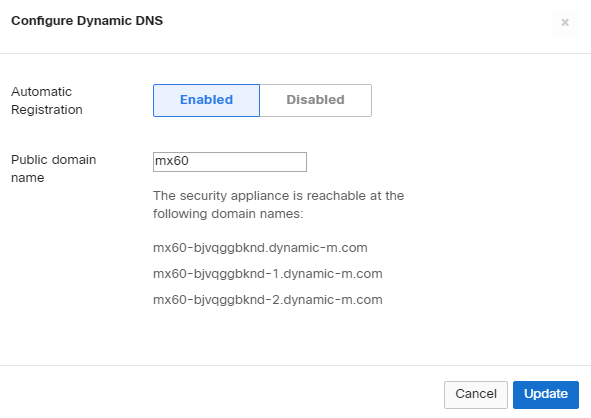
"mx60-bjvqggbknd.dynamic-m.com" will resolve to the public IP of the active WAN link
"mx60-bjvqggbknd-1.dynamic-m.com" will resolve to public IP of WAN 1
"mx60-bjvqggbknd-2.dynamic-m.com" will resolve to the public IP of WAN 2
Verification
After enabling DDNS, confirm it is working by performing a DNS query for the MX DDNS hostname. Open a command prompt on any workstation and run:
"nslookup <your dynamic DNS name>." The DNS response should return the current active public IP address of the MX.
The expected TTL for DDNS records is approximately 10 minutes. If the device goes offline for five minutes or longer, the DNS record is removed. Allow 10 minutes or more before testing to ensure accurate results.
If DDNS is in use with an HA pair configured with a virtual IP (VIP) behind NAT, DDNS will resolve to the NAT-translated (public) address of the management/uplink IP, rather than the NAT-translated virtual IP.
Troubleshooting
Querying the MX DNS hostname
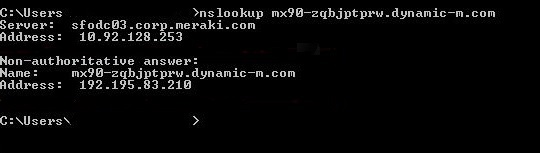
Testing DDNS resolution
The following steps describe how to identify which servers resolve DDNS for dynamic-m.com, and query them to confirm the IP address associated with the MX:
- Open cmd.exe from "C:\Windows\System32" on your laptop, and run a "nslookup"

- Set the query type to "any" and sort it for dynamic-m.com. It will list all the servers used by dynamic-m.com.

- This lists the servers serving this dynamic-m site for its host names lookup. You would be checking if you could search for the hostname from the individual servers.
nslookup [-option] [hostname] [server]
![Screenshot of the output of running nslookup [hostname] [server] command, using the server found from the previous query.](https://documentation.meraki.com/@api/deki/files/6113/Windows_CMD_nslookup_server.png?revision=2)
This helps determine whether the IP address was updated on the server side, and whether the servers are responding to lookup requests.