

How to Configure MultiWAN Uplinks on Supported MX Appliances
Overview
This article explains how to configure and troubleshoot MultiWAN on supported MX appliances. MultiWAN lets you use more than two functional uplinks on models that have more than two dedicated WAN links, which improves availability during failover and backup.
MultiWAN comes in two forms. Choose the one that matches your firmware and hardware:
- MultiWAN Multi-Uplink allows for the use of up to four active WAN links. You can prioritize every WAN interface, or mark one as backup by setting its carrier type to Cellular/Metered. Requirements to use Multi-Uplink can be seen in the below section Requirements for Multi-Uplink.
- MultiWAN Backup Uplink (2 active + 1 backup) adds a third link that works only as a backup. It cannot act as the primary uplink. Requirements to use Backup Uplink can be seen in the below section Requirements for Backup Uplink.
You can configure only WAN 1 and WAN 2 from the Local Status Page.
How Multi-Uplink works
With Multi-Uplink, WAN 3 and WAN 4 behave like WAN 1 and WAN 2 by default. You prioritize them on the SD-WAN and traffic shaping page.
If you set an uplink's carrier type to Cellular, that uplink behaves differently:
- It stays inactive until every other WAN uplink fails the Connection Monitoring Test Process.
- It does not appear in Uplink priority for global preferences.
When to use Multi-Uplink
Use Multi-Uplink when a site needs a third or fourth Internet link. Sites with unreliable service often combine several ISPs to stay online. You can mix Ethernet or fiber, cellular, and low earth orbit satellite connections in the same setup.
How Backup Uplink works
With Backup Uplink, the third link stays in standby and activates only when both the primary and secondary uplinks go down. This mirrors the failover behavior of the embedded cellular feature on supported MX(C) appliances. The backup link uses the same shared firewall rules as WAN 1 and WAN 2.
Keep these behaviors in mind before you enable Backup Uplink:
- MultiWAN does not support paired interfaces. When you enable MultiWAN, interface pairs are disabled and every WAN interface becomes independent. For more information, refer to Paired interfaces.
- Configuration templates and local template overrides do not support WAN 3 at this time.
- Backup Uplink standby interfaces do not support the use of a virtual IP at this time.
Important: Enabling MultiWAN disables port pairing between SFP and RJ45 ports and reinitializes all WAN interfaces for about one minute. Enable MultiWAN during a maintenance window.
When to use Backup Uplink
Use Backup Uplink in these scenarios:
- Add a tertiary link that takes over only if the primary and secondary links both fail.
- Connect a Meraki Cellular Gateway (MG) for wireless WAN backup without giving up a hardwired connection.
Prerequisites
Requirements for Multi-Uplink
- MX 26.1 firmware or higher.
- Full Auto VPN compatibility requires all nodes to run MX 26.1 firmware or higher. See Multi-Uplink VPN behavior on WAN 3-4.
- A supported platform: C8111-G2-MX, C8111-C-G2-MX, C8121-G2-MX, C8121-W-G2-MX, C8121-CW-G2-MX, C8355-G2-MX, or C8455-G2-MX.
Note: Secure Connect and Secure Access are not Multi-Uplink compatible and will continue to utilize WAN 1 and WAN 2.
Each platform maps physical ports to WAN interfaces as follows:
- C8111-G2-MX, C8121-G2-MX, and C8121-W-G2-MX support 3 uplinks. Integrated cellular backup is supported.
- port1 → WAN 1
- port2 → WAN 2
- port3 → WAN 3
- C8111-C-G2-MX and C8121-CW-G2-MX support 3 uplinks. Integrated cellular backup is supported.
- port1 → WAN 1
- port2 → WAN 2
- port3 → WAN 3
- Cellular → WAN 4
- C8235-G2-MX
- port 9 → WAN 1
- port 8 → WAN 2
- port 7 → WAN 3
- port 6→ WAN 4
- C8355-G2-MX
- port 9 → WAN 1
- port 8 → WAN 2
- port 7 → WAN 3
- port 6→ WAN 4
- C8455-G2-MX supports 4 uplinks. Cellular is not supported. port11 is fixed WAN only.
- port11 → WAN 1
- port10 → WAN 2
- port9 → WAN 3
- port8 → WAN 4
Requirements for Backup Uplink
- MX 18.2 firmware or higher.
- A supported model: MX75, MX85, MX95, or MX105.
The backup port and its limitations depend on your model:
- On the MX75, the third physical port becomes the backup port. Ports 1 and 2 become WAN 1 and WAN 2.
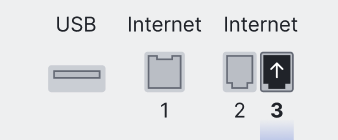
- On the MX85, MX95, and MX105, the fourth physical port becomes the backup port. Ports 1 and 2 become WAN 1 and WAN 2. The third physical port is disabled and unusable after you enable Backup Uplink.

- You cannot move the backup role to a different physical port.
- Ports 1 and 2 require SFP modules (fiber or copper).
- The backup uplink does not support IPv6.
- The backup uplink does not support some NAT features, including Port Forwards, 1:1 NAT, and 1:Many NAT.
Step-by-step instructions
Enable Multi-Uplink
-
Confirm your device is a supported platform.
-
Upgrade your MX network to firmware 26.1 and higher.
-
Open the Uplink tab on the Appliance Status page to view WAN status.

- Select the drop down menu pictured below:

- Choose desired port conversions from the list. Ports can be converted from LAN to WAN and vice versa.

Enable Backup Uplink
-
Confirm your MX model is supported (MX75, MX85, MX95, or MX105).
-
Upgrade your MX network to firmware 18.2 or higher.
-
Go to Security & SD-WAN > Monitor > Appliance Status > Uplink.
-
Select the Uplink tab, then choose Enable Backup WAN.

After you enable the backup link, it stays in standby until both WAN 1 and WAN 2 fail.
Enabling MultiWAN reinitializes all WAN interfaces for about one minute. Complete this step during a maintenance window.
Set failover and failback behavior
When the backup link is active, the MX uses the Connection Monitoring Test Process to decide when to return traffic to WAN 1 or WAN 2. You choose how that failback happens:
-
Go to Security & SD-WAN > Configure > SD-WAN & Traffic Shaping.
-
In the Uplink Selection section, open the dropdown for WAN failover and failback behavior.
-
Choose Immediate or Graceful.
Verification
Confirm your configuration works as expected:
-
For Multi-Uplink, open the Uplink tab on the Appliance Status page and confirm each WAN link reports status. See Normal Port States for configured uplink representation on the ports diagram.
-
For Backup Uplink, open the Uplink tab and confirm it reports information for the backup link the same way it does for WAN 1 and WAN 2. Confirm the backup link stays in standby until both WAN 1 and WAN 2 fail.
Troubleshooting
Troubleshoot MultiWAN the same way you troubleshoot any other uplink on the WAN appliance. The only difference with Backup Uplink is that the backup link is disabled by default, while other uplinks are enabled by default.
Warm-spare failover behavior
Backup Uplink and a warm-spare (HA) pair fail over differently. With Backup Uplink alone, the third link takes over when WAN 1 and WAN 2 fail. In an HA pair, the Spare MX takes over from the Primary MX only after every link fails, including the backup link. This differs from the cellular behavior, where the backup activates before the spare takes over. For more details, refer to MX Warm Spare - High-Availability Pair.
Backup Uplink VPN behavior on WAN 3
AutoVPN
- AutoVPN tunnels do not form on WAN 3 while WAN 1 or WAN 2 is active. A tunnel forms on WAN 3 only after both WAN 1 and WAN 2 go DOWN.
- When Multi-Uplink AutoVPN is enabled, only WAN 1 and WAN 2 build tunnels by default. The backup uplink builds a tunnel only when it is the only active link.
- When Multi-Uplink AutoVPN is disabled, only the WAN port set as the primary uplink builds a tunnel.
Client VPN and Non-Meraki VPN
- Client VPN and Non-Meraki VPN tunnels form on WAN 3 only after both WAN 1 and WAN 2 fail and WAN 3 becomes active.
- If either WAN 1 or WAN 2 is active, these tunnels do not form on WAN 3.
SD-WAN policies
- The SD-WAN policies option appears after you enable Multi-Uplink AutoVPN.
- SD-WAN policies and load-balancing policies do not apply to WAN 3.
Multi-Uplink VPN behavior on WAN 3-4
AutoVPN
- AutoVPN tunnels will form tunnels on WAN 3 and WAN 4 to peers running MX 26.1 firmware or higher.
- Secure Connect and Secure Access tunnels will not form with WAN 3 or WAN 4 uplinks on MXs running 26.1 firmware or higher.