Troubleshooting Client VPN When Some Devices Cannot Connect
Overview
This article provides troubleshooting guidance for scenarios where some client devices cannot connect to Client VPN while other devices connect successfully. The troubleshooting workflow helps identify client-side, operating system-specific, authentication, and network-related issues that may prevent successful VPN connectivity. If no users can connect, refer to the All Client VPN Users Unable to Connect.
Sentry VPN helps admins configure and deploy client VPN profiles directly to Systems Manager-enrolled devices across platforms. Enrolled devices can then connect to VPN without additional end user configuration. Refer to the Systems Manager Sentry Overview for more information.
Environment
-
Cisco Meraki MX WAN appliances configured for Client VPN
-
Client devices using supported native VPN clients
-
Internet connectivity available on affected client devices
-
Client VPN authentication configured using supported authentication methods
-
Devices running supported operating systems such as Windows, macOS, iOS, or Android
Troubleshooting windows update issue
A Windows update may affect VPN or network adapter configurations. If the VPN connection stops working after an update, take a packet capture to verify that bidirectional traffic is occurring between the VPN client and MX. Refer to the Troubleshooting Client VPN with Packet Captures for more information.
If bidirectional traffic is occurring and the VPN connection continues to fail, review the VPN configuration settings. Refer to the Client VPN OS Configuration for more information.
Common Windows Errors
If a client VPN connection is failing to establish from a Windows device, but no error message appears on the screen, use the Windows Event Viewer to find an error code associated with the failed connection attempt:
- On the affected device, press the Windows key and type Event Viewer
- From the search results, click on Event Viewer
- In Event Viewer, navigate to Windows Logs > Application
- Search the Error events for the connection failure
- Click the event to review the associated error code and details
Some common errors are listed below. Refer to the List of error codes for dial-up connections or VPN connections in Microsoft Documentation for a complete list.
Troubleshooting windows error 789
Windows Error 789 indicates that the L2TP connection attempt failed because the security layer encountered a processing error during initial negotiations with the remote computer.
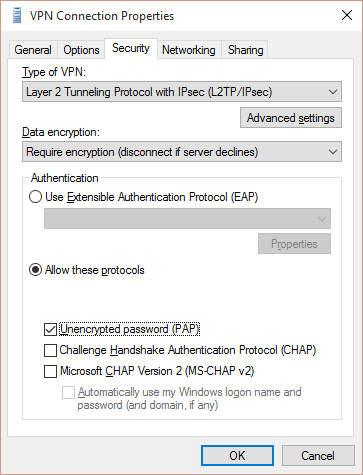
Verify that the proper protocols are selected under Authentication options in the VPN properties.
- Navigate to Control Panel > Network and Sharing Center > Change adapter settings.
- Right-click the desired VPN connection and select Properties.
- Select the Security tab.
- Verify that Unencrypted password (PAP) is selected under Allow these protocols.
Meraki Event Log
Example event log entries. Refer to the Meraki Event Log for more information:
Jul 2 13:53:20 VPN msg: invalid DH group 19.
Jul 2 13:53:20 VPN msg: invalid DH group 20.
This issue might not appear in the event log if the client traffic does not successfully reach the MX WAN interface.
Troubleshooting steps
Misconfigured VPN settings
Delete and reconfigure the VPN settings from scratch following the Client VPN OS Configuration KB. Windows devices may alter VPN settings without user intervention.
Incorrect secret key (pre-shared key)
Verify that the shared secret configured on the client device matches the shared secret configured on the MX. It must match between the MX and the client. For more information about setting the shared secret, refer to the Client VPN OS Configuration.
Firewall blocking VPN traffic to MX
Verify that UDP ports 500 (IKE) and 4500 (IPsec NAT-T) are allowed and forwarded correctly to the MX. Blocking these ports may cause VPN connection timeouts or negotiation failures.
IKE and AuthIP IPsec keying modules disabled
Verify that the IKE and AuthIP IPsec Keying Modules service is enabled and running on affected Windows devices. Third-party VPN software may disable this service and prevent Client VPN connections.
This might occur if third-party VPN software has been installed and disables the IKEEXT service. To re-enable the service:
- On the affected device, press the Windows key and type Control Panel
- From the search results, click on Control Panel
- Navigate to Administrative Tools > Services
- Find the service named "IKE and AuthIP IPsec Keying Modules" and double-click to open
- Select Automatic from the Startup type drop-down menu
If the service automatically reverts to Disabled, or fails to start, remove the third-party VPN software.
Troubleshooting windows error 691
Windows Error 691 indicates that the remote connection was denied because the username and password combination provided is not recognized, or the selected authentication protocol is not permitted on the remote access server.
Meraki Event Log
Example event log entries. Refer to the Meraki Event Log for more information:
Jul 2 14:00:40 VPN msg: not matched
Jul 2 14:00:40 VPN msg: ISAKMP-SA established 82.35.46.78[4500]-174.45.35.220[4500] spi:b74e92b3b5360c16:ce602504804696a9
Troubleshooting steps
Invalid user credentials
Confirm user credentials are correct.
-
When using Meraki authentication, usernames should be in email format (ex. user@example.com)
- When using AD or RADIUS authentication, enter the username in a format that a server recognizes, including the domain if needed (e.g., DOMAIN\user)
User not authorized
If using Meraki authentication, verify that the user is authorized to connect to the VPN. Refer to the Client VPN Overview for more information.
No certificate on active directory (AD) server
If using Active Directory authentication with Client VPN, verify that the AD server has a valid certificate for Transport Layer Security (TLS). Refer to the Configuring Active Directory with MX Security Appliances and Certificate Requirements for TLS for more information.
Incorrect DNS name resolution from the MX's upstream DNS server
-
If the MX is configured with an ISP DNS server, change this to a non-ISP public DNS server such as Google 8.8.8.8
- A mismatch of pre-shared keys between a RADIUS server and MX might result in bad encryption of the password
- Change the pre-shared key in the Meraki dashboard and on the RADIUS client on the server
- If changing the pre-shared key resolves the error, verify that the secret used is correct on both devices.
- Use a less complex password if necessary
Troubleshooting windows error 720
Windows Error 720 indicates that a connection to the remote computer could not be established. You might need to change the network settings for this connection.
Troubleshooting steps
Client VPN subnet IP pool is empty
- Search the Meraki dashboard Event Log for the event type VPN client address pool empty to confirm the issue. Refer to the Meraki Event Log for more information.
- Configure a larger subnet size for Client VPN users. One IP address in the subnet is reserved for the MX, so a /24 subnet provides 254 usable IP addresses and allows 253 VPN clients to connect, assuming the MX model supports that many concurrent users. Refer to the MX Sizing Principles guide for exact numbers.
WAN Miniport is corrupted
Reinstall WAN Miniport devices using the following steps:
-
On the affected device, press the Windows key and type Device Manager.
-
From the search results, select Device Manager.
-
Expand the Network Adapters group.
-
Right-click all network adapters beginning with WAN Miniport and select Uninstall device.
-
From the menu, select Action > Scan for hardware changes to reinstall the WAN Miniport devices.
For more information, refer to the "Error 720: Can't connect to a VPN Connection" when you try to establish a VPN connection in Microsoft Documentation.
SmartByte application
VPN connections might encounter issues on Windows devices with the SmartByte application. If it is installed, try uninstalling it and reinitiating your VPN connection.
Troubleshooting terminated connected error
The connection was terminated by the remote computer before it could be completed.
Troubleshooting steps
The allowed protocols under the Security tab are not set to Unencrypted password (PAP) only.
-
Select the VPN connection, right-click, and navigate to Properties > Advanced options > Adapter Settings.
A note about an alternate path: run ncpa.cpl directly from Search or Command Prompt to quickly access your VPN adapters.
-
In the Security tab, select Require encryption (disconnect if server declines) under Data encryption.
-
Under Authentication, select Allow these protocols and select unencrypted password (PAP).
-
Verify that no other protocols are selected.
-
Select OK.