

Troubleshoot Resource Access Issues When Connected to a VPN
Purpose and overview
This article covers troubleshooting steps for users who cannot access resources across a Client VPN tunnel. Topics include Domain Name System (DNS) resolution, IP address configuration for VPN, and NetBIOS name resolution.
Scope
This guide covers troubleshooting procedures for:
-
Subnet overlap between the local client network and the target network
-
Inability to map network shares over Client VPN
-
Group policies blocking file sharing
-
DNS resolution failures over Client VPN
-
NetBIOS name resolution over Client VPN
Common issues and solutions
Users connected to Client VPN may be unable to access resources due to one or more of the following causes:
-
Subnet overlap between the local client network and the target network
-
Layer 7 firewall rules blocking file sharing or network share mapping
-
Group policies applied to the target resource or VPN client that restrict access
-
DNS resolution failure preventing access via domain name
-
NetBIOS name resolution limitations across the Layer 3 Client VPN interface on an MX
Troubleshoot subnet overlap and resource access issues
A common cause of VPN connectivity issues is subnet overlap between the local client network and the target resource network. If both networks share the same IP address range, traffic does not route through the tunnel.
Users may also be unable to map network shares over the Client VPN tunnel if a Layer 7 firewall rule is configured to block file sharing.
Possible causes
-
Subnet overlap between the local client network and the target resource network
-
Layer 7 firewall rule blocking file sharing
-
Group policy applied to the target resource blocking file sharing
Troubleshooting steps
-
Test with the full tunneling option to validate whether a subnet overlap is causing the issue.
-
Check the Layer 7 firewall rules under Security & SD-WAN > Configure > Firewall > Layer 7.

3. Check any group policies applied to the target resource to confirm file sharing is not blocked.
Expected outcome
After resolving subnet overlap or removing conflicting firewall or group policy rules, the user should be able to access network resources and map network shares over the Client VPN tunnel.
Troubleshoot DNS and IP resolution issues
If you cannot access resources via domain name, try accessing the resource via IP address. If access via IP address succeeds, DNS may be the cause of the issue.
Possible causes
-
DNS resolution returning the public IP of the Cisco Meraki MX WAN appliance instead of the expected resource IP
-
Incorrect or missing local DNS settings on the client
-
Group policy applied to the VPN client affecting connectivity or application access
Troubleshooting steps
-
Attempt to access the resource via IP address instead of domain name.
-
If access via IP address succeeds, attempt to resolve the DNS hostname and confirm whether the public IP of the MX is being returned.
-
If you cannot resolve the DNS hostname, check the local DNS settings.
-
Check the client details page to see if any group policies have been applied to the client. For help assigning or removing group policies, refer to the Creating and Applying Group Policies document.
Group policies can be applied to clients connected via Client VPN. If a resource is not pingable or a particular application is not working, check the client details page to see if any group policies have been applied. For more help on assigning or removing group policies applied to a client, refer to the Creating and Applying Group Policies document. Microsoft Windows Firewall blocks communication from unknown private subnets by default.
Expected outcome
After correcting DNS settings or identifying a group policy conflict, the user should be able to access resources via domain name over the Client VPN tunnel.
Troubleshoot NetBIOS name resolution issues
Windows hosts use NetBIOS-based name resolution to locate Windows file and print shares on other Windows hosts. A NetBIOS name appears in the format "MYCOMPUTER" and is commonly used in Universal Naming Convention (UNC) paths such as \MYCOMPUTER\myfileshare.
NetBIOS name resolution is a Layer 2 broadcast-based name discovery protocol. Layer 2 broadcasts do not cross Layer 3 boundaries, such as the Client VPN interface on an MX.
Possible causes
-
NetBIOS broadcasts cannot cross the Layer 3 Client VPN interface on an MX
-
No Windows Internet Name Service (WINS) server configured in the Client VPN settings
Troubleshooting steps
To allow hosts that use NetBIOS names to find network resources over Client VPN, specify the IP address of a WINS server in the Client VPN configuration. WINS provides centralized name resolution of NetBIOS hostnames. NetBIOS clients register their hostnames on the WINS server, and other NetBIOS clients query the WINS server to resolve NetBIOS names.
-
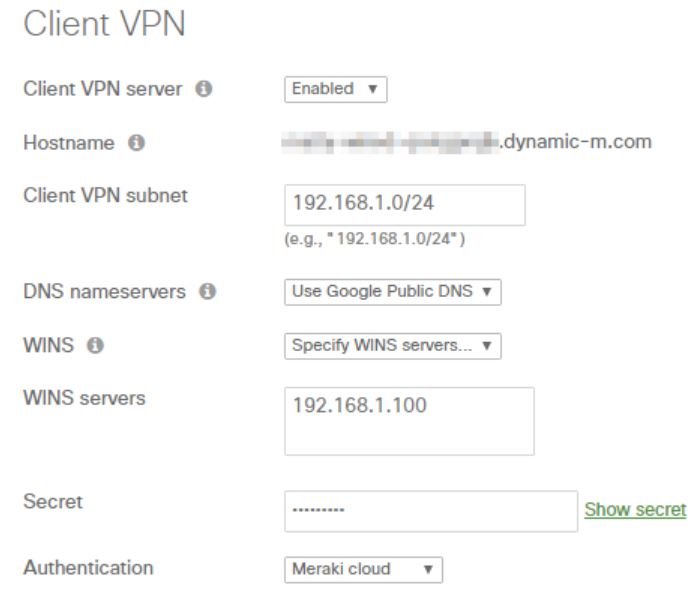
Enter the IP address of your WINS server in the WINS field under Security & SD-WAN > Configure > Client VPN.
In this screenshot, the specified WINS server is 192.168.1.100:
Expected outcome
After configuring a WINS server in the Client VPN settings, hosts using NetBIOS names should be able to resolve and access network resources over the Client VPN tunnel.