

Troubleshooting SAML Login History Events
Overview
Use SAML login history to track successful Security Assertion Markup Language (SAML) logins and to troubleshoot SAML login failures. The log appears on the Organization > Administrators page, under the SAML administrator roles section. The log contains error messages, and in some instances, the XML POST to the consumer URL.
This article does not cover the following:
-
Identity provider (IdP) authentication issues, since these are outside the scope of the Cisco Meraki service provider (SP).
-
Events related to an incorrectly configured consumer URL on the IdP.
For information on how to configure, refer to the article on SAML Integration with Dashboard.
If a user authenticates successfully at the IdP but fails to log in to the Meraki dashboard, an error message appears in the user's web browser. In most cases, a related error also appears in SAML login history.

Each event in the log contains the following information:
- Status: A green icon indicates a successful SAML login. A red icon indicates a failed SAML login.
- Time: The time, in Coordinated Universal Time (UTC), when the SAML login occurred.
- Source IP: The IP address of the client that sent the POST request to the dashboard consumer URL, as the dashboard sees it.
- Username: The value specified in the username assertion, if present.
- Role: The value specified in the role assertion, if present.
- Errors: The reason for the login failure. Successful logins display "none."
Select an event to view the Login details. The Login details show whether the login Status is Success or Failed. Select Full XML to view the user's XML POST request to the consumer URL.
Success events use case
When a successful SAML login occurs, an event will appear in the SAML login history. The event will show the username assertion and role assertion associated with the login. The Error column will indicate 'none' because no errors occurred.

Troubleshooting Session timeout
The IdP does not need to send a session timeout attribute. However, the IdP can limit the length of a SAML dashboard session by including specific attributes at login.
Troubleshooting steps
To verify the session timeout:
- Select the successful login event, then select Full XML.
- Locate the 'SessionNotOnOrAfter' attribute and check the validity time frame.
Example (24-hour session timeout): saml:AuthnStatement AuthnInstant="2024-06-13T00:00:00Z" SessionNotOnOrAfter="2024-06-14T00:00:00.367Z"
Troubleshooting failure events issues
This section describes common errors that appear in SAML login history and the likely cause of each error. Exact troubleshooting steps vary by IdP.
Certificate missing in SAML response (ds:X509Certificate)

The IdP does not use a token-signing certificate, or the assertion does not include the certificate.
Troubleshooting steps
- Verify that the IdP uses a valid token-signing certificate.
- Select the login event, then select Full XML.
- Confirm that the assertion includes the X.509 certificate.
Certificate fingerprint mismatch

The Secure Hash Algorithm 1 (SHA1) fingerprint of the X.509 certificate in the dashboard does not match the SHA1 fingerprint of the token-signing certificate on the IdP.
Troubleshooting steps
Verify that the SHA1 fingerprint in the IdP's token-signing certificate matches the SHA1 fingerprint configured in the dashboard.
Invalid audience error

Troubleshooting steps
- Verify that the IdP uses an Entity ID of https://dashboard.meraki.com.
- For organizations in Meraki China, verify that the IdP uses an Entity ID of https://dashboard.meraki.cn.
Missing username and role assertions

The POST request that the user sends to the consumer URL does not contain a valid username assertion or a valid role assertion.
Troubleshooting steps
- Select the login event, then select Full XML to view the XML assertions.
- Confirm that the POST request includes both a username assertion and a role assertion.
- Confirm that the role assertion value matches a role in the dashboard.
In this example, a POST request shows a valid username of supportlab11@ikarem.com and a role name of saml_admin, which matches a role configured in the dashboard.

Assertion contains no role

The POST request that the user sends to the consumer URL does not contain a valid role assertion. The event displays the username assertion the IdP sent, but the role assertion is either missing or uses an invalid name.
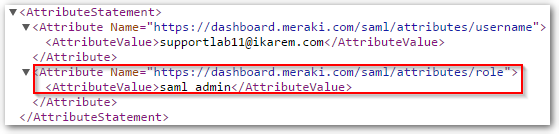
Troubleshooting steps
-
Select the login event, then select Full XML to view the assertion.
-
Verify that the POST request includes a valid role assertion name and value.
In this example, the XML output might show a username of supportlab11@ikarem.com and a role name of saml_admin, which matches a role configured in the dashboard.
Assertion specifies role that does not exist

The POST request that the user sends to the consumer URL contains a role assertion value that does not match a role configured in the dashboard.
Troubleshooting steps
-
Review the Role column in the SAML administrator roles section of the dashboard to find the correct role name.
-
Select the login event, then select Full XML to view the assertion.
- Compare the role assertion value in the POST request to the role name in the dashboard.
In the following example, if the role assertion sent is supportlab11 but the only configured role in the dashboard is saml_admin, update the role assertion value to saml_admin.
In this screenshot, the role assertion being sent is supportlab11.

The only role that exists in the dashboard is named "saml_admin", as shown below.

Therefore the role assertion should contain a value of saml_admin

Found existing guest user with email in org
The event displays the following error message:
"Found existing guest user with email <email> in org <orgid>"
A SAML username cannot use the same email address as a manually created administrator or guest user in the same organization.
Troubleshooting steps
- Review the list of administrators and users in the affected organization.
- Remove the conflicting user.
- Retry the SAML login.
If the SAML login attempt and the affected organization are not the same, allow 5–10 minutes before you retry the login.
No SAMLReponse provided

The consumer URL received an HTTP GET request without an accompanying SAML login attempt. This error typically occurs when a user pastes the consumer URL directly into a browser without first authenticating through the IdP.