

HTTPS Inspection
Overview
HTTPS Inspection allows a supported Secure Router to decrypt, inspect, and re-encrypt supported HTTPS traffic so IPS can evaluate encrypted sessions for threats. This extends IPS visibility to traffic that would otherwise remain encrypted end to end.
This guide explains the certificate requirements, Dashboard workflow, operational behavior, monitoring, and common questions for HTTPS Inspection on Secure Router.
Inspection Traffic Flow
Without HTTPS inspection, a client typically establishes a secure connection directly to the intended server. With HTTPS inspection enabled, the security appliance proxies the requests from clients to establish an HTTPS connection on TCP port 443. When a request is seen, the security appliance responds to the client’s request on behalf of the server and establishes an HTTPS session directly to the client. While this is happening, the security appliance also establishes an HTTPS session with the client’s intended server.
When the security appliance has secure connections to the client and server, traffic between the client and server can be intercepted by the Secure Router, decrypted and inspected.

Requirements and Limitations
Before configuring HTTPS Inspection, ensure the following requirements are met.
Licensing Requirements
Coterm: Advanced Security or SDWAN+
Subscription: Essentials or Advantage
Firmware Requirements
HTTPS Inspection is available on supported Secure Router deployments running MX OS 26.2 or later.
Hardware Requirements
All Secure Routers and MXs support this feature on the documented firmware release. Please review this document to confirm hardware compatibility.
Certificate Requirements
-
Upload a single '.pem' file.
-
Clients subject to HTTPS inspection must trust the certificate authority (CA) used to sign the inspection certificate. If this trust is not established, users will receive certificate warnings or errors in their browser when visiting HTTPS sites, and some applications may fail to connect entirely. In most environments, this is handled by deploying the CA certificate to client devices through a centralized management tool. For example, via Group Policy (GPO) in a Windows Active Directory environment, or through an MDM solution for managed endpoints. For unmanaged devices, the certificate may need to be imported manually into the device's trusted certificate store.
-
Certificate properties required:
-
'keyUsage' including 'keyCertSign' and 'digitalSignature'
-
'basicConstraints = CA:TRUE'
-
-
The issuer certificate should be a CA certificate capable of signing generated leaf certificates for inspected HTTPS sessions.
-
The '.pem' file must contain an unencrypted private key followed by the issuer certificate. Example below.
-----BEGIN PRIVATE KEY-----

MIIEvQIBADANBgkqhkiG9w0BAQEFAASCBKcwggSjAgEAAoIBAQCtcgkwGGM50sRu

<truncated>

VJrP1QfuaJFWnZ8MS7lKo6Q=

-----END PRIVATE KEY-----

-----BEGIN CERTIFICATE-----

MIIDZTCCAk2gAwIBAgIUc4p9f3OLt+2myf7DZhm2fzWR6aowDQYJKoZIhvcNAQEL

<truncated>

n4Aceq9MvXdB

-----END CERTIFICATE-----
- Example of a decoded Certificate via openSSL
openssl x509 -in mydomain.pem -text

Certificate:

    Data:

        Version: 3 (0x2)

        Serial Number:

            73:8a:7d:7f:73:8b:b7:ed:a6:c9:fe:c3:66:19:b6:7f:35:91:e9:aa

        Signature Algorithm: sha256WithRSAEncryption

        Issuer: CN=MX TLS Inspection Root CA, O=Example Org

        Validity

            Not Before: Jun 16 17:58:06 2026 GMT

            Not After : Jun 13 17:58:06 2036 GMT

        Subject: CN=MX TLS Inspection Root CA, O=Example Org

        Subject Public Key Info:

            Public Key Algorithm: rsaEncryption

                Public-Key: (2048 bit)

                Modulus:

                    00:ad:72:09:30:18:63:39:d2:c4:6e:fa:eb:c4:7a:

                    1c:6e:0c:8c:4d:ae:8c:04:93:6b:17:fb:e0:31:40:

                    8c:bd:16:aa:c1:54:b2:22:91:35:86:ec:89:4f:b7:

                    a9:28:77:82:f0:f0:2c:69:fc:4b:1c:ce:9e:b4:70:

                    8e:a2:69:02:67:46:0d:14:74:85:aa:35:3c:a5:c6:

                    fd:b2:1a:68:fc:41:d1:c6:b8:ff:0f:dc:5d:d8:bc:

                    6b:c8:58:e6:0c:4c:78:6d:bb:a8:63:a9:d1:df:f9:

                    e5:51:52:6a:25:d6:90:65:63:ea:0c:2b:a0:d5:85:

                    8a:96:10:41:5e:e5:49:1a:72:ae:4d:eb:f8:46:6d:

                    5f:c9:18:a5:9c:4b:18:70:49:dc:59:72:83:0e:50:

                    a3:87:d8:9d:8e:ef:1b:60:68:00:f7:9f:f6:ed:04:

                    be:d9:15:98:1d:26:f4:39:f0:6c:86:4a:ab:5b:ca:

                    72:63:9c:93:f3:63:c0:5c:06:87:ad:cb:5e:0d:75:

                    72:68:1a:df:6a:d7:a3:12:35:7e:28:19:e9:fd:0e:

                    d2:86:b8:4c:b4:a1:20:26:6a:99:20:e9:2a:f8:a1:

                    fd:a2:f1:af:e9:3f:43:ae:5e:e8:d6:de:ef:f1:0b:

                    c4:36:6b:76:2b:7c:a4:2a:24:2c:31:06:3f:7b:5f:

                    64:f5

                Exponent: 65537 (0x10001)

        X509v3 extensions:

            X509v3 Basic Constraints: critical

                CA:TRUE

            X509v3 Key Usage: critical

                Certificate Sign, CRL Sign

            X509v3 Subject Key Identifier:

                2B:2C:76:A6:F8:A8:A9:B7:B0:A3:7E:4A:FE:FA:19:0D:44:FD:01:1F

            X509v3 Authority Key Identifier:

                2B:2C:76:A6:F8:A8:A9:B7:B0:A3:7E:4A:FE:FA:19:0D:44:FD:01:1F

    Signature Algorithm: sha256WithRSAEncryption

    Signature Value:

        12:46:0a:82:44:04:24:53:e2:01:b6:7e:a4:88:9a:67:cf:62:

        1c:a4:1f:03:c3:56:52:aa:8d:ed:2b:e0:69:b9:0a:2e:d6:ef:

        47:5e:05:e2:3a:5d:0c:5d:76:8d:45:53:bc:00:f8:19:77:c3:

        77:f2:6d:c5:47:02:86:05:09:3e:47:41:8f:c4:00:4d:ce:4e:

        38:20:f8:93:d1:49:7d:94:d9:d7:2a:a7:d7:4d:ef:2b:a3:2c:

        75:87:d6:e4:0c:82:ef:ca:b9:bd:ed:f6:6f:ea:61:35:ee:ec:

        3b:28:96:9e:a6:eb:c7:c5:5a:dd:ab:c1:7a:58:b5:20:f0:18:

        80:13:18:25:2e:98:53:51:3d:78:43:58:6c:52:bf:24:4b:1c:

        13:1a:c2:ce:c7:91:e6:ac:0d:0e:e8:1e:3a:ad:25:8b:58:14:

        68:a8:33:35:86:0f:c6:38:44:a4:6a:de:da:2d:7d:ca:53:e0:

        5c:88:5f:c1:09:99:9d:ce:a1:bb:48:1d:2e:a4:0c:3b:74:0e:

        e4:dc:a9:ed:c4:ad:93:32:a3:1f:50:81:fb:d2:8c:5f:36:3a:

        69:32:57:91:79:56:87:96:cc:c8:20:d3:7e:b6:d3:66:cd:e2:

        55:3b:80:14:0b:4f:00:7a:21:af:cc:4a:34:9f:80:1c:7a:af:

        4c:bd:77:41
Limitations
-
HTTPS Inspection is intended for trusted, organization-managed devices.
-
Applications that use certificate pinning may fail unless they are bypassed.
-
Supported TLS 1.3 traffic can be inspected, but TLS 1.3 sessions using Encrypted ClientHello (ECH) are bypassed rather than decrypted.
-
Enabling or disabling HTTPS Inspection terminates affected existing HTTPS flows.
-
Decrypting and re-encrypting traffic reduces overall throughput
Recommended Deployment & Best Practices
The following guidelines help ensure HTTPS Inspection delivers meaningful security value while minimizing disruption to end users and business-critical applications.
Route Client DNS Through the Secure Router
DNS inspection is a critical component of TLS decryption. The Secure Router uses DNS visibility to identify and bypass known trusted sites from the decryption pipeline. For this to work effectively, any subnet subject to HTTPS Inspection should have its DNS queries routed through the Secure Router. Without DNS visibility, the Secure Router cannot reliably identify traffic for bypass decisions.
Block Encrypted DNS (DoH/DoT) via Content Filtering
Clients that use encrypted DNS (DNS-over-HTTPS or DNS-over-TLS) bypass Secure Router DNS visibility entirely, undermining bypass logic and threat correlation. Under Security & SD-WAN > Content Filtering, block the Encrypted DNS category. This causes clients to fall back to standard unencrypted DNS, restoring the visibility required for effective inspection.
Enable Trusted Traffic Exclusions on the Threat Protection Page
Navigate to Security & SD-WAN > Threat Protection and enable Trusted Traffic Exclusions. Add any internal host or server IP addresses that do not require decryption (e.g., internal application servers, management systems). Additionally, select all available application categories in the exclusions list. These application categories represent commonly trusted, encrypted, or certificate-pinned apps where decryption provides low security value and is more likely to cause connectivity issues.
Use the Application Allowlist for Additional Bypass Entries
On the Threat Protection page under the HTTPS Inspection section, use the Application Allowlist selector to add further categories and entries to the do-not-decrypt list. At a minimum, Cisco recommends adding:
- Healthcare — medical applications frequently use certificate pinning and strict TLS enforcement
- Web Payments — payment processors enforce strict TLS validation; decryption may break transactions
Individual IP addresses or FQDNs can also be entered here, including internal hosts not covered by the Trusted Traffic Exclusions list.
Do Not Enable Decryption Network-Wide — Use Group Policies
Enabling HTTPS Inspection network-wide on the Threat Protection page applies decryption to all clients indiscriminately, including devices where the Secure Router CA certificate has not been installed. This will break HTTPS connectivity for those clients.
Recommended approach: Leave the network-wide setting disabled. Instead, create one or more Group Policies with HTTPS Inspection enabled and apply those policies to specific VLANs or individual clients where:
- The endpoint is managed and can receive the Secure Router CA certificate via MDM or GPO
- There is a legitimate security reason to inspect that traffic (e.g., guest-facing or high-risk segments are typically poor candidates)
This targeted approach reduces blast radius and gives administrators precise control over the inspection scope.
Ensure IPS Is Enabled
Decrypted traffic is only evaluated by Intrusion Prevention (IPS) — HTTPS Inspection has no security value if IPS is not active. Before enabling decryption, confirm that IPS is enabled and set to an appropriate ruleset under Security & SD-WAN → Threat Protection. If IPS is disabled, decrypted traffic will not be inspected for threats and the performance overhead of decryption provides no benefit.
Configuration
Upload the HTTPS Inspection Certificate
-
Ensure the target Secure Router(s) are online.
-
Navigate to Organization > Settings.
-
In the HTTPS Inspection section, select the applicable devices by clicking on the checkbox next to each Secure Router
-
Once the devices have been selected click Browse and upload certificate
-
Select and upload a '.pem' file containing the unencrypted RSA private key followed by the issuer certificate.
-
Refresh the page and confirm the device certificate counts update as expected.
Enable Inspection
Performance Impact of TLS Decryption Enabling TLS decryption requires the system to decrypt, inspect, and re-encrypt network traffic, which significantly increases processing demands. While this capability improves visibility into encrypted traffic, it introduces additional overhead which can impact all traffic, not just decrypted traffic.
In high-throughput environments, this may result in increased latency, reduced throughput, and higher CPU and memory utilization. In some cases, it can impact overall system performance. Before enabling TLS decryption consider testing in a controlled environment to understand the potential impact.
Enabling or disabling HTTPS inspection for a policy or network terminates all affected, existing HTTPS flows.
Enable HTTPS Inspection by Group Policy
-
Navigate to Network-wide > Group policies.
-
Edit an existing group policy or create a new one.
-
Set HTTPS inspection to Enable.
-
Save.
-
Configure allow lists. (see section "Configure Allow lists")
-
Apply the policy to the required clients.
For more information on Group Policies please see this article.

Enable HTTPS Inspection Network-wide
-
Navigate to Security & SD-WAN > Threat Protection.
-
Set Inspect all traffic by default to Enabled.

- Configure allow lists. (see section "Configure Allow lists")
- Save configuration.
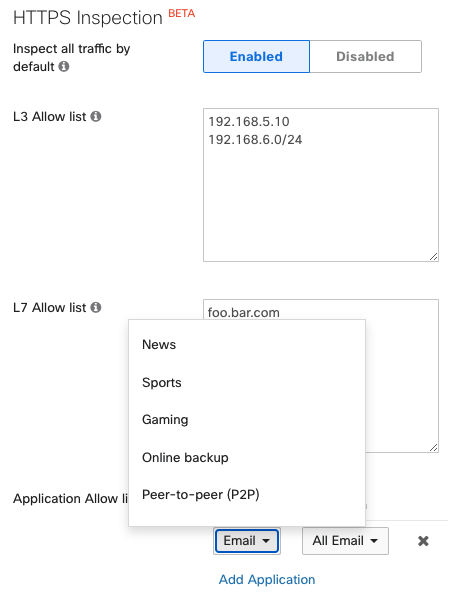
Configure Allow Lists
The L3, L7, and application allow list configurations apply to all clients affected by HTTPS inspection, including those with inspection applied via group policy.
-
Allow lists exempt traffic from inspection when required.
-
Navigate to Security & SD-WAN > Threat Protection. There are several options:
-
Configure Trusted Traffic Exclusions see more information on this feature here. This is applied org-wide. While the other options below are network specific.
-
Configure L3 allow list entries for source IP addresses that should bypass inspection.
-
Configure L7 allow list entries for destination hostnames that should bypass inspection. Wildcards can be used, for example '*.example.com' will match www.example.com.
-
Configure Application allow list entries for applications that should bypass inspection.
-
Verification
Configuration
-
Verify expected Secure Router(s) have received the certificate in Organization > Settings. Review the table and ensure the device’s columns shows “Yes” under the “Has Certificate” column.
-
Confirm affected clients trust the certificate being used for inspection
-
Confirm bypassed traffic behaves as expected for entries covered by allow lists
Client side
- On a client navigate to a website and check the certificate in browser. This is typically done by clicking on the icon to the left of the search bar and clicking Connection is secure > More information > View certificate.
- Please note that if ECH is used by the website the traffic will automatically bypass decrypt. This can be disabled in browsers, please see your browser's documentation for disabling TLS 1.3 ECH

Inspection
- Detected threats and the actions taken by the security appliance can be monitored on the Security & SD-WAN > Security center page. To learn more about the security center, check out our Security Center article to learn more about monitoring threats.
Troubleshooting
-
Confirm the Secure Router is running supported firmware (26.2 or later)
-
Confirm the uploaded ‘.pem’ file contains the unencrypted private key followed by the issuer certificate.
-
Verify the traffic is not intentionally bypassed by allow lists or Trusted Traffic Exclusions.
-
Review Event Log and Security Center for certificate-related or TLS decrypt failure events.
-
If a specific application fails, test whether certificate pinning or TLS 1.3 ECH is causing the session to bypass or fail inspection.
-
Confirm the issuer certificate is a CA certificate and that clients trust it. If the certificate is not trusted the browser may prevent you from accessing the website as shown in this example

Frequently Asked Questions
- What does the uploaded PEM file need to include?
- Upload a '.pem' file containing the unencrypted RSA private key followed by the issuer certificate.
- What certificate properties are required?
- The issuer certificate should be a CA certificate capable of signing generated certificates for inspected HTTPS sessions. Recommended properties include 'basicConstraints = CA:TRUE' and 'keyUsage' including 'keyCertSign' and 'digitalSignature'.
- Do all clients need to trust the certificate?
- Yes. Any client that will be subject to HTTPS Inspection must trust the certificate authority used for the inspection certificate.
- Where is HTTPS Inspection configured in Dashboard?
- The certificate upload is configured from Organization > Settings. Inspection behavior and bypass settings are configured from Security & SD-WAN > Threat Protection, and Group Policy can also enable inspection for selected clients.
- What traffic should be bypassed?
- Administrators should consider bypassing business-critical applications that use certificate pinning, destinations that fail during inspection, and any traffic excluded for privacy, regulatory, or operational reasons.
- What happens with TLS 1.3 and ECH?
- Supported TLS 1.3 traffic can be inspected, but TLS 1.3 sessions using Encrypted ClientHello (ECH) are bypassed rather than decrypted.
- Where can I see failures to decrypt traffic?
- Check certificate-related alerts and Event Log entries in Dashboard, and review Security Center for per-flow TLS decrypt failure events.
- Are VRF’s Supported?
- No. As of this writing Virtual Routing and Forwarding (VRF) are not supported in the initial release of TLS Decryption (firmware version 26.2.1).
- Is AMP Supported?
- No. As of this writing AMP is not supported in the initial release of TLS Decryption (firmware version 26.2.1).
- What happens if I factory reset or RMA my device?
- A certificate for decrypt will need to be uploaded to the device after it has upgraded and is online in Dashboard.
- Which Ciphers are supported?
-
The supported TLS 1.3 ciphers are:
Server side:
- TLS_AES_128_GCM_SHA256
- TLS_CHACHA20_POLY1305_SHA256
- TLS_AES_256_GCM_SHA384
Proxy side:
- TLS_AES_128_GCM_SHA256
- TLS_CHACHA20_POLY1305_SHA256
- TLS_AES_256_GCM_SHA384
- TLS 1.2 ciphers
The supported TLS 1.2 ciphers are:
Server side:
- ECDHE-ECDSA-AES128-GCM-SHA256
- ECDHE-RSA-AES128-GCM-SHA256
- ECDHE-ECDSA-CHACHA20-POLY1305
- ECDHE-RSA-CHACHA20-POLY1305
- ECDHE-ECDSA-AES256-GCM-SHA384
- ECDHE-RSA-AES256-GCM-SHA384
Proxy side:
- ECDHE-ECDSA-AES128-GCM-SHA256
- ECDHE-RSA-AES128-GCM-SHA256
- ECDHE-ECDSA-CHACHA20-POLY1305
- ECDHE-RSA-CHACHA20-POLY1305
- ECDHE-ECDSA-AES256-GCM-SHA384
- ECDHE-RSA-AES256-GCM-SHA384
- ECDHE-ECDSA-AES256-SHA384
- ECDHE-RSA-AES256-SHA384
- ECDHE-ECDSA-AES128-SHA256
- ECDHE-RSA-AES128-SHA256