

Client VPN Overview
Client VPN
Cisco Meraki Client VPN supports two main VPN tunneling protocols: L2TP and IKEv2 (available from firmware version 26.1.X and later). These protocols enable secure remote access to networks over the internet.
Key Considerations
-
Uplink Support: Client VPN connections can only be established on the primary uplink of the MX device.
-
Routing: Client VPN traffic can be routed through Site-to-Site VPNs, including both AutoVPN and Non-Meraki VPNs.
Learn more with these free online training courses on the Meraki Learning Hub:
* Warning: Beginning with MX 19 firmware on vMX platforms, Meraki has started deprecating the use of legacy algorithms such as 3DES encryption in Client VPN and IPSec (Non-Meraki) VPN connections.
Future firmware releases will continue to phase out legacy cryptographic algorithms, including 3DES and Diffie-Hellman Group 2, across all platforms. This may impact Client VPN connectivity if configured encryption proposals do not match the supported, modern encryption options.
IKEv2
Client VPN can be configured to use Internet Key Exchange version 2 (IKEv2), which supports modern VPN connections with strong security and flexibility.
Encryption and Security
- Phase 1
- Encryption: AES-CBC-256
- Hashing Algorithm: HMAC-SHA2-256-128, HMAC-SHA2-256
- DH Groups: 14, 2*
- Phase 2
- Encryption: AES-CBC-256
- Hashing Algorithm: HMAC-SHA2-256-128, HMAC-SHA1-96
- Server Certificate Generation Method
- Autogenerated: Meraki-managed publicly-trusted certificate with DDNS hostname of your MX network. This name can be found on the Client VPN configuration page as "Hostname"
- Custom: Custom hostname signed by a certificate authority of your choice
- For detailed guidance on Client VPN certificates, including troubleshooting, please refer to the Managing and Troubleshooting AnyConnect Certificates document. Note that the certificate process is the same for both AnyConnect and IKEv2 Client VPN.
Limitations
- As of the 26.1.2 release, only RADIUS authentication is supported. Additional authentication methods will be added in the future.
- * See warning for deprecation updates
Layer 2 Tunneling Protocol (L2TP)
Client VPN can be configured to use the Layer 2 Tunneling Protocol (L2TP), and can be deployed without any additional software on devices with native support for L2TP VPN connections. Linux-based operating systems might require third-party packages support L2TP/IP VPN connections
Encryption and Security
- Phase 1
- Encryption: AES-256-CBC, 3DES*
- Hashing Algorithm: SHA1, SHA256
- DH Groups: 14, 2*
- Phase 2
- Encryption: AES-128, AES-256, 3DES
- Hashing Algorithm: SHA1, SHA256
- Pre-shared Key: This is configured by the administrator. As a best practice the shared secret (pre-shared key) should not contain special characters at the beginning or end.
Limitations
- L2TP over IPsec supports only IKEv1; IKEv2 is not supported for L2TP. The MX assigns IP addresses using LCP, so DHCP and static IP assignment are not supported for VPN clients.
- * See warning for deprecation updates
Configuration
To enable Client VPN, choose Enabled from the Client VPN server drop-down menu on the Security & SD-WAN > Configure > Client VPN page. The following Client VPN options can be configured:
- Mode: L2TP or IKEv2
- Hostname: This is the hostname of the MX that client VPN users will use to connect
- This hostname is a Dynamic DNS (DDNS) host record correlating to the public IP address of the MX
- For more information on managing the hostname, see Dynamic DNS (DDNS)
- Client VPN subnet: The subnet that will be used for client VPN connections
- This should be a private subnet that is not in use anywhere else in the network
- The MX will be the default gateway on this subnet and will route traffic to and from this subnet
- Split Tunnel (IKEv2 only)
- Disable Split Tunnel: This will send all traffic to the MX
- Only send traffic going to these destinations: This allows you to specify which subnets should be routed to the MX. One subnet per line in CIDR format (e.g. 10.0.0/24)
- DNS server: The servers that VPN clients will use to resolve DNS hostnames
- WINS server: If VPN clients use Windows Internet Name Service (WINS) to resolve NetBIOS names, select Specify WINS Servers from the drop-down and enter the IP addresses of the WINS servers
- Shared secret (L2TP Only)
- The shared secret, or pre-shared key, that will be used to establish the client VPN connection
- As a best practice the shared secret (pre-shared key) should not contain special characters at the beginning or end.
- Server Certificate Generation Method (IKEv2 only)
- Autogenerated: Meraki-managed publicly-trusted certificate with DDNS hostname of your MX network. This name can be found on the Client VPN configuration page as "Hostname"
- Custom: Custom hostname signed by a certificate authority of your choice
- Authentication: How VPN clients will be authenticated (see Authentication section below)
- RADIUS timeout: Number of seconds to wait for a response from the RADIUS server before retrying
- Retry Count: Number of retries before trying the next RADIUS server
- Systems Manager Sentry VPN security: Configure systems manager to push client VPN configuration settings to enrolled devices (see the Systems Manager Sentry VPN security section and refer to Systems Manager VPN Configurations and Sentry VPN)
Authentication
Meraki client VPN uses the password authentication protocol (PAP) to transmit and authenticate credentials. PAP authentication is always transmitted inside an IPsec tunnel between the client device and the MX security appliance using strong encryption. User credentials are never transmitted in clear text over the WAN or the LAN.
Client authentication can be performed using: the Meraki cloud, RADIUS, or Active Directory.
Cisco SecureX Sign-On accounts cannot be used for authentication when using Meraki Cloud Authentication.
Meraki Cloud Authentication
If an Active Directory or RADIUS server is not available, VPN users can be managed with Meraki cloud. Email addresses that are used for Dashboard administrators will automatically populate as Client VPN users, and these administrators will need to log in with their dashboard credentials.
- To add or remove additional users, use the User Management section at the bottom of the Security & SD-WAN > Configure > Client VPN page.
- Add a user by clicking "Add new user" and entering the following information:
- Description: Username
- Email: User email address
- Password: Enter a password for the user or click "Generate" to automatically generate a password
- Authorized: Select whether this user is authorized to use the client VPN
To edit an existing user, click on the username in the User Management section.
To delete a user, click the X next to the username on the right side of the user list.
The user email address is the username used for authentication in Meraki Cloud Authentication.

RADIUS
Use this option to authenticate users on a RADIUS server.
- In Security & SD-WAN > Configure > Client VPN click Add a RADIUS server to configure the server(s) to use
- In the Host field, enter the IP address of the RADIUS server
- In the Port field, enter the port to be used for RADIUS communication
- In the Secret field, enter the shared secret for the RADIUS server
For more information on how to configure RADIUS authentication server for client VPN, see Configuring RADIUS Authentication with Client VPN.
If multiple RADIUS servers are configured, RADIUS traffic will not be load-balanced. Server IP addresses are sorted in ascending order from lowest IP to highest IP. RADIUS traffic towards the servers are prioritized in the same manner, starting with the lowest IP address first. This behaviour cannot be modified.
When the IP address of the RADIUS authentication server is reachable over site-to-site VPN, the source IP used for the RADIUS traffic will be that of the highest-numbered VLAN that is VPN-enabled.
If there is no VPN-enabled VLAN or the MX is in passthrough/concentrator mode, the IP address will be within 6.0.0.0/8 (6.x.y.z).
This is described in more detail here.
For details about the RADIUS Message-Authenticator verification option, see RADIUS Protocol Spoofing Vulnerability (Blast-RADIUS): July 2024.
Active Directory
Use this option if user authentication should be done with Active Directory domain credentials.
In Security & SD-WAN > Configure > Active Directory > Active Directory servers, the following information is required for configuration:
- Short domain: The short name of the Active Directory domain
- Server IP: The IP address of an Active Directory server on the MX LAN or a remote subnet routable through Auto VPN
- Domain admin: The domain administrator account the MX should use to query the server
- Password: The password for the domain administrator account
For more information on how to configure the Active Directory authentication server for client VPN, see Configuring Active Directory with MX Security Appliances.
Security appliances do not support mapping group policies via Active Directory for users connecting through the client VPN.
When the IP address of the Active Directory authentication server is reachable over site-to-site VPN, the source IP used for the LDAP traffic will be that of the highest-numbered VLAN that is VPN-enabled.
If there is no VPN-enabled VLAN or the MX is in passthrough/concentrator mode, the IP address will be within 6.0.0.0/8 (6.x.y.z).
This is described in more detail here.
Systems Manager Sentry VPN Security
When using Meraki Cloud Authentication, Systems Manager Sentry VPN security can be configured if your dashboard organization contains one or more Mobile Device Management (MDM) networks. Systems Manager Sentry VPN security allows for devices enrolled in Systems Manager to receive the configuration to connect to the client VPN through the Systems Manager profile on the device.
To enable Systems Manager Sentry VPN security, go to Security & SD-WAN > Configure > Client VPN > IPsec Settings page. Under the Client VPN Server drop-down menu, select Enabled. You can configure the following options:
- Install scope: The install scope allows for a selection of Systems Manager tags for a particular MDM network. Devices with these tags applied in a Systems Manager network will receive a configuration to connect to this network's client VPN server through their Systems Manager profile.
- Send all traffic: Select whether all client traffic should be sent to the MX.
- Proxy: Whether a proxy should be used for this VPN connection. This can be set to automatic, manual, or disabled.
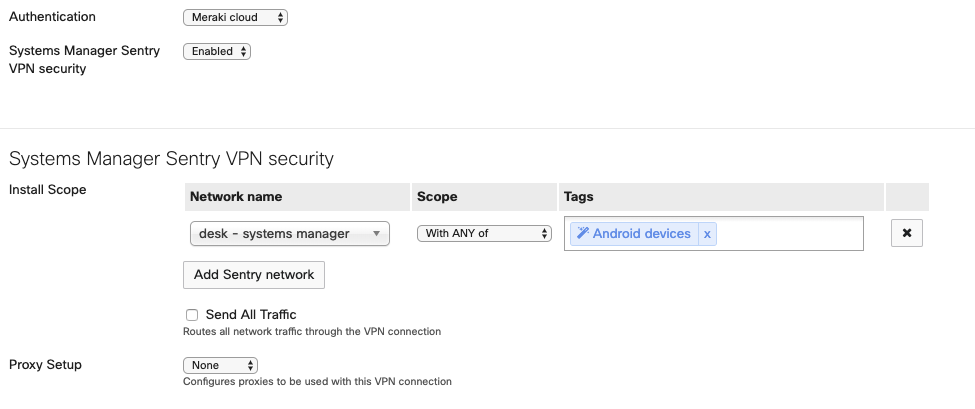
When using Systems Manager Sentry VPN security, the username and password used to connect to the client VPN are generated by the Meraki cloud.
Usernames are generated based on a hash of a unique identifier on the device and the username of that device. Passwords are randomly generated.
Client VPN Connections
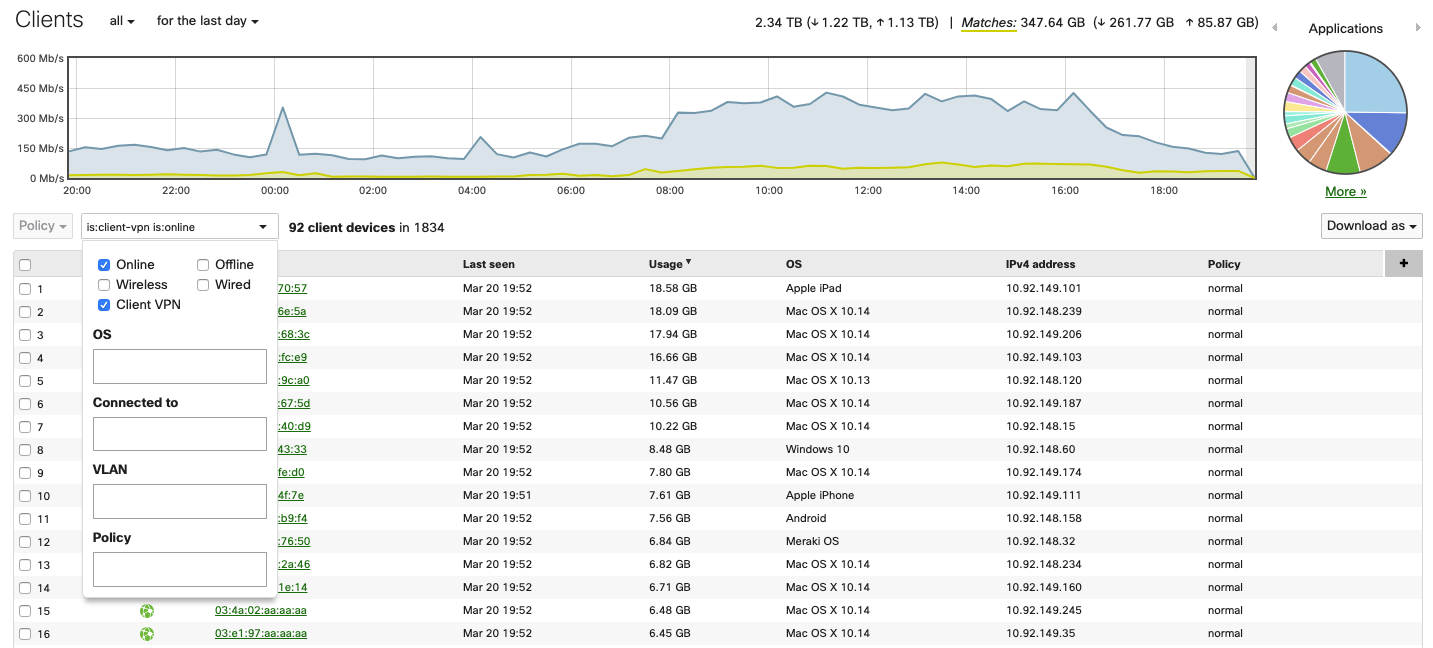
After configuring the client VPN and users starting to connect, it may be useful to see how many and which client devices are connected to your network. To see connected client VPN devices, navigate to Network-wide > Monitor > Clients. Click on the Search drop-down menu and select the following options: Status = Online, offline (or both), Client type = Client VPN.
Group Policies
It is possible to manually apply group policies to clients connected via client VPN. A group policy applied to a client VPN user is associated with the username and not the device. Different devices that connect to client VPN with the same username will receive the same group policy. For more help on assigning or removing group policies applied to a client, refer to the Creating and Applying Group Policies document.
It is not possible to assign group policies automatically once a user connects to client VPN.
Traceroute
The following is expected behavior: When you run a traceroute from a client who is connected to Client VPN to other destinations, one of the hops will appear as IP 192.168.100.1.