

Integrating Microsoft EntraID as an External IdP on the Organization Users Page
Enabling Microsoft Entra ID as an IdP
Microsoft Entra ID is a supported identity provider to Meraki Dashboard. When using Microsoft Entra ID the master records of user accounts can remain on Microsoft Entra ID portal and synced (cached) into Meraki Dashboard.
Note: To enable Microsoft Entra ID as an IdP, be sure to note the following requirements and restrictions:
- Ensure your account Microsoft Entra ID is enabled. More information is available in Microsoft Entra plans and pricing for licensing information.
- Use Azure Global. Azure Gov environment is not supported at this time.
- The maximum number of users that can be synchronized from Microsoft Entra ID is 200,000 users.
- Sign into the Azure Portal.
- Navigate to "Microsoft Entra ID" (Click or Type in the search bar).
- To create the enterprise application, Navigate to Manage > All applications in the sidebar. And then click on + New application. The application holds the users/groups delegations.

- Click '+' to create an application and name it. In the 'Create your own application' dialog, select the option to integrate an application not found in the gallery.
- Once the application is saved & created, copy the Application ID -- this is the Application (client) ID inside Meraki Dashboard.
- Click Entra ID directory name. Navigate to Manage > App registrations > All applications > ${Your_IdP_Name}.
- Copy the Application (client) ID and Directory (tenant) ID. You will need these values later.

- Navigate to Manage > Certificates & secrets click on + New client secret.
- Add a description to your client secret, select the expiration date, and save it. The client secret will be added to your application, and the value will be visible. Copy the client secret value, as you will need this information later.
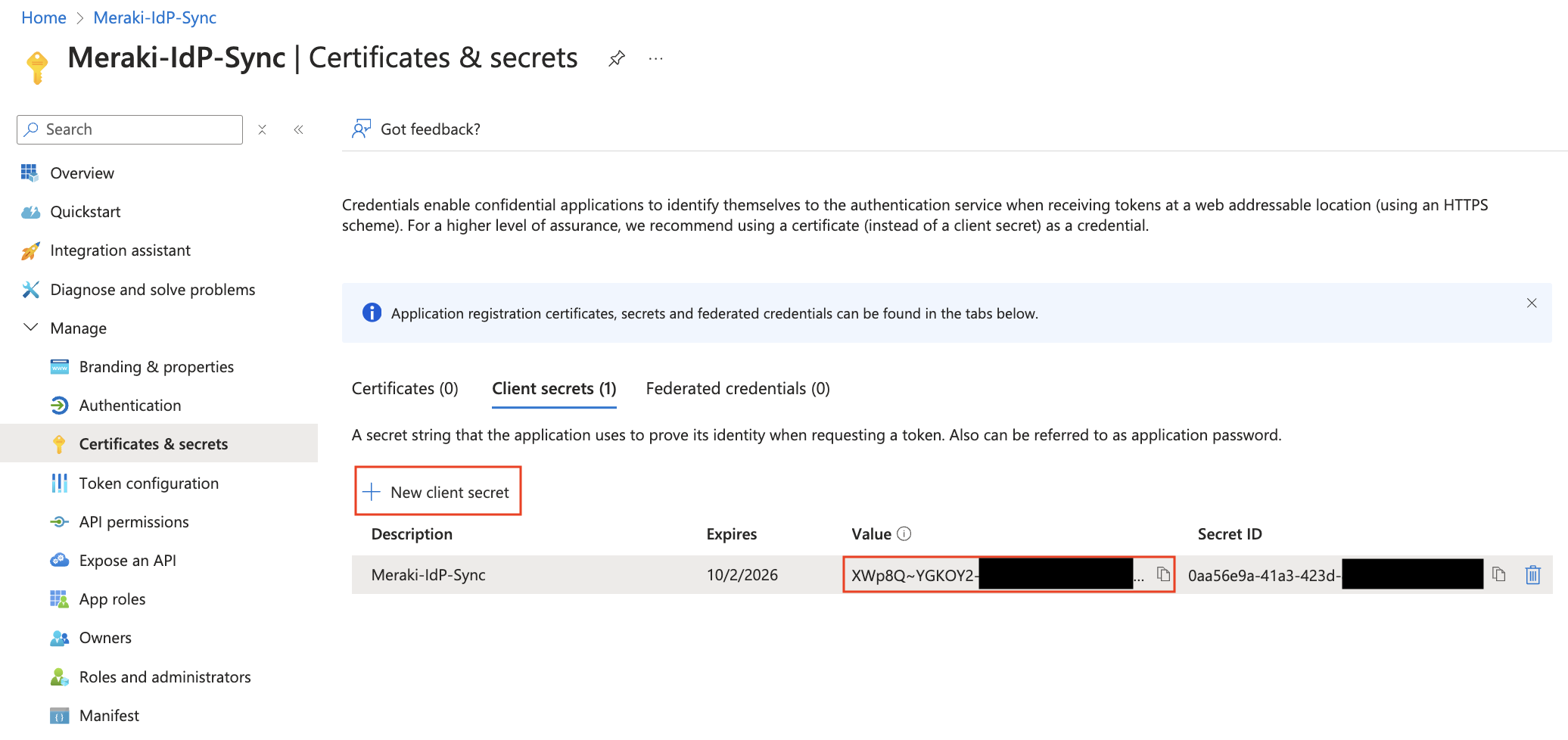
Note: Every Entra ID secret value has an expiration date. Once this expiration date is reached a new secret value will be necessary for IdP syncs to continue.
- Add the following Microsoft Graph API permissions (found under Manage > API Permissions) are required to grant to the Entra ID application. Without these permissions, the syncs may not be able to complete successfully:
- Grant Admin Consent for your Entra Directory
- Microsoft Graph > Application > Group.Read.All
- Microsoft Graph > Application > User.Read.All
- Microsoft Graph > Delegated > User.Read (Required for Access Manager integration)

- Add Directory (tenant) ID, Application (client) ID, and Client secret value. to your Meraki Dashboard IDP configuration page found in Organization > Monitor > Users > Configure > Integrate with Microsoft Entra ID.

IdP Syncs
IdP Syncs keep the information about end users and groups updated in Meraki Dashboard with the latest information from the identity provider. An IdP sync can be triggered manually or setup to sync automatically (see below steps for each). The last completed IdP sync timestamp will be displayed in Dashboard > Organization > Monitor > Users under IdP Sources:

Automatic Syncs
The Meraki Dashboard will automatically sync Users/Groups from the IdP every ~6 hours when enabling the Proactive Sync option for the IdP settings in Dashboard:

Manual Syncs
If automatic syncs are not being used ("enable proactive sync" is disabled) then syncs from the IdP must be initated manually by an organization administrator. This can be done on the Organization > Monitor > Users page by clicking on the Sync > ${Your_IdP_Name}.

Manual syncs can take anywhere from ~5 seconds to multiple minutes to complete. You do not need to remain on the page while the sync progress, as this will happen in the background on the Meraki Cloud. However if you are still on the Organization > Monitor > Users page while the sync finishes a banner will appear to show the successfully completed sync.
