

Throughput test to the Cisco Meraki Dashboard
This article provides background on the live tool used for testing Meraki dashboard throughput connectivity. You can run this tool from any Cisco Meraki device that is currently connected to the Meraki cloud. This live tool tests the speed of communication between the device and the dashboard. It does not accurately test the speed an Internet/WAN link is capable of.
Running a throughput test to the dashboard
The dashboard throughput test is one of the Live tools located on the details page for a particular device. The example below is uses a Cisco Meraki MX WAN appliance.
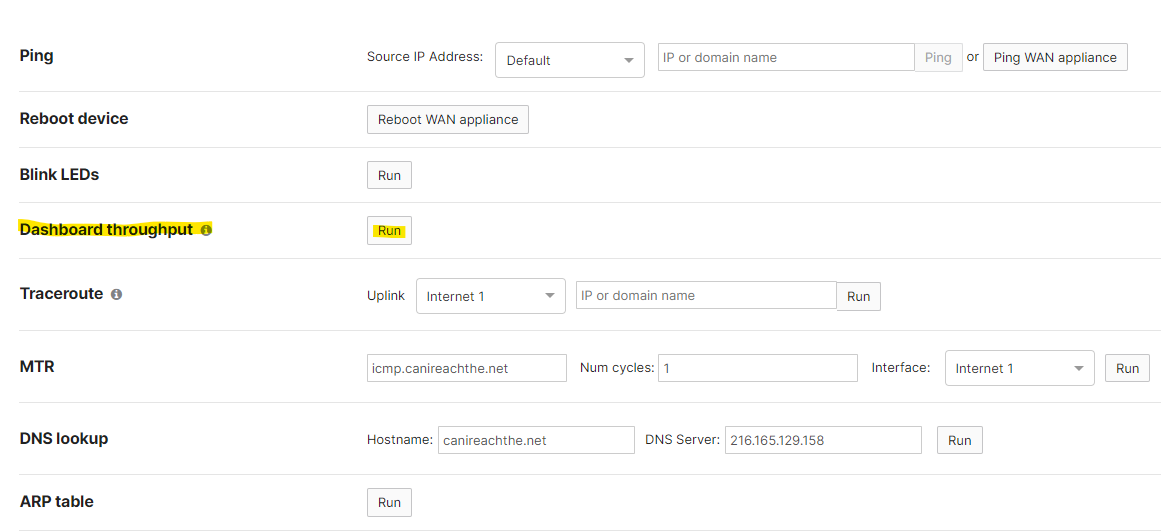
To leverage the full performance of a device, you must use multiple sessions. An endpoint or client performs this best, since the dashboard throughput tool creates only a single session.
For MX and Z-Series appliances
- Navigate to Security & SD-WAN > Monitor > Appliance status.
- Naviagte to Dashboard Throughput in the Live tools section of the page
- Select the Start button.
Results display after ten seconds and indicate the average speed to the dashboard during that time.
The dashboard throughput test respects routing on MX and Z-Series appliances. Unidirectional or asymmetrical routing configurations can affect test results.
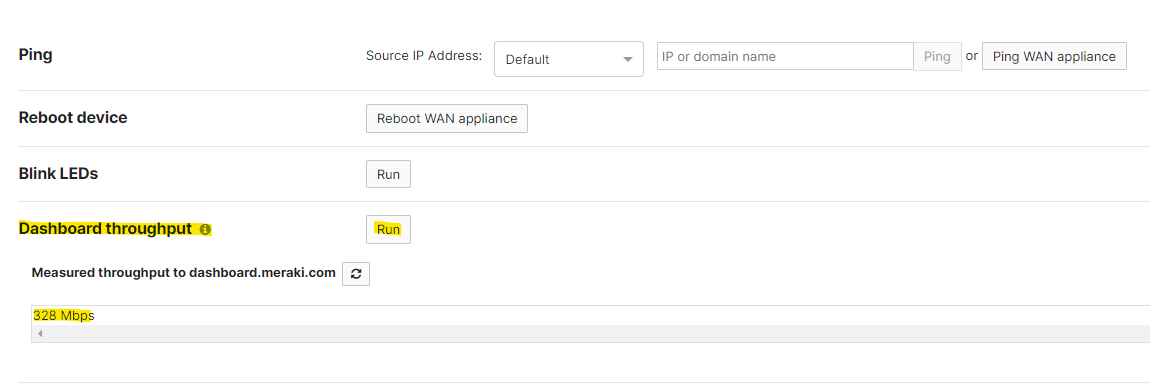
Dashboard throughput may improve by selecting or clearing the Site-to-Site VPN IPv4 default route option. Refer to the Behavior of Management Traffic for more information.
For MS switches
- Navigate to Switching > Monitor > Switches.
- Select the Name of the switch to test.
- Navigate to Dashboard Throughput in the Live tools section of the page.
- Select the Start button.
Dashboard throughput tests may show slower speeds on MS switches compared to other Meraki devices on the same network. This is due to how the MS performs the dashboard throughput test.
For MR access points
- Navigate to Wireless > Monitor > Access points.
- Select the Name of the access point to test.
- Navigate to Dashboard Throughput in the Live tools section of the page.
- Select the Start button.
Factors affecting the dashboard throughput test
The following factors can affect the result of the throughput test:
- Bandwidth allotment from the Internet Service Provider (ISP), including limitations of the WAN connection
- Upstream devices on the LAN
- Latency due to high traffic or network congestion
- Latency due to physical distance to the dashboard
- Traffic by other users traversing the WAN connection (VPN operations and general traffic)
- Operations affecting the processor speed of the device, such as content filtering, malware detection, and IDS
- Load on the dashboard at the time
- Overhead resulting from packet encapsulation and framing
- Unidirectional or asymmetrical routing configuration
A throughput test result of 0 Mbps likely indicates that the node is unable to reach dashboard.meraki.com on port 7752. You can confirm this by taking a packet capture on the uplink interface of the Meraki device. An MX appliance will follow client routing and route priority for the throughput live tools. When taking packet captures on an MX, use the appropriate uplink interface:
- Internet: use if traffic routes via the physical uplink
- Site-to-Site VPN: use if the default route is via Auto VPN
Comparing to similar throughput tests
The dashboard throughput test available on Cisco Meraki devices is designed to test data throughput to the dashboard only. It does not accurately test the speed an Internet/WAN link is capable of. The image below shows an example of two tests performed on a 300 Mbps connection using an MX WAN appliance.
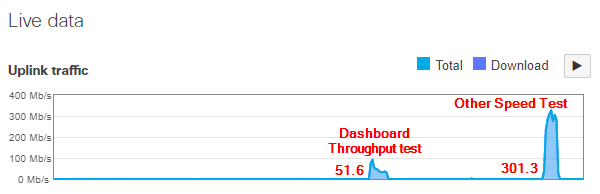
If it is necessary to test the actual throughput capacity of an Internet/WAN link, run a test from a client on the LAN to an external speed test service, such as SpeedOf.me or Speedtest.net. When running these tests:
- Place the client as close to the Internet link as possible, such as directly connected to an MX LAN port.
- Minimize other traffic on the link, such as other client or VPN traffic.
Testing from a wireless client when 50 other clients are also active on the LAN will not yield accurate results.