

Cisco Meraki Local Status Page: Security and SD-WAN
Click 日本語 for Japanese
MX Security & SD-WAN LSP Overview
This article covers the features, configuration options, and access methods available on the Cisco Meraki Local Status Page (LSP) for MX Security and SD-WAN appliances. It outlines how to use the LSP for monitoring connectivity, adjusting network settings, troubleshooting, and managing various WAN, SFP, wireless, port, and cellular configuration. By default on MX devices running 19+ firmware, the LSP uses the username of "admin" and the password is the serial number/Cloud ID of the device, older firmware uses the username as the serial number without a password.
Accessing the MX Security & SD-WAN Local Status Page
Most MX models have a dedicated management port used to access the local status page. In addition, all models can access the Local Status Page using the MX LAN IP address. If the MX hasn't been configured or fetched configuration from the cloud, MX devices run DHCP by default. Once the client is connected to a LAN interface of the MX, find the client's IP address and default gateway, then open the default gateway address in a web browser. Alternatively, the Local Status Page may be accessed with a hostname via:
www.mx.meraki.com
www.wired.meraki.com
www.setup.meraki.com
www.my.meraki.com
MX Series with Single Dedicated WAN Link
MX security appliances with single dedicated WAN links offer the following information and configuration options on their local status pages:
- Connection
Provides information regarding the client's connectivity to the appliance, the appliance's current network, uplink status, as well as other cloud connectivity and status information.

- Configure
- Provides options for setting the IP address of the appliance on its WAN interfaces, enabling WAN port 2, other addressing settings, or configuring a proxy for HTTP traffic.
- The Download support data function will allow you to download a special file to submit to Meraki support for additional troubleshooting if you are unable to get the unit online (see more in Support Data Bundle (SDB) article).

- Uplink
Allows local changes to the speed/duplex settings of the internet/WAN and LAN ports.

MX Series with Multiple Dedicated WAN Links
MX security appliances with multiple dedicated WAN links offer the following information and configuration options on their local status pages:
- Connection
Provides information regarding the client's connectivity to the appliance, the appliance's current network, uplink status, as well as other cloud connectivity and status information.
- Configure
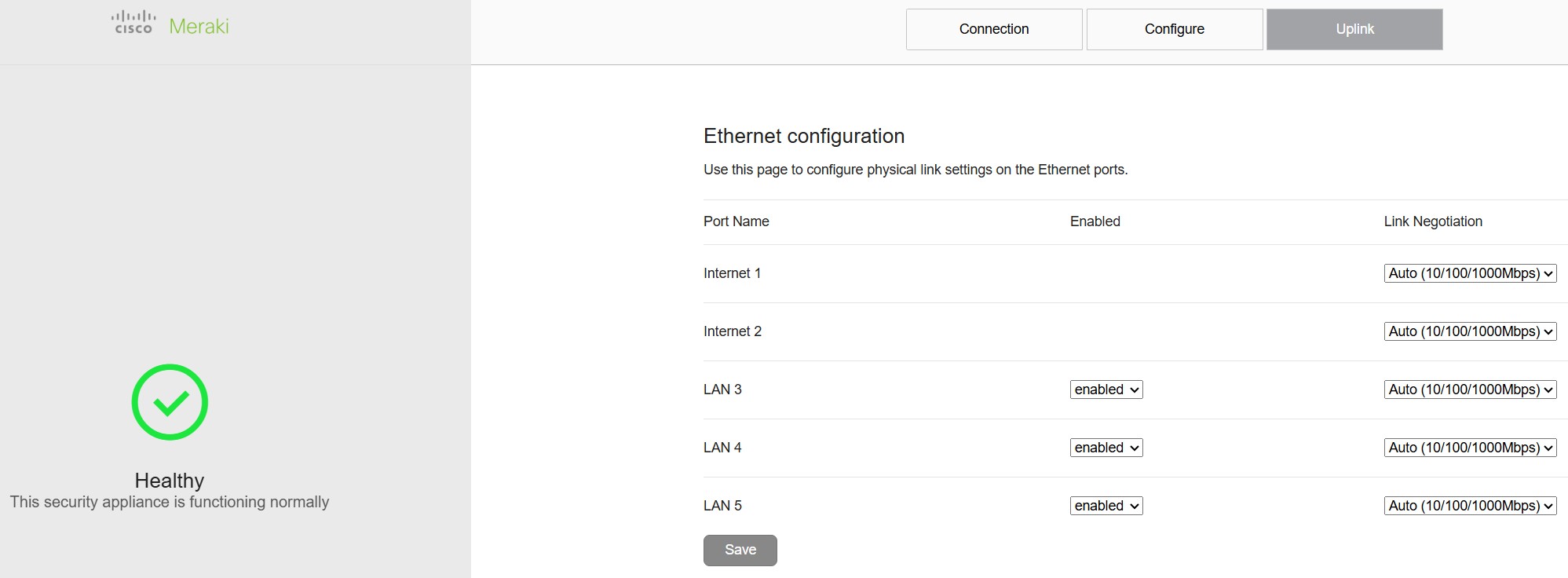
- Provides options for setting the IP address of the appliance on its WAN interfaces, other addressing settings, or configuring a proxy for HTTP traffic.
- The Download support data function will allow you to download a special file to submit to Meraki support for additional troubleshooting if you are unable to get the unit online (see more in Support Data Bundle (SDB) article).

- Uplink
Allows local changes to the speed/duplex settings of the internet/WAN and LAN ports.
MX Series with Multiple Dedicated SFP WAN Links
MX security appliances with dedicated Small-Form Factor Pluggable (SFP) WAN links offer the following information and configuration options on their local status pages (MX85/95/105 which also support PoE+ on some ports):
- Connection
- Provides information regarding the client's connectivity to the appliance, the appliance's current network, uplink status, as well as other cloud connectivity and status information.

- Configure
- Provides options for setting the IP address of the appliance on its WAN interfaces, enabling WAN port 2, other addressing settings, or configuring a proxy for HTTP traffic.
- The Download support data function will allow you to download a special file to submit to Meraki support for additional troubleshooting if you are unable to get the unit online (see more in Support Data Bundle (SDB) article).

- Uplink
Allows local changes to the speed/duplex settings of the internet/WAN and LAN ports.
Example, MX105 - 4 WAN Uplinks (2x SFP+ and 2x mGig RJ45) - for more detail information refer to WAN Behavior on MX75/85/95/105.

vMX Local status page
vMX security appliance offers the following information and configuration options on their local status pages:
- Connection
- Provides information regarding the client's connectivity to the appliance, the appliance's current network, uplink status, as well as other cloud connectivity and status information.

- Configure
- Provides options for setting the IP address of the appliance on its WAN interfaces, other addressing settings, or configuring a proxy for HTTP traffic.
- The Download support data function will allow you to download a special file to submit to Meraki support for additional troubleshooting if you are unable to get the unit online (see more in Support Data Bundle (SDB) article).

- Uplink
- Allows local changes to the speed/duplex settings of the internet/WAN and LAN ports.

MX Series with Wireless
The Local Status Page tabs and navigation instructions are the same as for their non-wireless MX model version presented above. In addition, the Connection tab provides information similar to an MR device's LSP.
MX Series with Integrated Cellular
The Local Status Page tabs and navigation instructions are the same as for their non-cellular MX model version presented above. Furthermore, the tabs can display information similar to what's described for an MG device's LSP.
IPv6 Support on MX Security & SD-WAN Platforms
LAN
The MX security appliance's local status page can be accessed using IPv6 via the browser by using the IPv6 address of an IPv6-enabled VLAN.
The local status page will report the existing IPv6 address of the uplink(s). IPv6 uplink cannot be configured statically via the local status page.
- Type in the browser, after replacing the "X" with the IPv6 address in square brackets: http://[XXXX:XXXX:XXXX:XXX:XXXX:XXXX:XXXX:XXXX]/#connection

PPPoE
When configuring PPPoE through the local status page, both IPv4 and IPv6 will be negotiated in the same PPP session.

Similarly as to how we can manually set up the IPv4 address of our end of the PPP connection, it’s possible to configure a static link-local IPv6 address to be used in the PPP tunnel.

In the unlikely scenario where negotiating both IPv4 and IPv6 in the same PPP session causes the ISP to make the whole session fail, it’s possible to disable IPv6 over PPPoE by using the magic keyword “disabled” in the “IPv6 link-local address” field.
Refer to the main document: IPv6 Support on MX Security & SD-WAN Platforms [Core Fundamentals]
Important Caveats and Considerations
- If the MX security appliance is in passthrough mode and its uplink is on a subnet that overlaps with a remote subnet over VPN, either the MX will need to be temporarily removed from VPN to be accessed locally or the local status page can only be accessed via VPN.
- MX's deployed in concentrator/passthrough mode with local status page access disabled (under Network-wide -> General) may still permit access to the LSP from AutoVPN clients (when the MX Management IP falls under the scope of a subnet advertised over AutoVPN).
It requires Site-to-Site VPN Layer 3 outbound firewall rules for blocking the MX concentrator/passthrough uplink IP for destination ports TCP 80 and 443.
- For vMX devices that have not connected to the cloud, the default serial will need to be used as the username or password depending on firmware: "Q2XX-XXXX-XXXX" or "q2xx-xxxx-xxxx" as the vMX is not aware of its serial number yet.
- Navigating to the Local Status Page when directly connected to a LAN port on a spare MX security appliance in active MX warm spare deployments will present the local status page of the primary MX appliance. The spare must be disconnected from the LAN in order to access its local status page. This does not apply to MX security appliance models with a dedicated management port, as their Local Status Page can be accessed directly using that port.
- The HTTP proxy allows all default management traffic from the Meraki device to be sent through a proxy. This does not include optional cloud communication, including Auto VPN and 802.1x authentication traffic.
- The speed test functionality has been deprecated and removed as of MX18 firmware releases and later on all platforms, regardless of uplink types or counts.
-
HTTPS/TLS for LSP
In MX 19.1, the following security appliances and teleworker gateways will replace the use of plaintext HTTP access with TLS for the local status page:
MX67, MX68, Z4
The following models - as well as any future new devices not yet listed - will change to TLS as of MX 19.2:
MX75, MX85, MX95, MX105, MX250, MX450, Z3
Connecting to any LAN IP of such a device using HTTP will automatically redirect your browser to a domain of macaddress.devices.meraki.direct (e.g. a device with a MAC of 11:22:33:AA:BB:CC will redirect to 112233aabbcc.devices.meraki.direct).It's important to use HTTP in the initial request, because - to avoid conflicts with other services - the local status page on these devices listens on TCP port 80 and redirects to a TLS service listening on TCP 8092
NOTE: In the event your browser cannot resolve the appropriate devices.meraki.direct domain, the page may alternatively be accessed via the URL https://<MX_LAN_IP>:8092 (e.g. https://192.168.10.254:8092), however, this will present a warning about an untrusted domain that you will need to click through (note that some web browsers may forbid this via a managed policy) as seen below:
