

Cisco Meraki Local Status Page: Overview
Click 日本語 for Japanese
Accessing the Local Status Page
Most Cisco Meraki devices have a local status page that can be accessed to make local configuration changes, monitor device status and channel utilization, and perform local troubleshooting. This article provides instructions on how to access the local status page, the functions/information available on it, and how to manage and access them.
The local status page of any Meraki device is accessible via the web browser of a host machine. By default, users are required to log in to pages that provide configurable options. The local status page uses digest authentication with Message Digest Algorithm 5 (MD5) hashing for the connection between the administering computer and the Meraki device to protect these sensitive settings.
The authentication credentials for a device that uses the default authentication credentials or a device that has not fetched configuration will depend on the firmware version the device is running.
Additional Resources
For product-specific steps, please refer to the documentation below:
Default credentials when logging in for the first time
|
Product family |
Firmware Version |
Username |
Password |
|
All Products |
All other/prior versions |
Serial number of the device (upper case letters and dashes). Same as Cloud ID/Meraki Serial Number in Dashboard |
No password/empty |
|
Switching - MS |
MS 17+ firmware |
admin |
Serial number of the device (upper case letters and dashes). Same as Cloud ID/Meraki Serial Number in Dashboard |
|
Switching - Catalyst |
CS 17+ firmware |
admin |
Serial number of the device (upper case letters and dashes). Same as Cloud ID/Meraki Serial Number in Dashboard |
|
MX |
MX 19+ firmware |
admin |
Serial number of the device (upper case letters and dashes). Same as Cloud ID/Meraki Serial Number in Dashboard |
|
MR |
MR 31.7.1+ firmware |
admin |
Serial number of the device (upper case letters and dashes). Same as Cloud ID/Meraki Serial Number in Dashboard |
| MG | MG 4.1.1+ Firmware | admin | Serial number of the device (upper case letters and dashes). Same as Cloud ID/Meraki Serial Number in Dashboard |
To ensure the highest level of security and meet evolving regulatory requirements, we are implementing mandatory passwords for all Local Status Page access on devices created after August 1, 2025. For more details, refer to the documentation on Changing Log-In Credentials.
Local Status Page Access by DNS hostname
Each device can be accessed by DNS name if the client traffic passes through the device while browsing the following URLs. This can be useful for determining which AP/switch/firewall a client's traffic is going through to reach the internet.
Note: These URLs will work for any Meraki devices listed above, but will only access the first device in its path.
Since the URL below can be used to access the local status page, UDP port 53 is enabled on Meraki devices and will be detected as open by any scanning tool.
MX device
The LSP for MX devices can be access by typing in the browser one of the the following URLs:
MS switch
The LSP for MS switches can be access by typing in the browser one of the the following URLs:
MR device
To reach MR devices, the client must be wirelessly connected to the access point (AP) using a configured service set identifier (SSID) or one of the SSIDs mentioned in the Default SSIDs section, such as "meraki-setup" SSID.
The LSP for MR devices can be access by typing in the browser one of the the following URLs:
CG (Campus Gateway)
The LSP for Campus Gateway devices can be access by typing in the browser one of the the following URLs:
MG (Cellular Gateway)
The LSP for Cellular Gateway devices can be access by typing in the browser one of the the following URLs:
Local Status Page Access by IP address
If access by DNS name is not possible, you can access the local status page by IP address. This is often helpful when initially configuring the device on a network without DHCP, or when setting a device's IP configuration prior to deployment.
MX devices
- Most MX models have a dedicated management port for local status page access.
- All MX models can also be accessed via their LAN IP address.
- By default, MX devices run DHCP. Connect a client to the MX LAN interface, find the client’s IP and default gateway, then open the default gateway IP in a browser.
MS switches
- Some MS switches have a dedicated management port that supports DHCP for client devices. There is no need to set a static IP on your client.
- Alternatively, use the following static IP settings depending on model and firmware:
| Model / Firmware Version | Local Status Page IP | Client IP | Subnet Mask | DNS |
|---|---|---|---|---|
| MS390 & C9300-M (CS 16 and higher) | 198.18.0.1 | 198.18.0.2 | 255.255.255.240 | 198.18.0.1 |
| MS390 & C9300-M (CS 15.21.1 and lower) | 10.128.128.130 | 10.128.128.132 | 255.0.0.0 | 10.128.128.130 |
| All other MS switches | 1.1.1.100 | 1.1.1.99 | 255.255.255.0 | 1.1.1.100 |
MR devices
-
The MR devices default IP for local status page: 10.128.128.126
- Client device IP configuration to access MR local status page, and then browse the address in a web browser:
- IP address: 10.128.128.125
- Subnet mask: 255.255.255.0
CG
The LSP for Campus Gateway devices can be access by typing in the browser the default gateway IP address: 198.18.0.1
- Client device IP configuration:
- IP address: 198.18.0.2
- Subnet mask: 255.255.255.240
- DNS: 198.18.0.1
- CG has a dedicated management port.
MG
The LSP for Cellular Gateway devices can be access by typing in the browser the default gateway IP address:
- MG devices run DHCP by default.
- Local status page accessible via the MG cellular gateway’s LAN IP address.
- Connect client to MG LAN interface, find client IP and default gateway, then open default gateway IP in a browser.
Configuring the Local Status Page
Refer to Configuring the Local Status Page documentation for more.
Controlling Remote Access to the Local Status Page
On MX series devices, by default, access to the local status page is only available to devices via the LAN IP address(es). However, it is possible to allow access via the WAN/internet IP as well.
- Navigate to Security & SD-WAN > Configure > Firewall > Layer 3 > WAN appliance services.
- In the field for Web (local status & configuration):
- When a service is set to "None", the appliance will not respond to requests of that type from the WAN.
- When it is set to "Any", it will respond to requests of that type from any source on the WAN.
- To specify certain IPs or IP subnets that the appliance should respond to, enter the IPs and/or CIDR subnets in a comma separated list.
- Ex. 192.168.13.73/32, 192.168.47.0/24
- Click Save Changes.

Cloud Environments
vMX in NAT Mode - steps to Remotely access the local status page in Cloud Environments.
In Azure Environment
-
Follow the documentation to complete the setup here.
-
Additional step is required - create "Network security group" > Inbound Firewall Rule:
-
Allow HTTP TCP Port 80,
- The "Src IP address(es)" field - under Security & SD-WAN > Configure > Firewall > Layer 3 > WAN appliance services > Web (local status & configuration) specifies the remote IP addresses allowed to access the WAN appliance’s local web management interface. This setting controls which IPs can connect to the appliance’s web-based status and configuration page.

- Go to the browser and type "http://<Public IP address vMX>"
-
In AWS Environment
-
Follow the documentation to complete the setup here.
-
Additional step is required - Go to EC2 > Instances > Security > Click the "Security groups" link:
-

-
Click "Edit Inbound Rules" and Create a new rule "Allow HTTP TCP Port 80"
- The "Src IP address(es)" field - under Security & SD-WAN > Configure > Firewall > Layer 3 > WAN appliance services > Web (local status & configuration) specifies the remote IP addresses allowed to access the WAN appliance’s local web management interface. This setting controls which IPs can connect to the appliance’s web-based status and configuration page:
- The "Src IP address(es)" field - under Security & SD-WAN > Configure > Firewall > Layer 3 > WAN appliance services > Web (local status & configuration) specifies the remote IP addresses allowed to access the WAN appliance’s local web management interface. This setting controls which IPs can connect to the appliance’s web-based status and configuration page:
- Go to the browser and type "http://<Public IP address vMX>"
-
-

For all other devices, the local status page can be accessed by IP after enabling remote device status pages on the Network-wide > Configure > General page. This allows you to connect to the local status page of a Meraki device via its LAN IP over the network.
Disabling the Local Status Page
Though the local status page is enabled by default, administrators do have the option to disable the local status page on their devices.
Note: The local status page allows administrators to change the IP configuration of their Meraki devices. If the local status page is disabled and a device's current IP configuration does not allow it to contact the cloud controller, the only option will be to perform a factory reset and clear the local configuration (Resetting Cisco Meraki Devices to Factory Defaults article).
The option to enable/disable the local status page is available in the dashboard under Network-wide > General > Device configuration.
Note: If your device has a physical management port, it will always remain active regardless of the value of this setting.
Troubleshooting the Local Status Page
All DNS queries for setup.meraki.com (or any other local status page URL) that route through a meraki device are intercepted and responded to with an "A record" pointing to the local IP address of the device's local status page interface. If DNS queries for setup.meraki.com (or any other local status page URL) do not pass through the Meraki device in question, the DNS queries will not resolve to the correct local IP address and clients will not be able to reach the local status page. You may also get an error (example) shown below due to DNS not resolving to the local IP of Meraki device or be redirected to the developer hub.
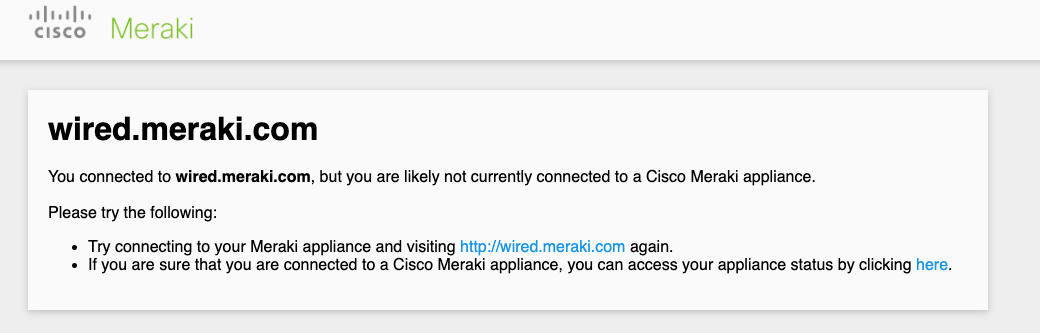
If a client is unable to resolve the local status page, be sure to check the following:
- Client is connected to the network and is within the same subnet as the Meraki device.
- DNS is set to the Meraki device IP or to a DNS server that will route through the Meraki device
- Try all relevant local status page URLs (see top of this article)
- Try incognito/private browsing to eliminate potential caching issues
- Ensure if you are hard-wired to turn WiFi off
This issue frequently occurs when the DNS server used by clients on the LAN does not send its DNS queries through the MX, as is the case when the DNS server uses a different default gateway. If this is the case, it can be resolved by either pointing the DNS server through the MX or by creating a specific "A record" in the DNS server to point the appropriate local status page URL to the correct device IP.
If the local status page URLs are still unreachable for some reason, the local status page can also be reached by going to the LAN IP of the device through a web browser. For more information about connecting to the local status page using a static IP, see the Accessing the Local Status Page section at the top of this article.