Troubleshooting DHCP Conflicts
Overview
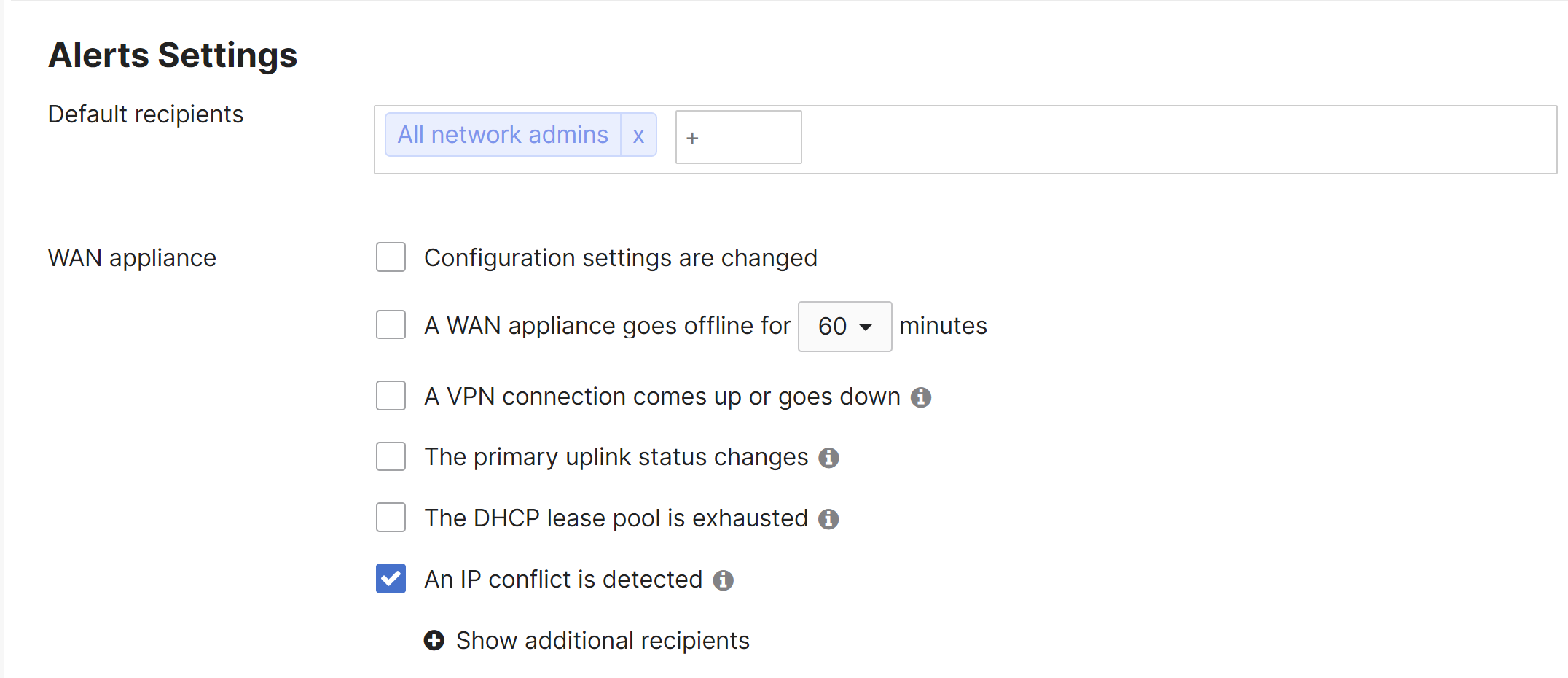
A DHCP conflict is recorded when the Cisco Meraki MX WAN appliance detects two or more devices using the same IP address. Devices sharing an IP address will likely experience connectivity issues. The MX reports IP address conflicts in the Event Log, and you can configure an email alert to notify network administrators of the conflict.
Troubleshooting client IP conflict issue
The MX WAN appliance reports that two different MAC addresses have been seen sending traffic with the same IP address. Client IP conflict logs do not necessarily mean that the MX (or another DHCP server) assigned the same IP address to multiple devices.
The MX records IP address conflicts in its event log. After logging into the Meraki dashboard, navigate to Network-wide > Monitor > Event log. You can filter the event log to specific event types. To view only DHCP-related events, select the All DHCP event tag.
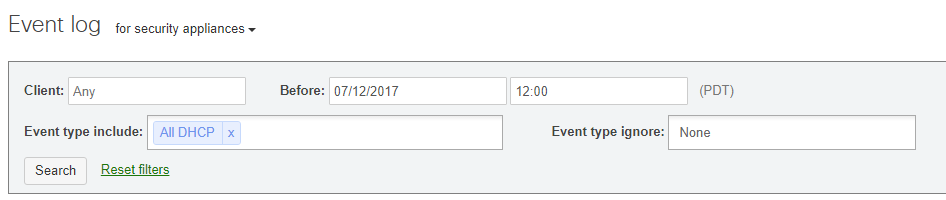
If the MX is providing DHCP, normal DHCP leases produce the following event log entries:
Jul 1 07:00:00 iPhone DHCP lease duration: 86400, router: 192.168.10.1, server_ip: 192.168.10.1 more »
Expanding the more >> button reveals information about the assigned DHCP lease:
vlan 0
vap 0
subnet 255.255.255.0
ip 192.168.1.251
dns 8.8.8.8 8.8.4.4
server_mac 00:28:0A:43:CA:7B
Note: A DHCP event that has a duration of 0 indicates that the device requested a DHCP option from the WAN appliance that is not configured in the DHCP settings.
After the MX detects an IP address conflict, the event log reflects the MAC addresses using the same IP address:
Jul 1 11:00:00 Test-Windows8 Client IP conflict MAC: 70:32:4B:DE:70:62 also claims IP: 192.168.1.225
Jul 1 11:00:00 FileServer01 Client IP conflict MAC: 9B:00:AA:5F:AD:9F also claims IP: 192.168.1.225
Possible causes
Most IP conflicts relate to one of two issues:
- A rogue DHCP server on the network
- A static IP address assigned to a device that falls within an active DHCP scope
Troubleshooting steps
- Check the event log for DHCP conflicts. Navigate to Network-wide > Monitor > Event log and filter by the All DHCP event tag to identify conflicting IP and MAC addresses.
- Verify DHCP lease assignments. If DHCP is enabled on the MX, check the event log to determine whether the MX assigned the IP address listed in the conflict event. You can also view active DHCP leases at Security & SD-WAN > Monitor > Appliance status > DHCP. Leases from a DHCP server other than the MX will not appear here.
- Locate the conflicting client. The MX event log provides the MAC address of the devices with the conflicting IP address. Use Network-wide > Monitor > Clients to search for the MAC address. Review the Clients Usage Page Overview
article on searching for specific clients. Select the client and view the status information to identify the switch and port number where the client is connected.

- Check the DHCP server address. Before changing the IP address of the client, note the IP address of the DHCP server that assigned the lease.
Confirm that the IP address of the DHCP server corresponds to the correct server. If the address belongs to an unexpected device, a rogue DHCP server is likely present on the network. Use the IP address to track down the switch port connected to the rogue server. Refer to the Troubleshooting Rogue DHCP Server article on finding a rogue DHCP server.
- Resolve the conflict. Isolate one of the devices and change its IP address.
Troubleshooting IP conflict email notification issue
You can configure email alerts to notify administrators when the MX detects IP conflicts.
Troubleshooting steps
Configure email alerts. Set up email alerts for IP conflicts by navigating to Network-wide > Configure > Alerts > WAN appliance.