

Troubleshooting Port Forwarding and NAT Rules
This article covers some of the common issues that can occur when configuring port, 1:1 NAT, or 1:Many NAT forwarding rules on an MX security appliance.
Expected Behavior
As a baseline, it should be understood what the expected behavior is for a port forwarding rule. When traffic is received on the primary uplink of the MX with a destination IP address matching that uplink, it will evaluate any of the port forwarding rules to see if they match, based on the Protocol, Public port, and Allowed remote IPs that have been configured. If they do, the destination IP and port are translated to the LAN IP and Local port respectively. This translation will occur in reverse for traffic that is leaving the MX from the LAN toward the Internet. The following image is an example of such a rule.

When applied, this rule would result in the behavior seen below.

A 1:1 or 1:Many NAT rule would appear slightly different on the Internet side of the MX, as the expected destination IP should be the public IP specified in the rule, and the destination MAC may be slightly different. Otherwise, the forwarding mechanics are the same.
Troubleshooting Problems
The following section outlines some of the potential problems when configuring a forwarding rule, including both symptoms and troubleshooting steps.
To gather information, the best tool for troubleshooting forwarding rules is packet capture on the MX appliance. Taking simultaneous captures on both the LAN and Internet interfaces will show information about how the MX is handling the traffic to be forwarded, as well as determine if there are problems either upstream or downstream of the MX.
Misconfigured Server
If the port forwarding rule is configured correctly, but the server does not respond, verify that it is listening for the traffic on the correct port and is online. The below diagram illustrates a HTTP connection attempting to establish to a server which is not online or listening to port 80.

Upstream Device with Stale ARP Cache
If the MX was recently installed, or its WAN IP moved over from another device, the upstream device may still be using the MAC address of the pre-existing device. Ensure that traffic from the upstream device to the MX is being sent to the correct MAC address. This can be resolved by rebooting the upstream modem/device or forcing it to clear its ARP cache. For more information, review the article on 1:1 NAT rules not working properly after installing MX. The diagram below illustrates traffic being sent to the wrong MAC address, and thus not being translated by the MX to the LAN side.
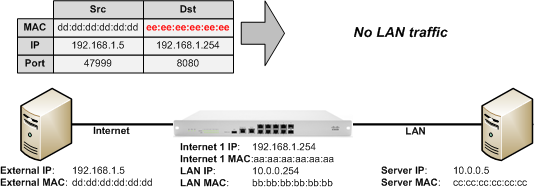
When performing packet captures, this will appear as traffic reaching the Internet interface of the MX, when appearing to have the correct IP address and port, but not seen on the LAN side. Compare the destination MAC address in the ethernet header to the MAC address listed on the Monitor > Appliance status page in Dashboard.
Upstream Firewall Blocking Traffic
If the expected traffic is not seen reaching the Internet interface of the MX, the traffic is likely being blocked by a firewall along the path between the client device and the MX. Ensure the configurations on any such devices are not blocking the traffic in question.

Remote IP Not Allowed
If the value in the Allowed remote IPs column for the rule is not "Any", ensure that the source IP address of the traffic is allowed. If it is not, the traffic will not be forwarded through the MX. Addresses can be provided as individual IP addresses, or ranges in CIDR notation, with each IP/range separated by a comma. Ex. "192.168.1.5,172.16.0.0/12". In the example below, the traffic is not forwarded because the source IP doesn't match any of the allowed IP ranges.

Mismatched Public Port
If the traffic in question reaches the Internet interface of the MX, but is not forwarded on, ensure that the destination port and protocol of the traffic matches the configured port forwarding rule. If attempting to access a web server using HTTPS (TCP:443) and a forwarding rule has only been configured for HTTP (TCP:80), then the HTTPS traffic will not be forwarded, since it doesn't match the configured rule. In the example below, traffic reaches the MX destined for port 80, while the port forwarding rule is for port 8080.

Additional Resources
For additional information about forwarding rules on the MX, please refer to the following articles: