

How to Determine Which AP a Client is Associated With
Overview
When troubleshooting client issues on a wireless network, knowing which access point (AP) a client is connected to is often useful. Use the procedure that matches the client's operating system.
Step-by-step instructions
Windows
Before you begin, ensure that the client is connected to the AP.
- Press Windows Key + R to open the Run prompt.
- Type cmd and press Enter.
- Type netsh wlan show interfaces and press Enter.
- Locate the BSSID field in the output. This field displays the MAC address used by the AP.
- Use the last three octets (sets of two characters separated by colons) to identify the AP in Meraki dashboard.
If using an Cisco Meraki MR access point model MR26 or MR34, the last octet may appear higher on the client than it actually is, as that octet will be incremented by 0x01 for each SSID slot.

OS X
The client must be successfully connected to the AP before completing these steps.
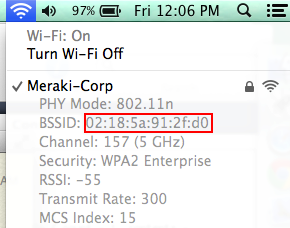
- Option-click the Wi-Fi icon in the toolbar.
- Locate the BSSID field in the information displayed. This field shows the MAC address used by the AP.
- Use the last three octets (sets of two characters separated by colons) to identify the AP in dashboard.
If using an MR access point model MR26 or MR34, the last octet may appear higher on the client than it actually is, as that octet will be incremented by 0x01 for each SSID slot.
Any client with a browser
The client must be successfully connected to the AP and have an IP address before completing these steps.
To find the AP using the local status page:
- Open a browser on the client.
- Navigate to my.meraki.com.
- Under the Access Point setup section, locate the AP identification. Click the Meraki cloud link to open the AP in dashboard.
- Locate the Hardware address field. This field displays the MAC address of the AP.

To find the AP MAC address from a splash page URL:
- When the client reaches a splash page, examine the URL.
- Locate the text after mac= in the URL.
- Replace each %3A with a colon (:) to convert the address to standard MAC address format.
Example: An AP with MAC address '00:18:0A:12:34:56' appears in the URL as '00%3A18%3A0A%3A12%3A34%3A56'
