

Organization-wide Group Policy FAQ
What happens to network firewall rules when using this feature?
The rules configured under Security & SD-WAN > Firewall will not apply to traffic configured to use Organization-wide Group Policy.
Example: There are 3 VLANS in the network
- VLAN 1 is configured as an Enforcement Target in a Policy
- VLAN 2 is not configured as an Enforcement Target in any Policy
- VLAN 3 is not configured as an Enforcement Target in any Policy
In this case VLAN 1 will only use the rules configured in the policy and VLANS 2 and 3 will continue to use the rules configured on the Security & SD-WAN > Firewall page.
Which products are supported?
Only MX platforms are supported which are on 26.1.2 firmware or newer. As of this writing, this includes all variants of the following platforms:
- MX: 67, 68, 75, 85, 95, 105, 250, 450
- Z4
- VMX
Please see this arcticle for up to date information on firmware restrictions by platform
How do Enforcement Targets work?
The Enforcement Target defines the "who" or "what" the policy applies to. Please note that only the MX will enforce the rules created, so the MX has to route the traffic. Two common questions that come up are:
- What happens when VLAN(s) are selected?
- What happens when an SGT is selected?
Example: A policy is configured with enforcement target VLAN 10 for two networks. The following networks have VLAN 10 configured like this:
- Location 1: 10.10.1.0/24
- Location 2: 10.10.2.0/24
When a ruleset is attached, the rules that have an "Any" as the source, the Dashboard will automatically fill in the subnets. Example:
- Action: Deny
- Source: Any
- Destination: 208.67.222.222
For Location 1, the MX will enforce the following:
- Action: Deny
- Source: 10.10.1.0/24
- Destination: 208.67.222.222
For Location 2, the MX will enforce the following:
- Action: Deny
- Source: 10.10.2.0/24
- Destination: 208.67.222.222
If other VLANs are added into the scope, then the same will occur. For example, if Location 1 also has VLAN 11 (10.11.1.0/24), then the the following would be enforced as Location 1
- Action: Deny
- Source: 10.10.1.0/24 OR 10.11.1.0/24
- Destination: 208.67.222.222
For SGT's the same idea applies. The MX would enforce the following:
- Action: Deny
- Source: SGT X
- Destination: 208.67.222.222
Can a rule contain multiple protocols?
Yes, with rules for Organization-wide Group Policy have a UI that allows you to create 1 rule for ICMP and specific ports for UDP and TCP. As an example when specifying your destinations you can click Ports and Protocols and create this:
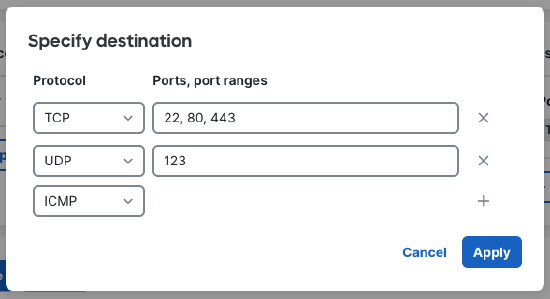
The resulting rule will have the configured ports and protocols:
