

Troubleshooting MX/MS RADIUS
Overview
Cisco Meraki MS switches and MX WAN appliances and Z-Series teleworker gateways support external server configuration for RADIUS authentication. This article outlines a general methodology for RADIUS troubleshooting and provides a systematic flow to isolate and resolve common issues.
For RADIUS configurations or initial setup, refer to the following articles:
Troubleshooting RADIUS authentication issue
Troubleshooting Flow for RADIUS Authentication
The following flow chart contains steps for isolating and troubleshooting common RADIUS authentication issues. Follow the chartfrom top to bottom in any given scenario. This article is outlined to solve most common RADIUS issues or to isolate the issue to a specific point in the network.

Troubleshooting steps
Dashboard configuration
Verify that RADIUS configurations are correct in the Meraki dashboard. The RADIUS configurations can be accessed by navigating to the following location:
Switching > Configure > Access Policies > Radius Servers

Security & SD-WAN/Teleworker Gateway > Configure > Access Policies > RADIUS for Splash Page

The following parameters must be verified:
- The IP address of the RADIUS server is added correctly
- Port is configured the same on both the dashboard and the RADIUS server
- The shared secret is identical on the dashboard and the RADIUS server.
RADIUS server ping test
During a RADIUS authentication, Meraki devices attempt to reach the RADIUS server using RADIUS packets. The RADIUS server must be reachable from the Meraki source. To test the RADIUS server connectivity, follow these steps:
- Navigate to the device Status Page:
- MS: Switching > Switches > Select Switch > Tools > Ping
- MX: Security & SD-WAN > Appliance Status > Tools > Ping
- Z-Series: Teleworker Gateway > Appliance Status > Tools > Ping
- Use the ping tool and ping the IP of the RADIUS server.
- If ping fails, verify the routing to the RADIUS server.
Dashboard RADIUS test tool
The dashboard provides a test tool to verify connectivity with the RADIUS server. Selecting Begin Test with the RADIUS credentials produce either a Test = Pass or Test = Fail. The test tool triggers a RADIUS Access-Request/Challenge exchange between the switches and the RADIUS server. It confirms that the server is reachable from the switches and that the credentials supplied are valid.
If using an EAP type that requires a client-side certificate, such as EAP-TLS, the test will fail because the switch does not have the certificate installed. It is recommended to test with a real client device.
The RADIUS Test Tool is currently available for MS switches and MR access points. The RADIUS Test Tool is not available for MX WAN appliances or Z-Series telework gateways at this time.
Test = Pass
If the dashboard RADIUS test passes, look into the following steps:
-
The RADIUS server is reachable and is configured for authentication.
-
If a client is still unable to connect, check whether the client device is generating an Extensible Authentication Protocol (EAP) session.
-
Check the logs generated on the RADIUS server after a failed client authentication.
If Test = Fail
If the RADIUS server responds to ping but the test fails, proceed to the dashboard packet captures section below.
Dashboard packet captures
The Meraki dashboard supports packet captures directly on all RADIUS-capable devices in the network. This feature can be accessed by navigating to Network Wide > Monitor > Packet Capture.
Take the packet capture on the wired interface of the Meraki device through which the RADIUS server is reachable. Download the output as a .pcap file for analysis in Wireshark.
After initiating a packet capture, have a client attempt a failed RADIUS connection and allow the capture to run through the full authentication attempt.
Open the packet capture in Wireshark and apply a filter using the format below:
Wireshark filter for RADIUS:
For example: ip.addr==192.168.128.254 && radius (192.168.128.254 is the IP of the RADIUS server)
A generic filtered RADIUS packet capture is shown below for reference: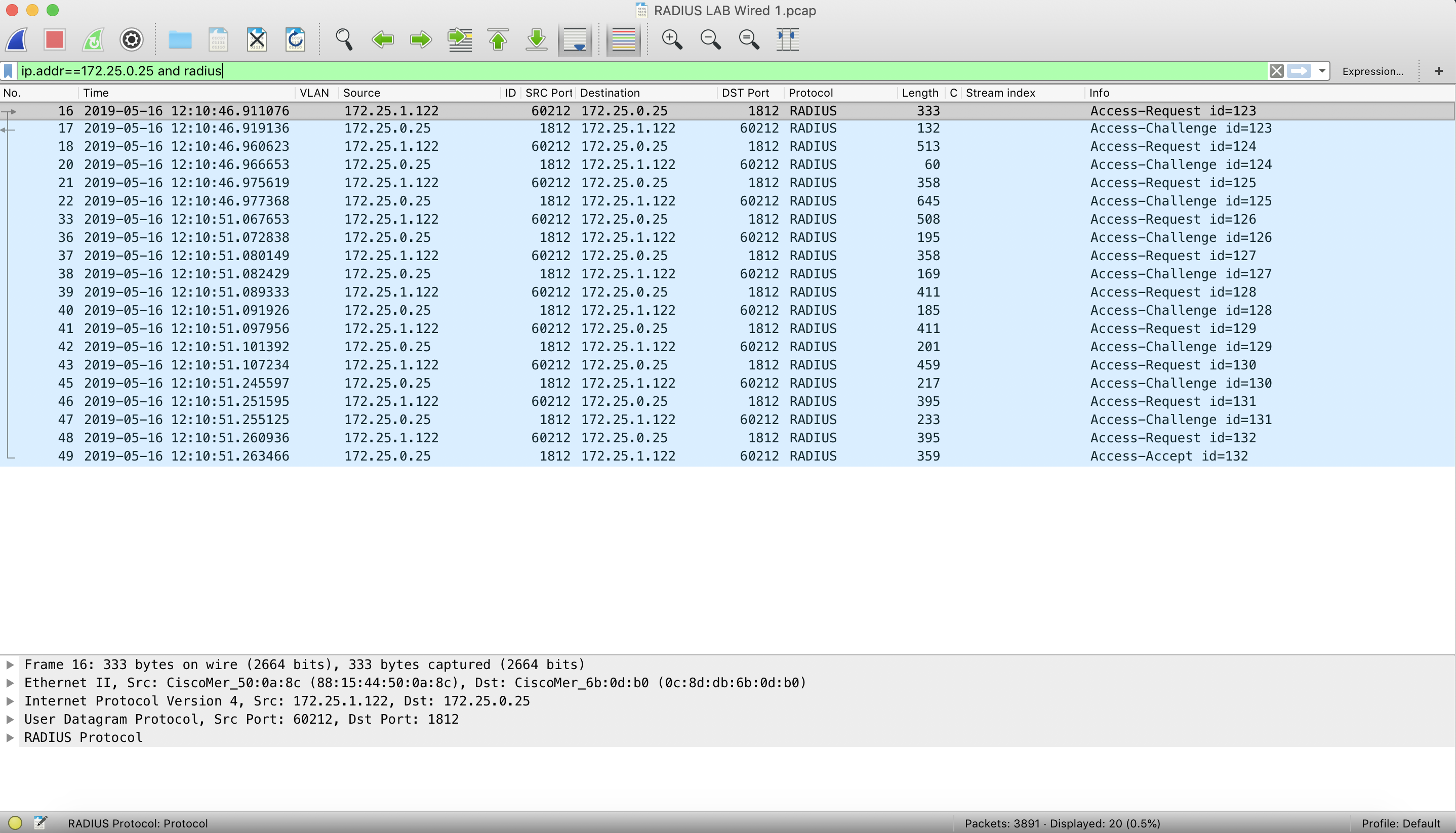
The screenshot above shows a successful RADIUS authentication with bidirectional communication, including Access-Requests, Access-Challenges, and an Access-Accept. Download a sample packet capture for reference.
RADIUS traffic flow
In case of a RADIUS authentication failure, the traffic flow would be different. You may observe one of the three possible outcomes:
- No RADIUS protocol traffic
- Unidirectional Access-Requests
- RADIUS server sending Access-Reject
No RADIUS protocol traffic
When the Wireshark filter is applied, only RADIUS traffic appears in the output. If no RADIUS protocol traffic is sent to the RADIUS server from the Meraki device, the output will be empty. If traffic is visible, verify the username to confirm the traffic belongs to the correct client device.
If no RADIUS traffic is seen from the Meraki device, follow these steps:
- Verify that the client is attempting to connect to the correct port and is generating an EAP session.
- Verify that the client device configuration matches the requirements for RADIUS authentication.
- Take a wireless or wired packet capture on the client device to check if the traffic is being sent out of the client device.
- After confirming that the client is sending the required traffic, if authentication still fails, take another packet capture and follow the flowchart.
When a client generates an EAP session and sends traffic to a Meraki device, the Meraki device forwards an Access-Request to the RADIUS server.
Unidirectional Access-Request(s)
If the client device generates an EAP session and unidirectional Access-Requests appear in the packet capture, RADIUS authentication will fail because no responses were received from the server. The following are common causes:
-
Routing to RADIUS server:
- Access-Requests are being sent to the RADIUS sserver, but no responses are returned. Traffic may be dropped before reaching the RADIUS server.
- If pings succeed, identify where RADIUS traffic is being dropped and correct the routing.
- RADIUS services:
- If the routing confirmed and RADIUS packets are reaching the RADIUS server, verify that RADIUS services are running on the server.
- RADIUS clients:
- If the client's EAP session traffic is not authorized in the RADIUS server configuration, the RADIUS server drops the packets.
- Make sure the Meraki device is added as a RADIUS client and is authorized.
After verifying and correcting these settings, if authentication still fails, take another packet capture and follow the flowchart.
RADIUS server responds with Access-Reject
After the RADIUS server receives an Access-Request, it returns either an Access-Accept to authenticate the client or an Access-Reject to deny authentication.
The following are common causes of an Access-Reject:
- No certificate installed on the RADIUS Server or the certificate has expired:
- Verify if the digital certificate installed on the RADIUS server is still valid.
- If the certificate has expired or is missing, a renewal or an installation of the digital certificate would be needed.
- Incorrect username or password:
- If a client logs in using incorrect credentials (username or password or both), the RADIUS server will deny the authentication using an Access-Reject.
- Incorrect secret on the dashboard:
- The secret configured in the dashboard should match the secret key added on the RADIUS server while configuring the RADIUS clients.
Additional factors that can cause the RADIUS server to deny authentication include:
- Network Policy is misconfigured
- Connection Request Policy is misconfigured
- Mismatch in Authentication Settings
- If using Active Directory on the server, the client may not be a member of the domain
- Root Certificate is not added to the client device(s)
- Incorrect EAP method used on server or client
RADIUS traffic verification
After verifying all configurations, take another packet capture using the Dashboard Packet Capture tool and review the RADIUS traffic flow.
At this point, the client should authenticate successfully and the RADIUS server should return an Access-Accept message. If the server still returns an Access-Reject, the issue is likely on the RADIUS server side. Access the RADIUS server directly to review the generated logs.