

Cisco SASE: Sites Connectivity
Overview
Meraki SD-WAN branches integrate with the Secure Access cloud fabric via the SASE > Connect > Sites menu, using Meraki Auto-VPN tunnels for both spoke and hub appliances. Onboarding a Meraki organization to Secure Access applies platform optimization features automatically. Sites can be enrolled or unenrolled through the Sites page, with VPN status monitored under Security & SD-WAN > Monitor > VPN Status. MX Spokes establish tunnels and iBGP peering with cloud hubs, installing default routes pointing to primary and secondary hubs, while MX Hubs form iBGP peering and install all known prefixes without default routes.
Prerequisites
- Hub mesh must be enabled for proper MX hub integration in SASE and using MX Hubs as Exit Hubs is not supported with Secure Access.
- Spokes with eBGP require routing protocol to be re-enabled after enrolling in Secure Access.
- Organizations with only hubs connected to Secure Access will route branch-to-branch (hub-to-hub) traffic over the Auto VPN mesh, not through the Secure Access path, and should secure hub-to-hub traffic via MX firewall policies.
- All prefixes learned by the Secure Access from Meraki AutoVPN and/or IPSec sites must be unique IP subnets.
Refer to CISCO SASE: Getting Started Guide for detailed prerequisites.
SASE Sites
Meraki SD-WAN branches can seamlessly integrate with the Secure Access cloud fabric through the Sites page. Meraki Auto-VPN is used to tunnel traffic from both Meraki spoke or hub mode appliance into Secure Access. Both integration options provide the same Sites page for administrators to use, allowing them to perform multiple provisioning or deprovisioning requests. When a Meraki organization is onboarded to Secure Access, platform optimization features are automatically applied as part of the onboarding process. These features are explained in detail in the Design Best Practices document. It is important to understand what these features do, as they may alter the existing behavior and use cases currently deployed within the Meraki organization.
Enrolling a Site
Perform the following steps to Enroll a Site.
When enrolling a large number of sites, using templates allows the administrator to do so in one step. If sites are not using templates, it is recommended to enroll sites in batches of 200, allowing the UI to fully complete enrollment before proceeding with enrollment of another batch.
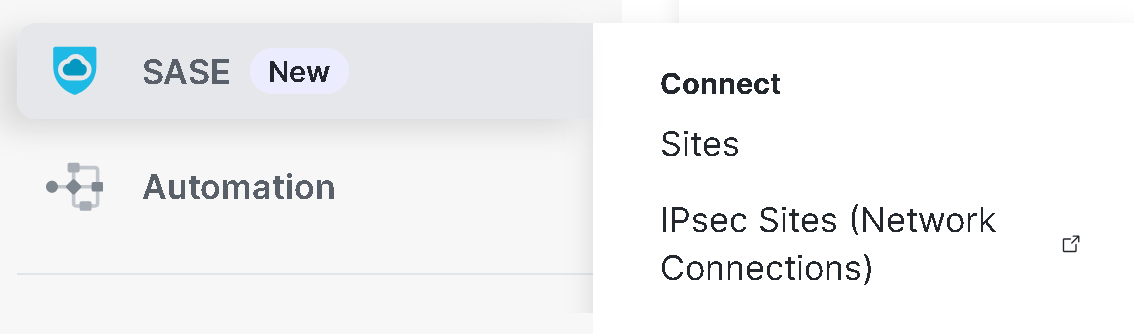
- Click SASE > Connect > Sites from the Meraki dashboard to navigate to Sites page.
- Click the Add Site button.

- On the displayed page, select the available Meraki branches for enrollment from the list, and assign the selected branches to the desired Secure Access region.
Branches already enrolled will not appear in this list.

The 'Newly assigned' tab will show the branches you have selected.

- Click Next to proceed.
Review and confirm page is displayed.

- Click Save and Finish to start the provisioning flow.
The newly enrolled site is displayed on the Sites page.

- To verify the enrollment and monitor VPN status, navigate to Security & SD-WAN > Monitor > VPN Status. This page shows the cloud hubs and their VPN registry information, useful for troubleshooting any issues.
 Established tunnels can also be verified on the Secure Access UI. Administrators can use the SASE > IPSec Sites (Network Connections) menu option to cross-launch into Secure Access.

After logging into Secure Access, the Network Connection page displays the Meraki Sites tab where AutoVPN tunnels can be verified.

Clicking on the Site Name reveals the AutoVPN tunnel traffic statistics and the link to Meraki Dashboard.

Detaching a Site
Perform the following steps to detach a Meraki branch from Secure Access.
- Navigate to the SASE > Connect > Sites page.

Sites screen is displayed.

- From the list of sites, select the Meraki branch site you want to unenroll.
- Click the Detach site button associated with that site.

A confirmation screen is displayed.

- Click the Detach button to confirm.
The Meraki branch site will then be unenrolled from Secure Access.
Meraki MX Spoke Auto-VPN with Secure Access
When an MX Spoke enrolls in Secure Access, it establishes a tunnel and forms an iBGP peering with the cloud hub. Using iBGP, the Spoke installs a default route pointing to the primary cloud hub. The two cloud hubs appear on the Security & SD-WAN > Configure > Site-to-site VPN page.
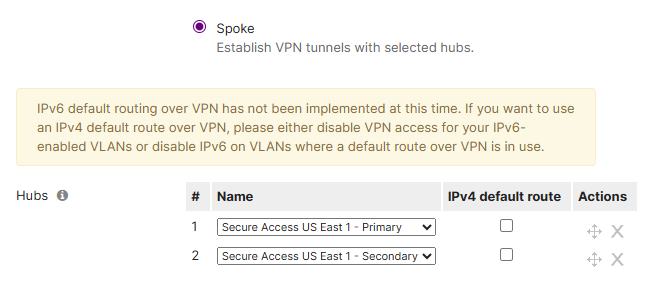
Changing the order of the Secure Access cloud hubs on a spoke is allowed. However, due to the close proximity of DC locations, it is unlikely to change their proximity to the spoke itself. Secure Access cloud hub networks are labeled as primary and secondary, with postfix of the city name.
The spoke advertises the subnets enabled for VPN mode under VPN settings on the same page.

Secure Access Spoke Default Route Management
To allow Secure Access enrolled Spokes to turn off a default route towards Cloud Hubs, Cisco has added the 'Secure Access Spoke Default Route Management' feature under Early Access.

When you toggle "Opt-in settings" to ON, it applies to your entire Meraki Organization. Upon activation, enrolled Spokes will transition to receiving only a default route from the Cloud Hubs—a process that may take up to 24 hours. After that initial update, however, any further adjustments to your Spoke routes will take effect immediately.
In the SASE > Sites UI, this feature adds an additional option 'Manage default route' in the right side drawer when a Spokes site name is clicked on.

Under this new Spoke option 'Manage default route', each Spoke can be changed to not receive a default route but only receive specific routes.

The following example illustrates a Spoke route table after this feature is enabled, captured 24 hours post-activation. In this case, the Cloud Spoke displays a default route pointing to Secure Access, directing both SIA and SPA traffic through the cloud path. For Hybrid Spokes, additional routes remain present to route private traffic directly to the configured MX Hub based on its priority.

Example below is the Cloud Spoke route table when the Default Route is disabled. The Spoke only has specific routes pointing to Cloud Hubs, driving SPA traffic into the cloud path. The Internet traffic exits the Spoke WAN interface.

In summary, this Early Access feature adds an option to disable a default route on individual bases to all enrolled Spokes in Secure Access. This feature is an implementation of the 'only-default-route' option explained in the Design document but for each individual Spoke within the SASE > Sites menu. For those organizations that may utilize Secure Access only for SPA (Secure Private Access) traffic, the default route can be disabled on a Spoke, allowing the Spoke to learn all East/West specific routes toward Cloud Hubs, and leverage MX WAN default route to reach the Internet.
Meraki MX Hub Integration with Secure Access
When an MX Hub enrolls in Secure Access, it establishes a tunnel and forms an iBGP peering with the enhanced cloud hub. Using iBGP, the Hub installs all known prefixes from the cloud fabric, except the default route. Like spokes, all enrolled Hubs in the region direct their traffic to the primary cloud hub. By default, the hub concentrator priority under Security & SD-WAN > Configure > Site-to-site prefers the primary cloud hub over the secondary cloud hub. Secure Access also allows changing the cloud hub priority to the secondary cloud hub.

In order to properly enroll an MX hub with Secure Access, or allow Hybrid Spokes to communicate with both Local (MX) or Cloud Hubs, please review the following features to understand how they interact with hubs enrolled in the cloud fabric.
Hub Mesh Must Be Enabled
Meraki hubs must be able to form a mesh within the organization. This feature is enabled by default but can be disabled with assistance from Meraki support. When disabled, enrolling a hub in the cloud fabric will not work as expected because no routes will be exchanged. Contact Meraki support to either re-enable the mesh or discuss alternative solutions. Spoke enrollment should still function as expected, even if hub mesh is disabled.
Exit Hubs Are Not Supported
Using an MX Hub as an Exit Hub is not supported when using Secure Access integration. This setting augments the cloud traffic path with Secure Access.
Enabling Multiple Default Routes
MX Spokes enrolled in the cloud fabric always receive a default route (iBGP) from the cloud hubs. To preserve the cloud path to the Internet, the IPv4 default route feature should not be enabled on the listed MX hubs. In the illustration below, the Spoke’s hub priority list uses 'Hub 1' for direct access to its application subnets over AutoVPN established between a Spoke and this Hub 1. The IPv4 default route option should not be used under 'Hub 1' as it will backhaul all Internet traffic from this spoke to Hub 1 and make the cloud hub default routes obsolete. Therefore, such configuration is not supported.

Spokes Configured with eBGP
Organizations that use eBGP on their Meraki MX Spokes should behave as expected after integration with Secure Access. The spokes will receive a default and specific routes from cloud hubs and can exchange those routes with their external peers. An optional feature referred to as only-default-route for Spokes can be enabled but administrator must be aware that specific routes would not propagate to external peers, as Spokes will no longer learn those from the cloud fabric. Please review the Platform Optimization section for more info on only-default-route. 'allow transit' option should be enabled on the eBGP peer configuration under Security & SD-WAN > Configure > Routing menu.
In a standard MX hub deployment, the device is typically configured to manage and advertise its own local subnets. However, when you integrate Secure Access routes that carry a distinct eBGP AS attribute, the MX hub identifies these prefixes as 'transit' traffic—meaning it is receiving routes from one BGP domain (Secure Access) and is expected to advertise them to another (your eBGP peer).
Because the AS path associated with these Secure Access routes differs from the standard local routes the MX is programmed to handle, the device requires the 'Allow Transit' option to be explicitly enabled. This acts as a safeguard, ensuring the hub does not inadvertently forward or advertise prefixes it does not 'own' without explicit administrative authorization. Enabling this setting confirms that the MX is intended to act as a transit point for these specific routes, allowing the BGP exchange to complete successfully. The 'allow transit' setting should be applied to eBGP peers of both enrolled Spoke and Hub sites.
Organization with Hubs and No Spokes in Secure Access
If an organization has all sites configured as hubs and intends to connect them to Secure Access, all Hubs should be enrolled. MX hubs will establish AutoVPN tunnels with Secure Access Cloud Hubs and form iBGP peering. This will allow RAVPN and ZTA users access to MX Hub application subnets. MX Hub-to-Hub communication will still occur over the Auto VPN mesh between the hubs, and the traffic will not route through Secure Access. To enforce policies, configure firewall security policies under Security & SD-WAN > Configure > Firewall to secure MX hub-to-hub traffic for this specific use case.
Enabling Default Route on the Hubs
Hubs connected to Secure Access can enable a default route. Under SASE > Connect > Sites menu, clicking on a Hub site reveals the right side drawer where 'Manage default route' option is available under Default Route section.

Default Route option are revealed and can be updated for the selected Meraki Hub.

MX Hub enrolled in Secure Access will now have specific prefixes as well as a default route pointing to the Cisco SSE.
Meraki Sites as Network Tunnel Group Source Objects in Access Policy
Similar to IPSec NTG sites, Meraki AutoVPN sites can be used as source criteria in the Secure Access Policy. Individual sites can be selected as under the Network Tunnel Groups under both Private and Internet rules.

API
Managing integration
https://developer.cisco.com/meraki/api-v1/get-organization-integrations-deployed/ https://developer.cisco.com/meraki/api-v1/create-organization-sase-integration/ https://developer.cisco.com/meraki/api-v1/get-organization-sase-integration/ https://developer.cisco.com/meraki/api-v1/delete-organization-sase-integration/
Managing sites
https://developer.cisco.com/meraki/api-v1/get-organization-sase-regions/ https://developer.cisco.com/meraki/api-v1/create-organization-sase-sites-enroll/ https://developer.cisco.com/meraki/api-v1/delete-organization-sase-sites-detach/ https://developer.cisco.com/meraki/api-v1/get-organization-sase-sites/ https://developer.cisco.com/meraki/api-v1/get-organization-sase-site/ https://developer.cisco.com/meraki/api-v1/update-organization-sase-site/ https://developer.cisco.com/meraki/api-v1/get-organization-sase-connectivity-overview/