

Vusion Native Electronic Shelf Labels (ESL) Integration with Cloud-Managed APs
ESL Overview
Electronic shelf labels (ESLs) are digital displays of various sizes and form factors used by businesses—most commonly retailers—to present product pricing, promotions, and other information. Unlike traditional paper tags, ESL content can be updated automatically and remotely from a central management system whenever changes are required, such as a price update or promotion change.
Below is an example of an electronic shelf label from a Meraki partner, Vusion.
Learn more with these free online training courses on the Meraki Learning Hub:

Electronic shelf labels (ESLs) offer several advantages over traditional paper price tags:
-
Instant pricing integrity — ensures accurate pricing across all products, including promotions.
-
Improved operational efficiency — eliminates paper label waste and frees employees to focus on higher-value activities.
-
Enhanced customer experience — makes it easier to find products and helps both staff and shoppers make more informed decisions.
Traditionally, retailers had to deploy two parallel infrastructures: ESL gateways to serve ESL tags and separate Wi-Fi access points to serve wireless clients.
In some cases, customers must also deploy an on-premises price update server. Additionally, installing ESL gateways introduces extra costs, including cable runs, additional PoE switch ports, IT security provisioning and monitoring, and installation labor.
Cisco, in partnership with Vusion, offers a simple, integrated solution for these scenarios. Supported cloud-managed access points can act as ESL gateways while simultaneously serving regular wireless clients, providing a more convenient, cost-effective, and efficient deployment mode
ESL Architecture
Traditional ESL deployments required customers to operate ESL and wireless infrastructures in parallel, maintaining separate hardware and software stacks for each. This approach increased complexity and operational overhead.
Cisco provides a unified ESL and wireless infrastructure with no additional hardware requirements, such as USB dongles or PCIe add-on cards.
Cisco uses a containerized solution to securely host the Vusion application on cloud-managed access points. The containerized application communicates securely with ESL tags and with Vusion Manager, the central software platform used to manage Electronic Shelf Labels (ESL).
Cisco access points communicate directly with Vusion Manager by establishing a TLS tunnel, rather than routing traffic through the Meraki Cloud. As a result, data such as pricing information is encrypted and transmitted directly between Vusion Manager and ESL tags, and does not traverse the Meraki Cloud.
Note: Application upgrades on Cisco access points are automatic and do not require any intervention from Meraki Dashboard administrators. Once a new application version becomes available and has completed extensive quality assurance testing by both Vusion and Cisco, Cisco access points will automatically deploy the latest version.
The Vusion application, hosted on Cisco access points via standards-based containers, operates independently from the access point firmware. As a result, deploying new application versions does not require an access point reboot, unlike firmware upgrades.

ESL and Templates
If you want to enable ESL integration on a network bound to a template, use the Wireless > Configure > IoT radio settings page within the template.

Once the ESL functionality is enabled, you can click on the link to the network(s) bound to this template and enable ESL on specific APs in that network. Once you are done, save your changes.

ESL and MT Coexistence in the Same Dashboard Network
MR/CW access points can support both ESL functionality in the same dashboard network with the following caveats:
-
If an MR/CW access point has ESL enabled, it cannot serve as an MT gateway and vice versa. ESL is mutually exclusive with any other IoT radio feature, including Bluetooth, MT gateway, and future uses.
API Support
Please search for "ESL" on the https://developer.cisco.com/ to find API calls and code snippets that can be used to configure ESL.
Supported ESL Modes
We support the following ESL modes with Vusion:
-
High-Frequency Electronic Shelf Label (HF ESL)
-
Bluetooth ESL
Note: High-frequency ESL and Bluetooth ESL modes require different ESL hardware. Please consult with Vusion about ESL hardware compatibility with different ESL modes.
Supported models, prerequisites, and configuration steps might differ for these modes. Please refer to the sections below for more information.
High-Frequency ESL Overview
Access points configured for high frequency ESL communicate with Vusion ESL tags using a proprietary wireless protocol developed by Vusion. This protocol operates in the same 2.4GHz band as 2.4GHz Wi-Fi; however, the channels are narrower and differ from Wi-Fi channels. See the “Recommended High-Frequency ESL Channels” section for more information.
HF ESL Supported Models
Note: Only MR/CW models explicitly listed in the table below are supported.
High-Frequency Electronic Shelf Labels (ESL) integration with Vusion is supported on the following AP models:
| Wi-Fi Generation | Models |
| Wi-Fi 5 Wave 2 | MR30H, MR33, MR74 |
| Wi-Fi 6 | MR45 (Wi-Fi 6 compatible), MR55, (Wi-Fi 6 compatible), MR28, MR36, MR36H, MR44, MR46, MR46E, MR56, MR76, MR78, MR86 |
| Wi-Fi 6E | MR57, CW9162I-MR, CW9164I-MR, CW9166I-MR, CW9163E-MR |
HF ESL Prerequisites
Warning: All Bluetooth features (scanning/beaconing/scanning API), Electronic Shelf Labels, MQTT, and Door lock functionalities are mutually exclusive. Enabling either one of these features would prevent others from working. Please refer to each feature documentation for more details.
-
Access to Vusion Manager. Please work with the Vusion Sales team for details.
-
Access to Electronic Shelf Labels from Vusion. Please work with the Vusion Sales team for details.
HF ESL Requirements
-
APs listed in the “HF ESL Supported Models” section
-
Meraki network firmware version should be set to MR 28.1 or higher
-
APs should be allowed to communicate with the following destinations and ports:
| From | To | Destination Port | Purpose |
| Access point | ap-auth.vusion.io | 7354 | Security and authentication |
| Access point | apa-*.vusion.io | 64000-65000 | Transmission and updates |
| Access point | registry.meraki-applications.com | 443 | Meraki Container Registry for container downloads |
HF ESL Predictive Site Survey (Optional)
Ekahau Pro software can be used to show ESL coverage using the BLE option below. Note that it only shows how many MRs hear BLE beacons from each other.

Manual ESL channel planning using custom tags is possible as well:


Note: Currently a heat map for BLE that shows RSSI values and automatic ESL channel planning is not available.
-
Coverage planning - possible
-
ESL channel planning - not possible (automatic)
Some rudimentary channel planning can be done with the custom tag functionality. For example, you could set "esl-channel : 1" tag for the ESLradio and you could then display the ESLcoverage for all ESLradios that have "esl-channel : 1" tag.
HF ESL Meraki Dashboard Configuration
To enable HF ESL integration on supported MR models navigate to Wireless > Configure > IoT radio settings, select the “Electronic shelf labels” tab, and toggle "SES-imagotag integration" from “Disable” to “Enable”.

Select desired APs from the dropdown and assign an ESL channel for that AP (more on the ESL channels below). The “AP ID” field will be automatically generated. Repeat this step to enable ESL integration on additional MRs by using the "Add an AP" button.
Note: AP ID is a 32-bit value generated by the Meraki dashboard once ESL is enabled on the MR for the first time. AP ID is permanently assigned to an MR and will never change.
Use “Download CSV of ESL-enabled APs” to download a CSV list of all ESL-enabled APs along with ESL channels and AP IDs.
APs can be added to V:Cloud via an API call (please refer to the VusionGroup API documentation on the https://api-portal-us.vusion.io/ portal) or manually via a UI, as shown below. Leave all settings at defaults.

HF ESL Basic and Smart ESL and Wi-Fi Coexistence
Wi-Fi 5 Wave 2 APs support basic co-existence with 2.4 Wi-Fi. Therefore, we recommend using 5GHz for Wi-Fi and 2.4GHz for ESL for these APs. However, if this is impossible, manually configure ESL channels on Wi-Fi 5 Wave to prevent interference with the Wi-Fi 2.4GHz channels (see “Recommended ESL Channels” section for details).
In addition, SSID(s) broadcasted on 2.4GHz channel(s) can be bandwidth-limited to reduce consumed air time.
Wi-Fi 6 and newer APs support smart co-existence and automatically manage 2.4GHz Wi-Fi and ESL transmissions on the same AP to minimize interference.
Note: 2.4GHz Wi-Fi Co-existence requires MR 28.6+ firmware.
Recommended HF ESL Channels
VusionGroup proprietary protocol that allows communication between MRs and ESL tags operates in the same 2.4GHz range as 2.4GHz Wi-Fi and has similar channel numbers, however, ESL channels have different central frequencies as shown below.
Note: This section is primarily meant for Wi-Fi 5 Wave 2 APs that support basic co-existence.
See “Supported Models and Specifications” for more information.
Note: All ESL channels are 1 MHz wide while 2.4GHz WiFi channels are 22 MHz wide.

|
ESL Channel Number |
Central Frequency (MHz) |
Recommended? |
|
0 |
2404 |
No |
|
1 |
2410 |
No |
|
2 |
2422 |
No |
|
3 |
2425 |
Yes |
|
4 |
2442 |
No |
|
5 |
2445 |
Yes |
|
6 |
2462 |
No |
|
7 |
2470 |
No |
|
8 |
2474 |
Yes |
|
9 |
2477 |
Yes |
|
10 |
2480 |
Yes |
Note: Due to the overlap between ESL and WIFi channels in 2.4GHz it’s recommended to only use ESL channels 3, 5, 8, 9, and 10. Never use a recommended ESL channel twice before all 11 available ESL channels are used. If an ESL channel needs to be reused, please contact VusionGroup support for guidance.
HF ESL Status
AP details page can be used to determine the HF ESL status. A green dot indicates that the AP is successfully connected to V:Cloud and a grey dot indicates a connectivity issue.
Note: This feature is available on MR 28.6 and newer firmware
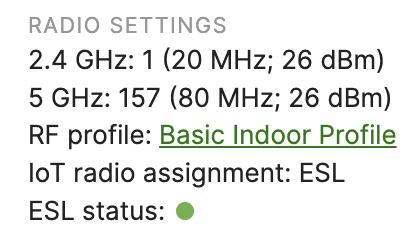
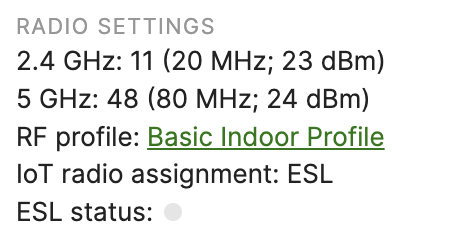
Please use the ESL status (SES) column on the Wireless > Access points page > Select columns to view the ESL status of all ESL-enabled MRs in the network.

Bluetooth ESL Overview
ESL systems have traditionally relied on proprietary wireless communication protocols, which have posed a barrier to global adoption. To overcome this challenge, leaders from the ESL industry partnered with the Bluetooth SIG to develop a scalable, ultra-low-power, and highly secure ESL wireless standard based on Bluetooth® technology.
Vusion has been at the forefront of this effort, pioneering the development of a Bluetooth-based IoT protocol in collaboration with the Bluetooth SIG and Qualcomm, serving as co-chair of the ESL Bluetooth Working Group. This new protocol enables electronic shelf labels (ESLs) to communicate with ESL gateways (Bluetooth ESL-enabled access points) using a Bluetooth-based IoT protocol, replacing the previously used proprietary wireless systems.
Benefits of Bluetooth ESL:
-
Support for next-generation ESL hardware, including EdgeSense digital shelf system
-
Faster ESL tags update *
-
Greater channel availability *
* compared to the High Frequency ESL.
Please learn more about Bluetooth ESL here.
Bluetooth ESL - Supported Models
Note: Only MR/CW models explicitly listed in the table below are supported.
| Wi-Fi Generation | Models |
| Wi-Fi 6 | MR36, MR36H, MR46, MR76 |
| Wi-Fi 6E | CW9162I-MR, CW9164I-MR |
Bluetooth ESL - Prerequisites
-
Access to VusionGroup V:Cloud: Please contact the VusionGroup Sales team to obtain access.
-
Access to VusionGroup Electronic Shelf Labels that support Bluetooth ESL technology: Please work with the VusionGroup Sales team to acquire the tags.
Bluetooth ESL - Requirements
-
APs listed in the “Bluetooth ESL - Supported Models” section
-
The Network firmware version should be set to MR 29.X or newer
-
APs should be allowed to communicate with the following destinations and ports:
| From | To | Destination Port | Purpose |
| Access point | ap-auth.vusion.io | 7354 | Security and authentication |
| Access point | apa-*.vusion.io | 64000-65000 | Transmission and updates |
| Access point | registry.meraki-applications.com | 443 | Meraki Container Registry for container downloads |
Bluetooth ESL - Meraki Dashboard Configuration
To enable Bluetooth ESL integration on supported AP models, please follow the steps below:
- Navigate to Wireless > Configure > IoT radio settings, select the “Electronic shelf labels” tab, and toggle "SES-imagotag integration" from “Disable” to “Enable”.
- Select “Bluetooth” from the dropdown Mode menu.
- Leave the V:Cloud URL blank (unless VusionGroup instructs otherwise)
- Select an AP on which you would like to enable Bluetooth ESL. Using the "Add an access point" button, repeat this step on additional APs. ESL channel is not applicable to Bluetooth ESL and it will remain grayed out.
- Save changes at the bottom of the page. Once the changes are saved, the “AP ID” field will be automatically generated.

Bluetooth ESL Status
Note: The ESL status for Bluetooth ESL in the Meraki Dashboard may be inaccurate. Please use the Vusion Manager status as a source of truth. The ESL status for HF ESL is working as expected.
ESL Troubleshooting Steps
Problem: MR access points do not come online in the V:Cloud
Troubleshooting Steps:
- Ensure the AP is online in the Meraki dashboard and configuration is up-to-date. If everything looks good, proceed to the next step.
- If the AP is not online, please follow the steps in this KB. If you cannot bring the AP online, please contact Meraki Support.
-
Get the public IP of the V:Cloud instance your MR should be connected to by using the Traceroute tool on the MR’s Tools tab and inputting the V:Cloud URL (ap-auth.vusion.io). Note that the traceroute will likely not complete if ICMP is blocked on the V:Cloud side for security reasons, however, the traceroute will resolve the URL to the public IP of V:Cloud instance that AP will try connecting.
-
If the MR cannot resolve the V:Cloud URL to a public IP address. Please check the DNS settings on your MR, and ensure that they are correct and DNS servers are reachable.
-
Possible solutions:
-
Check the DNS server configuration on the MR. Change the DNS servers to Google public DNS servers to rule out any issues with currently used DNS servers
-
Ensure that DNS traffic from the MR to the DNS server is allowed by the upstream firewall / another access control device
-
-
-
Take a packet capture (Network-wide > Monitor> Intelligent capture) on the wired interface of the MR and filter by the LAN IP of the MR and the public IP of the V:Cloud instance you collected earlier. You should see a bi-directional communication similar to the below. This is a standard SSL/TLS tunnel.:

-
If you do not see bidirectional communication, make sure that traffic from the MR to the V:Cloud instance is allowed upstream and that return traffic from the V:Cloud instance to the MR is allowed as well.
-
If none of the above steps resolve the issue, please contact Meraki Support.
Problem: Some of the VusionGroup ESLs are not coming online in the V:Cloud
Troubleshooting: Please try switching an ESL channel from the current one to a higher channel. For example, if the MR is set to ESL channel 7, set to channel 9. If tags don’t come online, please contact SES support.
Problem: All of the VusionGroup ESLs in the vicinity of a specific AP are not coming online in the V:Cloud and that AP is online in the V:Cloud.
Troubleshooting: There is a potential problem on the MR. Please contact Meraki support for assistance.
Problem: Both MR(s) acting as ESL gateway and labels are online in the V:Cloud, however, price updates are not going through
Troubleshooting: Ensure that MRs are online in the V:Cloud. If they are not, please follow the steps above.
Check the ESL status indicator on the Wireless > Access points page (add the ESL status column if you don't see it). If the status is OK (green dot), please reach out to the VusionGroup support as there is likely a problem on the V:Cloud side.
If the status is not OK (grey dot), please contact Meraki support. There is likely a problem with the ESL functionality on your MR.
Problem: Some of the VusionGroup ESLs are not coming online in the V:Cloud
Troubleshooting: Please try switching an ESL channel from the current one to a higher channel. For example, if the MR is set to ESL channel 7, set to channel 9. If tags don’t come online, please contact SES support.
Problem: All of the VusionGroup ESLs in the vicinity of a specific AP are not coming online in the V:Cloud and that AP is online in the V:Cloud.
Troubleshooting: There is a potential problem on the MR. Please contact Meraki support for assistance.
Problem: Both MR(s) acting as ESL gateway and labels are online in the V:Cloud, however, price updates are not going through
Troubleshooting: Ensure that MRs are online in the V:Cloud. If they are not, please follow the steps above.
Check the ESL status indicator on the Wireless > Access points page (add the ESL status column if you don't see it). If the status is OK (green dot), please reach out to the VusionGroup support as there is likely a problem on the V:Cloud side.
If the status is not OK (grey dot), please contact Meraki support as there is likely a problem with the ESL functionality on your MR.