

Troubleshooting MR RADIUS
Overview
This article outlines the general troubleshooting methodology when a RADIUS authentication issue is encountered on Cisco Meraki devices. It provides a systematic flow to isolate and resolve the issue.
Cisco Meraki MR access points, MS switches, and MX WAN appliances support configuration of an external server for RADIUS authentication.
For RADIUS configurations or initial setup, refer to the following articles:
- Configuring RADIUS Authentication with WPA2-Enterprise
- Configuring RADIUS Authentication with a Sign-on Splash Page
Dashboard RADIUS test tool
The Meraki dashboard provides a test tool to verify connectivity with the RADIUS server. Selecting Begin test with the RADIUS credentials produces either a Test = Pass or Test = Fail result.
The test tool triggers a RADIUS Access-Request/Challenge exchange using EAP-PEAP with MS-CHAPv2 between the access points and the RADIUS server. It confirms that the server is reachable from the access points and that the supplied credentials are valid.
If using an EAP type that requires a client-side certificate, such as EAP-TLS, the test will fail because the access point does not have the certificate installed. In that case, test with a real client device. MR access points support the EAP types listed here.

Test = Pass
When the test passes, the RADIUS server is reachable and configured for authentication. If a client is still unable to connect:
-
Check whether the client device is generating an EAP session.
-
Review the logs generated on the RADIUS server after a failed client authentication.
Test = Fail
If the RADIUS server is pingable but the test is failing, proceed to the Dashboard Packet Captures.
Note: Access Points running MR 27-1 and above include the Service-Type attribute in the access-request packets sent when using the RADIUS Test Tool.
Troubleshooting RADIUS authentication issue
Troubleshooting Flow for RADIUS authentication
Follow the questions to investigate why your client is having troubles connecting to a SSID using Enterprise / 802.1X security.
Ensure there are not firewall rules blocking the communication between APs and the RADIUS server.
Once the ping is sucessful, try again.
Be aware that most likely we'll need a wired capture too.
Do you see the access-request sent by the AP arriving to the port where the RADIUS server is connected?
If you see both access-request and access-challenge, investigate why the access-challenge aren't arriving to the AP.
Or contact your RADIUS server support
Be aware that most likely we'll need a wireless/monitor mode capture too.
Be aware that most likely we'll need a wireless/monitor mode capture too.
Be aware that most likely we'll need a wireless/monitor mode capture too.
Be aware that most likely we'll need a wireless/monitor mode capture too.
Be aware that most likely we'll need a wireless/monitor mode capture too.
Troubleshooting steps
The steps in the interactive troubleshooting flowchart are recorded here:
Can you reproduce the problem on demand, or did it happen once in the past?
- Can reproduce on demand: Proceed to this section in the troubleshooting steps: Problem Can Be Reproduced on Demand.
- It happened in the past: Proceed to this section in the troubleshooting steps: Problem Happened in the Past.
Problem happened in the past
Do you know the MAC address(es) that had issues?
- No: Proceed to the next step.
Do you know the AP(s) experiencing the issue?
Problem can be reproduced on demand
Is the timeline giving you useful information about this problem?
- Yes: Follow timeline troubleshooting guidelines.
- No: Proceed to the next step.
Is the SSID configured to use my RADIUS servers?
- No: Please contact Meraki Support.
- Yes: Proceed to the next step.
Are affected clients Android 11?
- Yes, only Android 11: check Android 11 limitations.
- Other than / Not only Android 11: Proceed to the next step.
Is dashboard configuration correct?
- No: Fix Dashboard configuration and test again.
- Yes: Proceed to the next step.
- No: Verify the routing to the RADIUS server. Ensure there are no firewall rules blocking the communication between APs and the RADIUS server. Once the ping is successful, try again.
- Yes: Proceed to the next step.
Can you collect a wired capture while reproducing the issue?
- Can't collect a wired capture at this moment: Contact Meraki support. A wireless or monitor mode capture will most likely be required.
- Yes, taken!: Proceed to the next step.
Do you see either access-ACCEPT or access-REJECT in the capture?
- I do see either access-ACCEPT or access-REJECT: Proceed to this section: Access-Accept or Access-Reject Seen.
- No, I don't see neither access-accept nor reject: Proceed to this section: No Access-Accept or Access-Reject Seen.
No Access-Accept or Access-Reject Seen
Do you see Access-Request packets?
-
No: Proceed to this section: No Access-Request Packets Seen.
- Yes: Proceed to the next step.
Do you see Access-Challenge packets?
-
No: Proceed to this section: No Access-Challenge Packets Seen.
- Yes: Proceed to the next step.
What is the last packet seen?
-
Access-Request: Review your RADIUS server logs to understand why the RADIUS server is not finishing the authentication, or contact your RADIUS server support.
- Access-Challenge: Proceed to the next step.
Can you collect a wireless or monitor mode capture while reproducing the issue?
- No, I cannot use any of the options provided to take a wireless capture: Contact Meraki support. A wireless or monitor mode capture will most likely be required.
- Yes, taken!: Proceed to the next step.
Which device sends the last packet over the air?
- AP sends the last packet: Everything works fine with your Meraki Devices. Review why potentially the client is ignoring the AP. Contact your RADIUS server support for more help.
- Wireless client sends the last packet: Collect all the data that got you to this point and contact Meraki support.
No access-challenge packets seen
Run a packet capture on your RADIUS server wired port. Do you see the access-request sent by the AP arriving to the port where the RADIUS server is connected?
-
No access-requests are arriving: Investigate why the access-requests are not arriving and once that is fixed, try again.
- Yes, I see access-request arriving: If you only see access-request arriving without access-challenge leaving, Review your RADIUS server logs to understand why the RADIUS server is not finishing the authentication, and/or contact your RADIUS server support. If you see both access-request and access-challenge, investigate why the access-challenge packets are not arriving to the AP.
No access-request packets seen
Can you collect a wireless/monitor mode capture while reproducing the issue?
- No, I can't use any of the options provided to take a wireless capture: Please contact Meraki support. Be aware that most likely a wireless/monitor mode capture will be needed.
- Yes, taken!: Proceed to the next step.
Which device sends the last packet over the air?
-
AP sends the last packet: Everything works fine with your Meraki Devices. Review why potentially the client is ignoring the AP. Or contact your RADIUS server support for more help.
- Wireless client sends the last packet: Collect all the data that got you to this point and contact Meraki support.
Access-Accept or Access-Reject Seen
- Access-Accept: Proceed to the next step.
Are there many Duplicate Requests?
-
Yes, a lot of duplicates: Increase RADIUS timeout to 5 secs and test again. Or investigate where in the wired network the packets are being delayed/dropped.
- No duplicates seen: Proceed to the next step.
Does the access-accept contain a group policy override?
-
No: Proceed to this section: No group policy override.
- Yes: Proceed to this section: Group policy override present.
Group policy override present
Does the SSID expect group policy override for the right attribute?
-
No: Fix the config and try again.
- Yes: Proceed to the next step.
-
No: Create the group policy as needed, or remove the override on your RADIUS server and try again.
- Yes: Proceed to the next step.
Is the group policy blocking the client?
-
Yes: Fix config and try again.
- No: Proceed to the next step.
Does the group policy override the VLAN?
-
No: Proceed to this section: Wireless Capture Verification (No VLAN Override from GP).
- Yes: Proceed to the next step.
Does the neighbor device have the correct VLAN configuration?
-
No, it's missing some config: Fix the configuration and try again.
- Yes, the VLAN configuration on the neighbor device is correct: Proceed to this section: Wireless Capture Verification (VLAN Override from GP).
No Group Policy Override
Does the access-accept contain a VLAN override?
-
No: Proceed to this section: Wireless Capture Verification (No VLAN Override).
- Yes: Proceed to the next step.
Does the SSID accept VLAN override?
-
No: Fix config and try again.
- Yes: Proceed to the next step.
Does the neighbor device have the correct VLAN configuration?
-
No, it's missing some config: Fix the configuration and try again.
- Yes, the VLAN configuration on the neighbor device is correct: Proceed to this section: Wireless Capture Verification (VLAN Override from RADIUS).
Wireless Capture Verification (No VLAN Override)
Can you collect a wireless or monitor mode capture while reproducing the issue?
-
No, I cannot use any of the options provided to take a wireless capture: Contact Meraki support. A wireless or monitor mode capture will most likely be required.
- Yes, taken!: Proceed to the next step.
Do you see the complete 4-way-handshake process?
-
No: Collect all data gathered to this point and contact Meraki support.
- Yes: Proceed to the next step.
Do you see any data traffic coming from the wireless client?
-
No: Collect all data gathered to this point and contact Meraki support.
- Yes: Proceed to the next step.
Is the client traffic forwarded to the LAN?
-
No: Collect all data gathered to this point and contact Meraki support.
-
Yes: Investigate why the client cannot communicate with the network. Your 802.1x authentication is functioning correctly.
Wireless Capture Verification (No VLAN Override from GP)
Can you collect a wireless or monitor mode capture while reproducing the issue?
-
No, I cannot use any of the options provided to take a wireless capture: Contact Meraki support. A wireless or monitor mode capture will most likely be required.
- Yes, taken!: Proceed to the next step.
Do you see the complete 4-way-handshake process?
-
No: Collect all the data gathered to this point and contact Meraki support.
- Yes: Proceed to the next step.
Do you see any data traffic coming from the wireless client?
-
No: Collect all data gathered to this point and contact Meraki support.
- Yes: Proceed to the next step.
Is the client traffic forwarded to the LAN?
-
No: Collect all data gathered to this point and contact Meraki support.
- Yes: Investigate why the client cannot communicate with the network. Your 802.1x authentication is functioning correctly.
Wireless Capture Verification (VLAN Override from GP)
Can you collect a wireless or monitor mode capture while reproducing the issue?
-
No, I can't use any of the options provided to take a wireless capture: Contact Meraki support. A wireless or monitor mode capture will be needed.
- Yes, taken!: Proceed to the next step.
Do you see the complete 4-way-handshake process?
-
No: Collect all data gathered to this point and contact Meraki support.
- Yes: Proceed to the next step.
Do you see any data traffic coming from the wireless client?
-
No: Collect all data gathered to this point and contact Meraki support.
- Yes: Proceed to the next step.
Is the client traffic forwarded to the LAN?
-
No: Collect all data gathered to this point and contact Meraki support.
- Yes: Investigate why the client cannot communicate with the network. Your 802.1x authentication is function correctly.
Wireless Capture Verification (VLAN override from RADIUS)
Can you collect a wireless or monitor mode capture while reproducing the issue?
-
No, I can't use any of the options provided to take a wireless capture: Contact Meraki support. A wireless or monitor mode capture will be needed.
- Yes, taken!: Proceed to the next step.
Do you see the complete 4-way-handshake process?
-
No: Collect all data gathered to this point and contact Meraki support.
- Yes: Proceed to the next step.
Do you see any data traffic coming from the wireless client?
-
No: Collect all data gathered to this point and contact Meraki support.
- Yes: Proceed to the next step.
Is the client traffic forwarded to the LAN?
-
No: Collect all data gathered to this point and contact Meraki support.
- Yes: Investigate why the client can't communicate with the network. Your 802.1x authentication is fine.
The following flow chart guides through the steps for isolating and troubleshooting common RADIUS authentication issues and needs to be followed from top to bottom in any given scenario. This article is outlined to solve most common RADIUS issues or to isolate the issue to a specific point in the network.
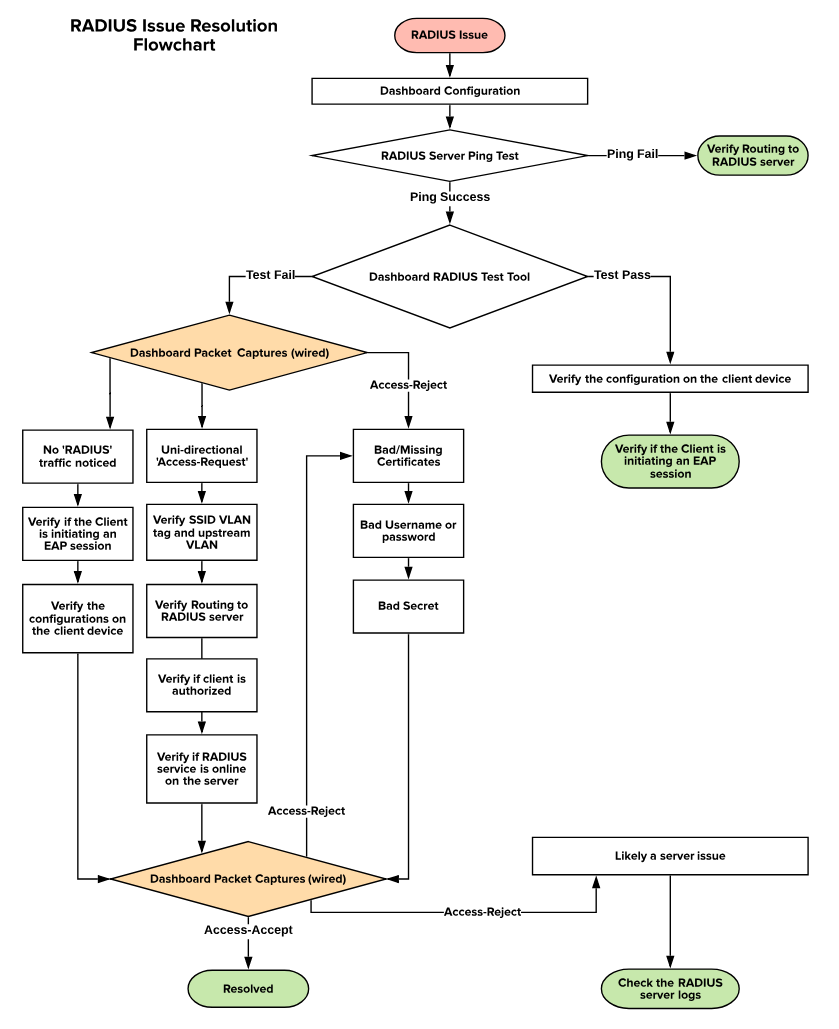
Dashboard Configuration
The first thing to verify is if the RADIUS configurations are made correctly on the dashboard. The RADIUS configurations can be accessed by navigated via the following:
Wireless > Configure > Access Control: Select (SSID) > RADIUS Servers

Switch > Configure > Access Policies > Radius Servers

Security & SD-WAN/Teleworker Gateway > Configure > Access Policies > RADIUS for Splash Page

The following parameters must be verified:
-
The IP address of the RADIUS server is added correctly
-
Port is configured the same on dashboard as well as the RADIUS server
-
Secret is identical on the dashboard as well as the RADIUS server
RADIUS Server Ping Test
During a RADIUS authentication, the Meraki devices will try to reach out to the RADIUS server with RADIUS packets. In order for this to be successful, the RADIUS server should be reachable from the Meraki source. Hence, we will test the RADIUS server reachability via the following steps:
-
Navigate to the Device Status Page:
-
MR: Wireless > Access Points > Select Access Point > Tools > Ping
-
MS: Switch > Switches > Select Switch > Tools > Ping
-
MX: Security & SD-WAN > Appliance Status > Tools > Ping
-
Z-Series: Teleworker Gateway > Appliance Status > Tools > Ping
-
-
Use the ping tool and ping the IP of the RADIUS server
-
If the pings are failing, verify the routing to the RADIUS server
Dashboard RADIUS Test Tool

The dashboard configuration provides a test tool to verify the connectivity with the RADIUS Server as shown above. Clicking on “Begin test” with the RADIUS credentials can result in either “Test = Pass” or “Test = Fail”. The test tool triggers a RADIUS Access-Request/Challenge exchange using EAP-PEAP with MS-CHAPv2 between the APs and the RADIUS server. It is designed to confirm that the server is reachable from the APs and that the credentials supplied are valid only. If using an EAP type that requires a client-side certificate such as EAP-TLS, the test will fail because the AP does not have the certificate installed. It is recommended to test with a real client device. MR access points support the EAP types listed here.
Note: The RADIUS Test Tool is currently available for MS switches and MR access points. The RADIUS Test Tool is not available for MX appliances or Z-Series gateways at this time.
Test = Pass
If the Dashboard RADIUS test passes, the following steps can be looked into:
-
When the test passes, the RADIUS server is reachable and is configured for authentication. If a client is unable to connect, check if the client device is generating an EAP session.
-
Check the logs that will be generated on the RADIUS server after a failed client authentication.
Test = Fail
If the RADIUS server is ping-able but the test is failing, continue ahead with the Dashboard Packet Captures.
Note: Access Points running MR 27-1 and above include the Service-Type attribute in the access-request packets sent when using the RADIUS Test Tool.
Dashboard Packet Captures
The Meraki Dashboard provides the ability to take packet captures directly on all RADIUS-capable Meraki devices in the network. This feature can be accessed by navigating to Network Wide > Monitor > Packet Capture.
The packet capture must be taken on the wired interface of the Meraki device through which the RADIUS server can be reached, and it is highly recommended to download the output as a .pcap file for Wireshark.
Once a packet capture is initiated, have a failed client attempt to connect to RADIUS again and let the packet capture run while this process is being completed. The packet capture can be opened in Wireshark and a filter can be applied as shown below:
Wireshark Filter for RADIUS:
Eg: ip.addr==192.168.128.254 && radius (192.168.128.254 is the IP of the RADIUS server)
A generic filtered RADIUS packet capture is shown below for reference:
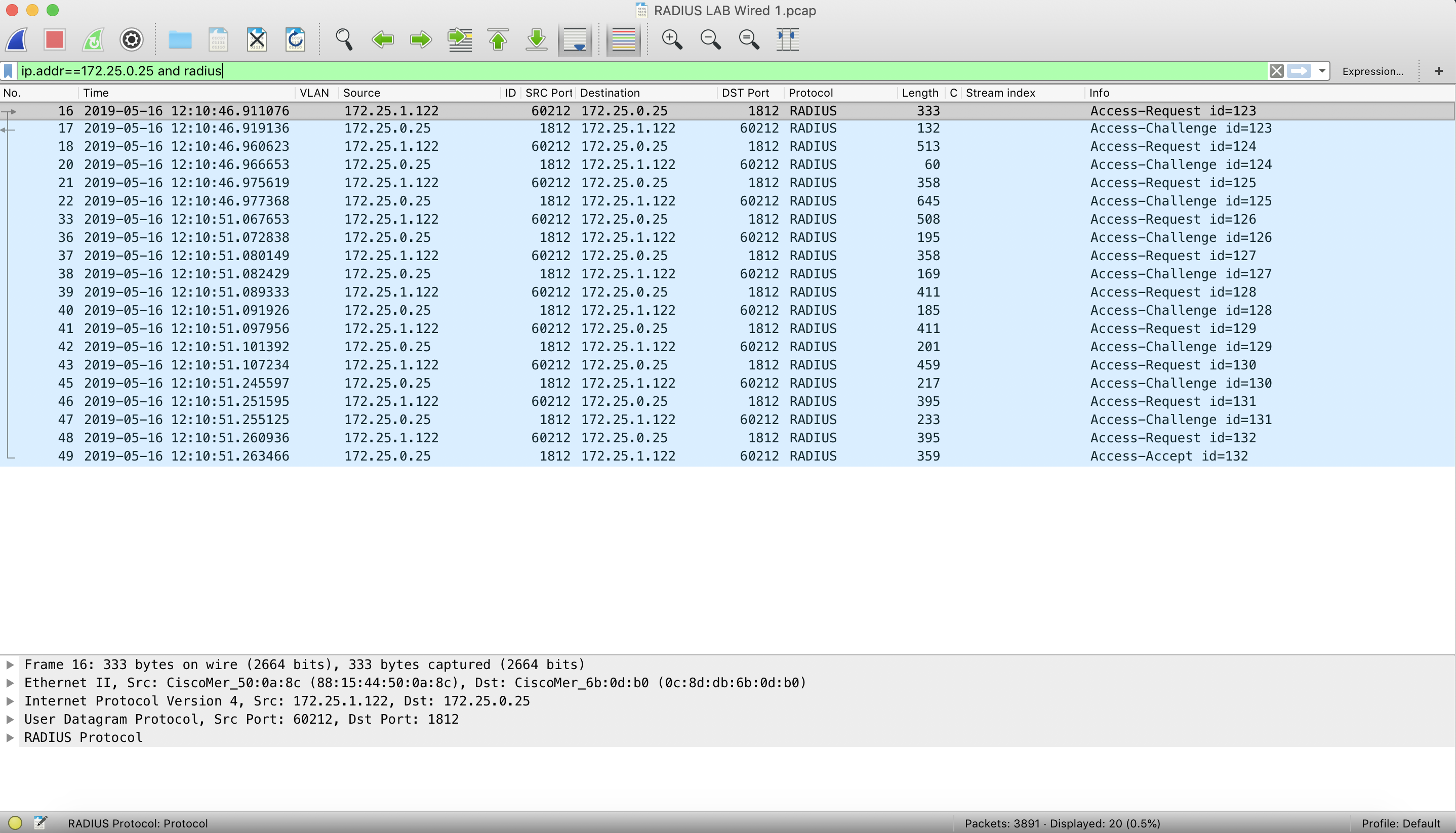
The above screenshot is for a successful RADIUS authentication, as you can see bi-directional communication with Access-Requests, Access-Challenges and Access-Accept. A sample packet capture can be downloaded for reference.
RADIUS traffic flow
In case of a RADIUS authentication failure, the traffic flow would be different and one of the 3 possible outcomes shown below might be observed:
-
No RADIUS protocol traffic
-
Unidirectional Access-Requests
-
RADIUS server sending Access-Reject
No RADIUS Protocol traffic
With the Wireshark filter mentioned above, only the RADIUS traffic will be filtered in the output and if there is no RADIUS protocol traffic being sent out to the RADIUS server from the Meraki devices, the output will be empty. If there is traffic seen, make sure to verify the username to make sure the traffic has been seen for the correct client device.
In case of no RADIUS protocol traffic seen from the Meraki device, follow the steps below:
-
Verify if the client is attempting to connect to the correct SSID or port and generating an EAP session.
-
Verify the configurations on the client device to make sure they match with the requirements for RADIUS authentication.
-
Take a wireless or wired packet capture on the client device to check if the traffic is being sent out of the client device.
-
After confirming that the client device is sending the required traffic, if the authentication fails, take another packet capture and follow the flow chart.
When a client generates an EAP session and sends traffic to a Meraki device, the Meraki device will forward an Access-Request to the RADIUS server.
Unidirectional Access-Request(s)
If the client device is generating EAP session traffic and we see unidirectional Access-Requests in the packet capture, the RADIUS authentication will fail as the responses were not received from the server. This can be an outcome due to multiple failure reasons as listed below:
-
Routing to RADIUS server:
-
Because the Access-Requests are being sent to the RADIUS server and no responses are noticed, the traffic might be getting dropped before reaching the RADIUS server.
-
If the pings are successful, you would need to verify where the RADIUS traffic is being dropped and fix the routing.
-
-
RADIUS services:
-
If the routing is correct and the RADIUS packets are being delivered to the RADIUS server, you would need to verify if the RADIUS services are turned ON on the RADIUS server.
-
-
RADIUS clients:
-
If the EAP session traffic being generated by a client is not authorized in the RADIUS server configurations, the RADIUS server will drop the packets.
-
Make sure the Meraki device is added as a RADIUS client and is authorized.
-
Once these settings and configurations are verified and correct, and if the authentication is still failing, take another packet capture and follow the flow chart.
RADIUS Server Responds with Access-Reject
Once the Access-Request is received by the RADIUS server, it can either send an Access-Accept to authenticate the client or send a Access-Reject to deny authentication.
If an Access-Reject is received from the RADIUS server, there are multiple possible reasons, some of which are listed below:
-
No certificate installed on the RADIUS Server or the certificate has expired
-
Verify if the digital certificate installed on the RADIUS server is still valid.
-
If the certificate has expired or is missing, a renewal or an installation of the digital certificate would be needed.
-
-
Incorrect Username or Password
-
If a client logs in using incorrect credentials (username or password or both), the RADIUS server will deny the authentication using an Access-Reject.
-
-
Incorrect Secret on the Dashboard
-
The secret configured in dashboard should match the secret key added on the RADIUS server while configuring the RADIUS clients.
-
There are some factors that can cause the RADIUS server to deny an authentication and some of them are listed below:
-
Network Policy is misconfigured
-
Connection Request Policy is misconfigured
-
Mismatch in Authentication Settings
-
If using Active Directory on the server, the client may not be a member of the domain
-
Root Certificate is not added to the client device(s)
-
Incorrect EAP method used on server or client
RADIUS Traffic Verification
Once the mentioned steps are verified and the configurations are as required, another packet capture can be taken using the Dashboard Packet Capture tool, and the RADIUS traffic flow can be verified.
At this point, the client should get authenticated and we should see the server sending the client an Access-Accept message. If the server still sends an Access-Reject, it is most likely a server issue and you would need to access the RADIUS server to verify the logs that are generated.