

Cisco Secure Connect - Account Setup Troubleshooting
The Automatic API Key sync isn't working
New customers will sometimes encounter an error when attempting automated API key exchange for a new Umbrella org (Automated API key exchange is not supported for existing Umbrella orgs). The error appears as follows:
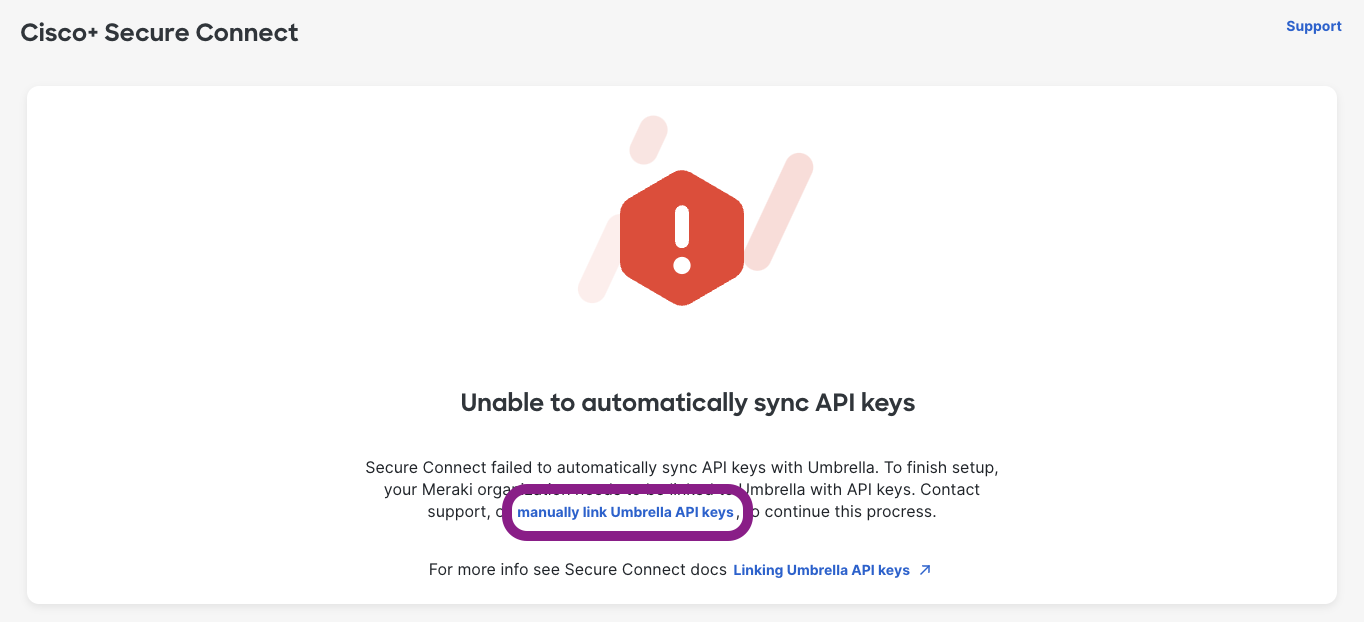
Do not worry! Just click the link highlighted above and manually exchange the API keys by following the instructions on the page. Read more here.
I’m seeing errors everywhere! What do I do?
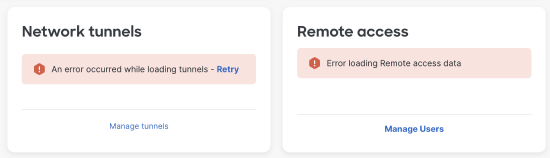
Observed Error: Network Tunnels, Remote Access, Users, Applications, Clientless (Browser-based) ZTNA Access
- Errors on Overview page: "An error occurred while loading tunnels", " Error loading Remote access data"
- Error on Users page, no users present: "An error occurred while loading users"

- Error(s) on Browser Access page, potentially many per rule: "An error was encountered while loading browser access policy rule data"

- Errors on Applications page: "An error was encountered while loading applications.", "An error was encountered while loading application groups."

Fix: Replace Management Key
For the errors above, replace the Umbrella Management key to address this issue.
- Navigate to Secure Connect > License & API Keys
- On the Umbrella Management credentials card, click on "Replace API credentials"

- Follow the link and instructions to retrieve a new key.
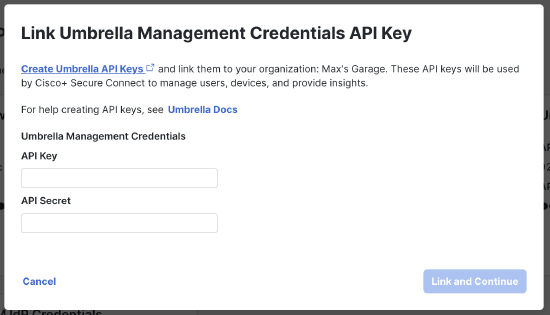
- Click Link and Continue, return to the Overview page to verify the fix.
Observed Error: Policies, Policy Overview
- Error on Overview page: "Failed to load all policy data"
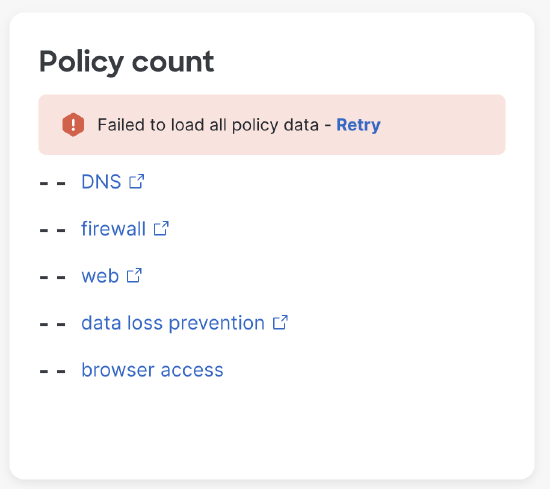
- Error on Policy Overview page: "Failed to load all policy data"
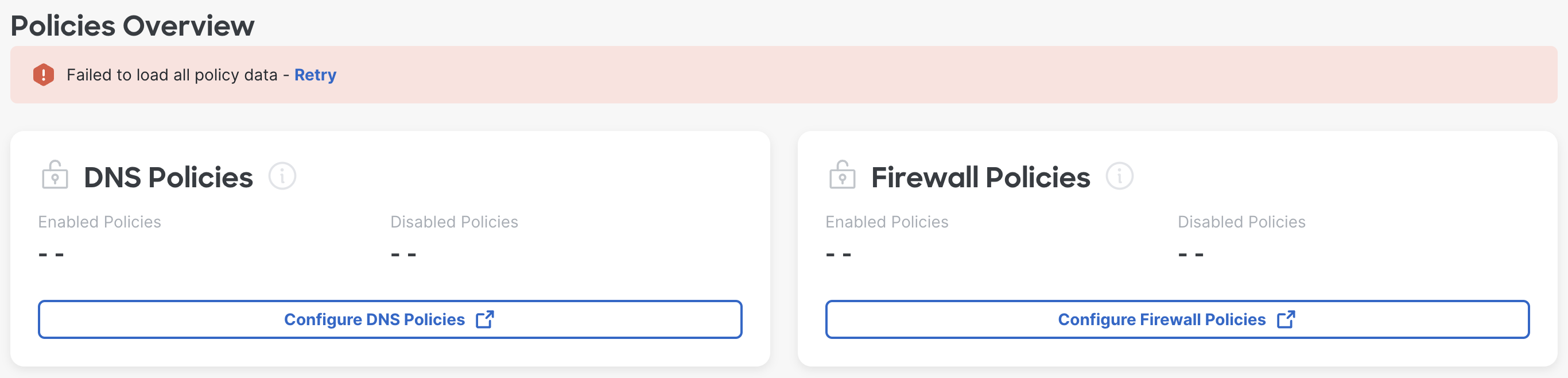
Fix: Replace Network Devices Key
For the errors above, replace the Umbrella Network Devices key to address this issue.
- Navigate to Secure Connect > License & API Keys
- On the Umbrella Network Devices credentials card, click on "Replace API credentials"

- Follow the link and instructions to retrieve a new key.
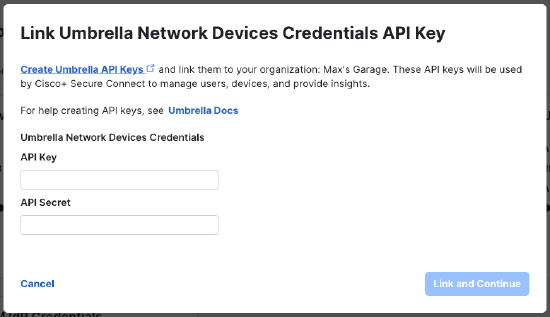
- Click Link and Continue, return to the Overview page to verify the fix.
Observed Error: Remote Access, Users, Browser Access
- Errors on Overview page: " Error loading Remote access data" (Network tunnels have no errors)
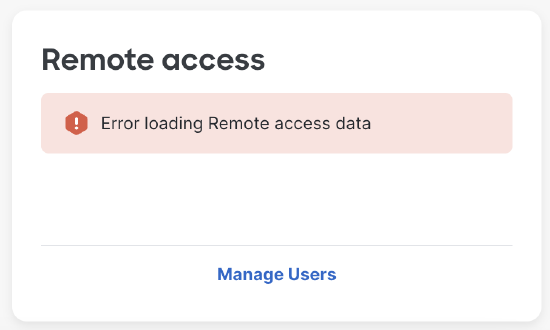
- Error on Users page, no users present: "An error occurred while loading users" (Users are visible)

- Error(s) on Browser Access page, potentially many per rule: "Hit counts failed to load"

Fix: Replace Reporting Key
For the errors above, replace the Umbrella Reporting key to address this issue.
- Navigate to Secure Connect > License & API Keys
- On the Umbrella Reporting credentials card, click on "Replace API credentials"

- Follow the link and instructions to retrieve a new key.
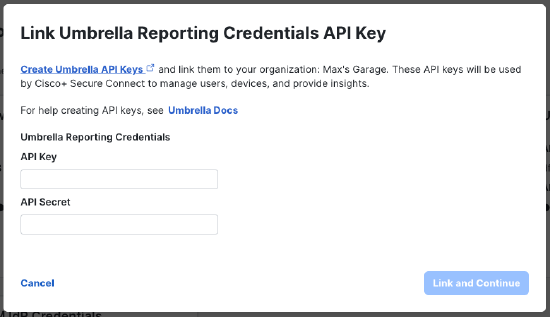
- Click Link and Continue, return to the Overview page to verify the fix.
Check the data storage location
If an HTTP client request does not originate from the correct location of the Umbrella data warehouse, the Umbrella server responds with 302 Found. This can manifest itself in many places within Secure Connect, but is a simple fix.
To spot this issue:
-
Check the location of data in Meraki (at the bottom of any page):

-
Check the location of Data Storage in Umbrella (Admin > Log Management)

-
If the two are not aligned, follow these steps to correct the issue: https://docs.umbrella.com/deployment-umbrella/docs/log-to-a-data-warehouse
Correct region pairings:Region/Location Meraki Hosting Location Umbrella Storage Region North America United States North America - California, US South America United States North America - California, US Europe Europe - Germany Europe - Frankfurt, DE Asia Asia - Singapore, Australia Europe - Frankfurt, DE
Secure Connect is not currently supported in Meraki Dashboards hosted in Canada, India, or China
Errors persist? Contact support.
If the two steps above have not resolved the issue, contact our support team. They'll have additional tools to troubleshoot.
I need my welcome email re-sent, or sent to a different address.
To change or re-send the email account associated with Secure Connect, you should contact support.
- Include "Secure Connect" in the subject and other relevant details from the order in the description:
- First Name, Last Name
- Admin Email - Use admin email that matches Umbrella org
- This can always be the email from the order.
- This can also be another email of an admin in the Umbrella account, if others exist.
- Umbrella Org Id
- If you cannot contact support via your Meraki dashboard, you can create a case here: https://meraki.cisco.com/meraki-supp...-support-case/
What happens if I linked the wrong Umbrella organization (not enabled with Secure Connect) to the Meraki dashboard?
If you mistakenly link the wrong Umbrella organization not enabled for Secure Connect to the Meraki dashboard, use the following guide to unlink the incorrect dashboard and link the correct one. This will ensure that the integration between Meraki and Umbrella is properly established.
Remember, for any specific account-related queries, activation issues, or troubleshooting, it is best to reach out to Secure Connect support directly. They have the expertise and access to the necessary resources to assist you effectively. How to Contact Support
Symptoms of this issue:
- Cannot go back in the API key exchange flow.
- Cannot see the Secure Connect tab in the left navigation.
Prerequisites
- If the Meraki org is new, you need to at least have a network created. This will allow you to access Cloud On-Ramps configuration - required to employ the workaround.
- If you previously deployed any Umbrella SD-WAN Connector under the Organization > Cloud On-Ramps page > Deployments tab, ensure you delete all of the current Umbrella SD-WAN Deployments.
All sites enrolled in Secure Connect must be detached via the Secure Connect > Sites page before unlinking the current Umbrella organization. Also, please verify that dashboard has deleted all Secure Connect Hub networks after the branch sites were detached. It is critical to provide the Secure Connect and Umbrella systems sufficient time to complete the un-enrollment process and deletion of Secure Connect Hubs before proceeding with any changes to the linked Umbrella organization.
Override the org mapping by replacing any one API key:
- Navigate to Organization > Cloud On-Ramps page.
- Under the Configuration tab of the Umbrella SD-WAN Connector > click the vertical ellipsis button (3 dots) > click Disconnect Umbrella to disconnect the current Umbrella org integration.
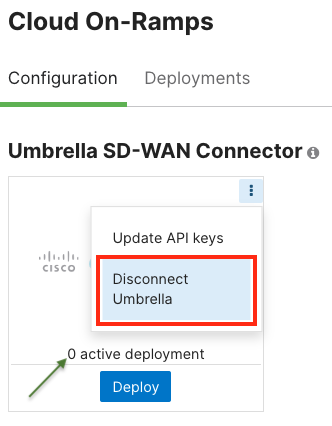
- Obtain the correct API Keys from your correct Secure Connect enabled Umbrella organization. For more information, refer to our Secure Connect Onboarding KB – Setting Up Your Cisco Secure Connect Account.
- Follow the steps from the Secure Connect Welcome Email for instructions on activating Secure Connect for your Meraki dashboard. For more information, refer to our Secure Connect Onboarding KB – Setting Up Your Cisco Secure Connect Account.
Can I change the Umbrella org mapping to a new Meraki Org?
Yes. The org mapping can be changed and keys can be input/generated again.
The process is done by contacting Secure Connect support to clear the API keys from the Secure Connect dashboard. Once that is done, customers can use/regenerate Umbrella API keys to map another org. Once this is complete, follow the appropriate onboarding guide here: Setting Up Your Cisco Secure Connect Account
Organization with EA licensing has Secure Connect Region networks with warning about "Grace Period" and "Disabled in ## days"
Symptoms: An organization with Secure Connect and EA licensing has a warning in the Organization > Configure > Subscription and License Info page that Secure Connect Region networks do not have a subscription and will be disabled at the end of the licensing "Grace Period."
Note: This warning will not affect the connectivity or management of Secure Connect or connected networks, and can be considered a cosmetic issue.

Resolution: Bind the Secure Connect networks to your existing EA subscription in the Subscription & License info page.
This will remove the Secure Connect networks from their subscription-less state, and will not consume any of your license seats.
Can I remove Secure Connect from a Meraki org?
Meraki orgs that have had Secure Connect enabled cannot currently be deleted. They can be downgraded. The Umbrella org with Secure Connect license can be connected to a new org (see below). To wind-down a Secure Connect org (used in a trial for example), contact Support.
Can I delete a Meraki org that has had Secure Connect enabled?
Yes. Follow the steps above to remove Secure Connect from a Meraki org, then follow the steps to delete a Meraki org here: https://documentation.meraki.com/General_Administration/Organizations_and_Networks/Deleting_an_Organization
I have Automatically Integrated Cisco Umbrella with Meraki (MR) Networks, and cannot complete account setup.
This issue appears when the same admin user/email is used for MR-Advanced and Secure Connect accounts. When provisioning Secure Connect, an admin user who already has the MR-Advanced capability configured (in any organization they control) cannot see their Umbrella dashboard.
As noted in the documentation for Automatically Integrating Cisco Umbrella with Meraki Networks, the process is irreversible by a user, and a single admin cannot manage multiple organizations mix of MR-Advanced automatically integrated with Umbrella and Secure Connect.
If this applies to you, please contact support for further assistance.