

Troubleshooting Active Directory Integration Issues
Overview
This guide describes how to troubleshoot Active Directory (AD) integration issues with Cisco Meraki devices. The guide covers configuration methods, authentication workflows, common errors, troubleshooting techniques, and validation steps for resolving AD-related connectivity and authentication problems.
Cisco Meraki devices can integrate with an AD server in multiple ways. This document outlines AD integration configuration steps and troubleshooting techniques that can be adapted to resolve issues related to AD integration.
Ways to integrate AD with Meraki
Most issues can be resolved by verifying that the configurations match on the AD server and/or Meraki dashboard. Following the configuration steps again for integrating AD is the best way to confirm configurations are correct on both sides.
The following sections describe each supported integration method and link to configuration guidance.
Please follow the standards for heading convention. Headings and subheadings should be in sentence case.
It is okay to retain the configuration details in this troubleshooting guide but make sure this section has heading styles nested correctly.
MR - Sign-On splash page with MR access points
Cisco Meraki MR access points support sign-on splash page authentication for clients. The splash page integrates with an AD server to ensure that only clients with valid user credentials can access network resources.
- To configure: Integrating Active Directory with Sign-On Splash Page for MR Access Points
- To limit which users can get through authentication: Scoping Active Directory per SSID
MX - Applying group policies using AD groups
Meraki policies for bandwidth limits, traffic shaping, firewall rules, security filtering, and content filtering can be applied to specific AD groups when the AD server is integrated with an MX WAN appliance.
- To configure: Configuring Active Directory with MX Security Appliance
MX - Applying group policies using AD groups over MPLS
Meraki group policies can be applied to specific AD groups using a Multiprotocol Label Switching (MPLS) method. This approach is useful when the AD server is located upstream or across a MPLS link and AD-based content filtering is required.
- To configure: Integrating MX Group Policies with MPLS
MX - Authenticating client VPN users using AD
You can authenticate users connecting to client VPN on MX security appliances using AD credentials.
- To configure: Integrating with Client VPN
SM - System Manager installation using AD GPO
Administrators can push software out to a large number of devices using Active Directory Group Policy Objects (GPO)
- To configure: Systems Manager Installation using Active Directory GPO
Environment
The following hardware, software, and configurations are referenced in this guide:
- Cisco Meraki MR access points
- Cisco Meraki MX WAN appliances
- AD domain controllers
- LDAP using STARTTLS
- TCP port 3268 for Global Catalog communication
- Windows Event Viewer
- Wireshark packet captures
- Meraki dashboard
- WMI services
- VPN-connected AD environments
Meraki features discussed in this guide include:
- Sign-on splash page authentication
- Group policy assignment using AD groups
- Client VPN authentication
- System Manager installation using GPO
Troubleshooting AD authentication issues
AD can be used for authentication with sign-on splash pages or client VPN. The logic behind both the authentication methods is the same.
When using AD authentication, the MR or MX performs a secure LDAP bind using SSL/TLS via the STARTTLS command. The LDAP bind authenticates the user logging into the splash page.
The authentication process includes the following sequence:
- A secure connection is established using TLS. After the handshake, a secure channel is established. LDAP calls are encrypted preventing outsiders from snooping the portion of the exchange shown below the handshake.
- The MX or MR binds to the domain controller using AD administrator credentials configured in the Meraki dashboard.
- The MX or MR searches the directory using the sAMAccountName attribute. If a match is found, the distinguished name (DN) of the user is returned to the MX or MR.
- The MX or MR attempts to bind using the returned DN and the password entered by the user. If the credentials are valid, the user is authenticated.

AD authentication issues fall under two categories
- Failure to Connect to the AD Server
- Failure to Authenticate
Troubleshooting failure to connect to the AD server
When a connection failure occurs, the test widget on Configure > Access control provides a link to the APs that "failed to connect."
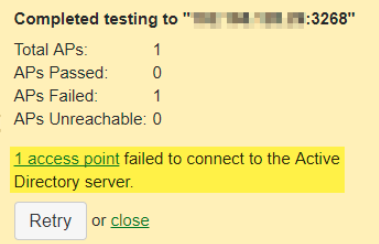
Possible causes
- APs in the dashboard are incorrectly configured to use an Active Directory server that is unreachable over TCP port 3268 or is not a Global Catalog.
- The Active Directory server does not have a digital certificate installed for LDAP using TLS
- A firewall is blocking communication between the AP and the AD server.
Troubleshooting steps
Below are the steps that you can follow to troubleshoot a connection failure issue
- Check the IP connectivity between the reported APs and the configured AD server. Ping the AD server from the AP in question using Live Tools, then try pinging the AP from the AD server. Successful ping tests verify IP connectivity between endpoints.
- Run the test widget while taking simultaneous packet captures from the AD server using Wireshark and the wired interface of the AP using the Meraki dashboard. These captures are analyzed in Wireshark and can be used to verify if the AD server is receiving TCP packets from the the AP on TCP port 3268 and whether the server is responding appropriately.
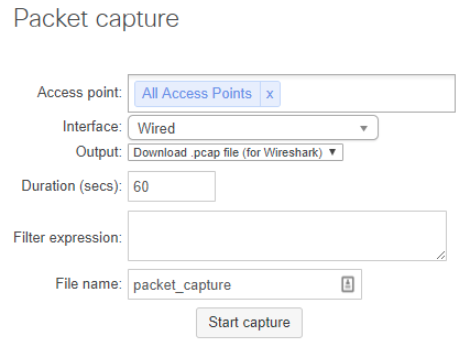
- Analyze the capture taken on the AD server using the following Wireshark filter:
tcp.port==3268 and ip.addr==X.X.X.X
Where X.X.X.X is the IP address of the AP. If the AD server replies to TCP SYN packet on port 3268 with a TCP RST, it is likely the AD server is not a Global Catalog. In this instance enable the Global Catalog role on the AD server.

AD server 10.0.0.116 replies to the AP 10.0.0.117 with a TCP RST because it is not listening on TCP port 3268
- If the packet capture shows the AD server sending an "Error initializing SSL/TLS" in response to the AP's StartTLS packet, then the AD server does not have a valid digital certificate installed. In this case you will need to install a valid digital certificate on the AD server.

AP 10.0.0.2 sends a StartTLS packet, but the AD server 10.0.0.117 sends a LDAPError: Error Initializing SSL/TLS.
- Firewalls can also cause connection failures. If the server is a Global Catalog but a TCP RST or ICMP "Destination Unreachable Communication administratively prohibited" is returned by the AD server, make sure TCP port 3268 is opened inbound on the local firewall. If either of these messages shows up on a capture taken from the AP but not on the AD server, there could be an intermediate firewall blocking access to the AD server. If there are no packets from the AP when analyzing the packet capture taken from the AD server, check the packet capture taken from the AP. If you see packets being sent from the AP to the AD server on TCP 3268 but no response, then there may be an intermediate firewall silently blocking communication.
Expected outcome
After completing the above steps, the AP should be able to successfully establish a connection to the AD server on TCP port 3268, with no TCP RST or TLS errors observed in packet captures
Troubleshooting credential authentication issues
After a successful connection to the AD server is established, authentication failures may still occur due to incorrect admin or user credentials.
Possible causes
- Incorrect AD admin account credentials configured in the Meraki dashboard.
- Incorrect user account credentials or the account does not exist.
- The AD admin does not have sufficient read permissions.
Troubleshooting steps
- If you are receiving the error message "Bad admin password", verify that the AD admin account exists and the password is correct.
- If you are receiving the error message "Bad user password", verify that the user account exists and the password is correct. Also verify that the AD admin has read access to the OU containing user objects.
- Monitor Windows event view logs to further troubleshoot authentication errors.
Expected outcome
After verifying credentials and permissions, the user should be able to successfully authenticate through the AD-integrated splash page or client VPN
Troubleshooting AD integration issues with MX security appliances
Before applying a group policy to a particular client using AD integration, you need to check whether the AD server has a successful connection with the MX security appliance. You can check the status of the AD integration connection on the Security & SD-WAN > Configure > Active Directory page. If AD has connected with the MX without any issue then you should be able to see a green check mark on the status. If the server has failed to integrate with the MX.
The following are common AD integration errors:
- ldap_bind: Invalid credentials
- Could not reach Domain Controller
- ldap_bind: Can't contact LDAP Server
- ldap_start_tls: Server is unavailable
- WMI error
- LDAP connection error
Troubleshooting ldap_bind: Invalid credentials
Error Description: Short domain, Domain admin or Password values are incorrectly configured for the AD server in the Meraki dashboard
Possible causes
- Incorrect short domain format (FQDN used instead of NetBIOS/pre-Windows 2000 name).
- Incorrect Domain admin username format (prefix or suffix included).
- Incorrect password or locked-out Domain admin account.
Troubleshooting steps
Navigate to Security & SD-WAN > Configure > Active Directory > Active Directory Servers and verify the following fields:
- Short domain: Use the pre-Windows 2000 (NetBIOS) domain name format. Mistakenly using FQDN (fully qualified domain name) is the most common reason for this issue. Find the pre-Windows 2000 domain name by doing either of the following on the domain controller.
- Run the set command from command prompt and locate the USERDOMAIN value:

- In the Active Directory Users and Computers console, locate the pre-Windows 2000 domain name value on the Account Properties tab of the domain administrator or any user in the domain.
Note: Do not include the backslash when entering the short domain in dashboard.
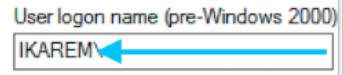
- Domain admin: Use the User logon name of the Domain administrator without a NetBIOS domain name prefix or UPN suffix. This can be found on the Account Properties tab of the domain administrator in the Active Directory Users and Computers console of the domain controller.

- Password: The password for the Domain admin account is incorrect or the user is locked out in Active Directory. To determine if the account is locked, check the Account Properties tab of the domain administrator in the Active Directory Users and Computers console of the domain controller.

Expected outcome
After correcting the short domain, domain admin, and password fields in the dashboard, the ldap_bind: Invalid credentials error should be resolved and the AD integration status should show a green check mark.
Troubleshooting could not reach the domain controller
Error Description: You are likely to see this error when the MX is unable to establish a connection with the AD server.
Possible causes
- Network connectivity issue between the MX and the AD server.
- Firewall blocking required ports.
- AD server located over a VPN tunnel with incorrect source IP routing.
Troubleshooting steps
Follow the instructions in the Troubleshooting failure to connect to the AD server section of this document.
WMI will use TCP ports 135, 445, and dynamically-assigned ports 1024–65535 (TCP) for Windows 2003 and older, and 49152–65535 (TCP) for Windows 2008. Make sure that the MX and the AD server are able to communicate with each other and there are no firewall rules blocking these ports along with port 3268.
If the Server IP address is located over a VPN Tunnel, communication from the WAN appliance with the server will originate from the highest numbered VLAN included in the VPN.
Note: If VPN mode is disabled for all VLANs, the WAN appliance will use a 6.X.X.X source IP address to communicate with the AD server.
Expected outcome
The MX establishes communication with the domain controller.
Troubleshooting ldap_bind: Can't contact LDAP server
Error Description: This error indicates the MX can connect to the WMI service on the domain controller but cannot connect to the LDAP service. Note that this is different from the Could not reach domain controller error (described above) which indicates that both the WMI and LDAP services are unreachable.
Possible causes
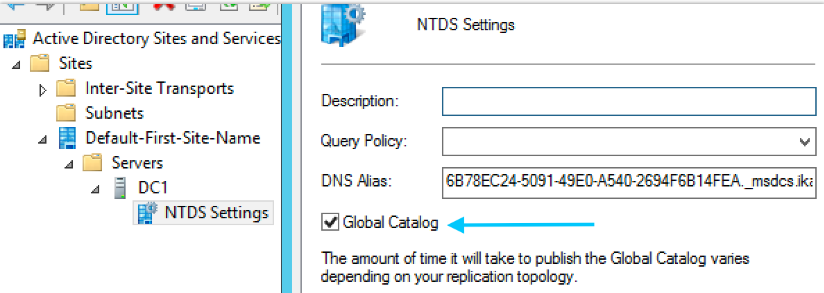
- The domain controller is not configured as a Global Catalog.
- The LDAP service is not listening on TCP port 3268
Troubleshooting steps
Verify that the domain controller is a Global Catalog listening on TCP port 3268
Expected outcome
After enabling the Global Catalog role on the domain controller and confirming it is listening on TCP port 3268, the ldap_bind: Can't Contact LDAP Server error should be resolved.
Troubleshooting ldap_start_tls: Server is unavailable error
Error Description: The MX uses TLS to secure the LDAP connection to the domain controller. This error indicates the MX received an "Error initializing TLS" response from the domain controller when attempting to establish TLS.
Possible causes
- The domain controller does not have a valid certificate installed.
- The domain controller does not support STARTTLS.
Troubleshooting steps
Verify the following on the domain controller:
- The domain controller has a valid certificate installed.
- The domain controller supports STARTTLS.
Note: The MX does not support LDAP over SSL and uses STARTTLS instead.
Expected outcome
After installing a valid certificate and confirming STARTTLS support on the domain controller, the TLS handshake should succeed and the error should be resolved
Troubleshooting WMI error
Error Description: This error means the WMI service on the domain controller is returning an NT error code when the MX tries to pull security logs. These events are necessary for the MX to learn which user accounts are logged into which computers.
Possible causes
- Constant WMI error: Invalid credentials: The domain admin account is not a member of the Domain Admins group.
- Intermittent WMI error (ON and OFF): Quota violation: The WMI Provider Service requires increased memory and handle quotas, and the Security Event log may be too large to handle requests from the MX, which connects to the WMI service every 5 seconds.
Troubleshooting steps
The dashboard reports this error in one of two ways. The reported behavior helps identify the root cause.
- If the WMI error is constant:
The issue is typically caused by invalid credentials. Verify that the account configured for Active Directory authentication is a member of the Domain Admins group.
- If the WMI error intermittently switches ON and OFF:
The issue is typically caused by a quota violation. To apply Group Policies in real time, the MX queries the WMI service every five seconds to retrieve recent logon events. If the WMI Provider Service does not have sufficient memory or handle quotas, or if the Security Event Log is excessively large, WMI requests may fail intermittently.
To resolve this issue:
- Increase the WMI MemoryPerHost value (see Increase WMI Quota properties to maximum values)
Follow the steps below to reduce the Security Log size limit to 1MB:
- Open the Event Viewer
- Navigate to Event Viewer> Windows Logs > Security
- Right click Security and click Properties
- Set the Maximum log size (KB) to 1024
- When maximum event log size is reached select Overwrite events as needed (oldest events first) or Archive the log when full, do not overwrite events.ot
- Click OK
Expected outcome
The MX successfully retrieves security logs and applies policies based on user logon events.
Troubleshooting LDAP connection error
Error Description: This error commonly occurs when the domain controller does not support TLS v1.0
Possible causes
- The domain controller does not support TLS v1.0.
Troubleshooting steps
- Verify the domain controller supports TLS v1.0
- After successfully linking the Active Directory (AD) server to the MX security appliance, verify whether the issue persists.
-
If group policy issues persist:
- Apply the group policy manually to the test client.
- Verify the policy functions correctly. If not then follow the Troubleshooting Group Policy guide to resolve the issue
4. Make sure that the user in question is a member of only one group that has a group policy assigned in the dashboard.
Note: It is recommended to have the MX configured for tracking clients by MAC address in order for the Group policy integration to work as expected. You can check the configuration by navigating to the Security & SD-WAN > Configure > Addressing & VLANs page.
Expected outcome
LDAP communication succeeds and AD-based group policies are applied correctly.