

Troubleshooting Blocked Traffic
Overview
Cisco Meraki MX WAN appliances include various security and filtering tools. Network administrators often segment VLANs, police traffic, and restrict website access. This can result in a large number of rules and policies on an MX, making it difficult to identify which rule or policy is causing a resource to become inaccessible. Users commonly experience issues accessing blocked websites, servers, or resources over a VPN tunnel.
This guide covers troubleshooting blocked traffic by outlining the information to gather, the security features that may be blocking traffic, and where to check logging for each feature. The actions, suggestions, and behaviors described in this document are not exhaustive.
In this document, "blocked traffic" and "accessibility to resources" may be used interchangeably as one often implies the other.
Learn more with these free online training courses on the Meraki Learning Hub:
Traffic is being Generated by Blocked or Unauthorized Users
The factors below should be considered when troubleshooting suspected blocked or unauthorized access.
- Unauthorized end users may still access web sites on the meraki.com domain if they are not blocked. This bandwidth will not appear in dashboard.
- Outgoing connection attempts for unauthorized users are currently counted, even though the attempts will fail. Therefore, you could see some traffic for these users on your public network.
- If the "Captive Portal" setting is set to allow Non-HTTP traffic prior to sign-on, unauthorized users can access the network on any protocol and port other than TCP port 80.
- On Pro networks, users may only be blocked from the public SSID. If the user knows the private SSID's WPA2/WEP key or splash-page account login, the user can still send and receive traffic on that SSID. In addition, if wired clients are part of the private SSID they may also be able to send and receive data. The usage details page for a client device reports the most recently used SSID for that device.
Preliminary information gathering
Before troubleshooting specific components, gather the following preliminary information to narrow down the scope of the issue.
Device information
- How many devices are affected?
- What is the IP Address and MAC Address of one or more affected devices?
- Has this device always had issues accessing this resource?
- What is the Operating System of the device?
- Is this occurring with all device types (for example, phones, laptops, printers, etc)?
- Does the device have a group policy applied via Active Directory (AD), the clients page, or VLAN?
- If the device is allow listed on the client's page, is the device able to access the blocked resource? If so, refer to the Adding a device to the allow list section in this article for next steps.
Network information
- Is the resource accessible from a different network (for example, home, coffee shop, hotspot, etc)?
- How long has this resource been inaccessible?
- What are the firewall rules configured at Security & SD-WAN > Firewall?
- Are there recent Layer 7 firewall events matching the IP or MAC of the affected user at Network-wide > Event log?
- Are there recent Content Filtering Blocked URL events matching the IP or MAC of the affected user at Network-wide > Event log?
- What Content Filtering Categories and URLs are configured at Security & SD-WAN > Content Filtering?
- Are there recent events matching the IP or MAC of the affected user at Security & SD-WAN > Security Center?
- Is the traffic being routed through the VPN? If so, check the Site-to-site VPN firewall at Security & SD-WAN > Site-to-site VPN.
Blocked resource and traffic information
-
Is an entire domain blocked?
- If yes, check Security & SD-WAN > Configure > Content Filtering and Security & SD-WAN > Configure > Firewall for the domain, category and/or IP.
- Is only a specific URL within a domain (for example, an enterprise login within a larger domain)?
- If yes, check Security & SD-WAN > Configure > Content Filtering for the domain
- Does the webpage start loading but fail?
- If yes, check Security & SD-WAN > Configure > Content Filtering and Security & SD-WAN > Configure > Firewall for the webpage's URL and/or IP.
- Does the webpage show an error when it fails to load?
- If yes, check Security & SD-WAN > Configure > Content Filtering and Security & SD-WAN > Configure > Firewall for the webpage's URL and/or IP.
- Are you redirected to another page stating the resource was blocked?
- If yes, check Security & SD-WAN > Configure > Content Filtering.
- Are you able to access the resource by IP and not by hostname?
- If yes, check Security & SD-WAN > Configure > Content Filtering.
- Does the webpage load entirely or only pieces of the page?
- Does the webpage continue loading/spinning forever?
- Can you ping the website?
- Can you ping the IP address of the resource?
- Is the traffic experiencing issues related to a backup?
- If yes, check Security & SD-WAN > Monitor > Security center for IDS/IPS events. Group policies that prioritize backup traffic can be configured in case the traffic is not being dropped but the backup is not completing properly.
Troubleshooting firewall rules
This section covers Layer 3 and Layer 7 firewall rules.
- Layer 3 outbound rules block a variety of sources, destinations, protocols, and port ranges.
- Layer 7 rules block destinations, port ranges, application groups (such as Social Media, News, and Sports), countries, and HTTP hostnames.
- This section also covers Layer 3 site-to-site VPN firewall rules, which function similarly to regular Layer 3 outbound firewall rules.
For more information on how these function, refer to Using Layer 3 Firewall Rules, Creating a Layer 7 Firewall Rule and MX Firewall Settings.
Layer 3 outbound rules
Layer 3 outbound rules are located at Security & SD-WAN > Firewall.

Troubleshooting steps
-
A Firewall Logging Tool is available at Security & SD-WAN > Appliance status > Tools.
- Run this tool while passing the blocked traffic to determine whether the Layer 3 firewall dropped or allowed the traffic.
- This feature is available on MX firmware release 18.2 and newer.
- If a Syslog Server is configured under Network-wide > General, and the and the Syslog option is enabled, logging will indicate whether traffic was dropped or allowed for a specific rule.
- Refer to Syslog Event Types and Log Samples for more information.
- Live packet captures can can determine whether the MX is blocking traffic.
Layer 7 firewall rules
Layer 7 firewall rules are located at Security & SD-WAN > Configure > Firewall, below the Layer 3 outbound firewall rules.

Layer 3 rules are processed before Layer 7 rules.
Troubleshooting steps
-
Layer 7 rule blocks appear in Network-wide > Monitor > Event log.

- Layer 7 rules not utilizing NBAR content categorization will not show up in the event log under the event type "Layer 7 firewall rule".
- NBAR can be enabled under Network-wide > Configure > General > Traffic analysis.
- A list of NBAR IDs to Layer 7 rule mappings are included in the following KB: Mapping Layer 7 Firewall Rules to NBAR IDs
- A Firewall Logging Tool is also available at Security & SD-WAN > Monitor > Appliance status > Tools.
- You can run the tool while passing the blocked traffic and see if the traffic was dropped or allowed by the Layer 3 and Layer 7 firewall.
- This feature is available on MX firmware release 18.2 and newer.
- When a Layer 7 firewall rule is triggered, the user will most likely experience a white page that loads or spins indefinitely, or receive a "connection error".
- Live packet captures can determine whether the MX is blocking the affected traffic.
Layer 3 Site-to-site VPN firewall rules
Similar to the regular Layer 3 Outbound Firewall rules the MX also supports Layer 3 outbound site-to-site VPN firewall rules.
-
These rules take effect when traffic is routed over a Non-Meraki VPN or Auto VPN tunnel.
- Traffic routed over the VPN is not subject to the Layer 3 outbound firewall rules at Security & SD-WAN > Configure > Firewall.
- Layer 7 firewall rules configured at Security & SD-WAN > Configure > Firewall page still apply locally to client traffic destined across both Auto VPN and Non-Meraki peers.
- These rules apply to all WAN appliances in the dashboard organization.

Troubleshooting steps
-
Determine whether the traffic is being routed through the VPN.
-
Check the MXs routing table at Security & SD-WAN > Monitor > Route table. Filter the route table for the destination subnet corresponding with the affected traffic.

- Use traceroute to identify the hops the traffic is taking.
- If a Syslog server is configured under Network-wide > Configure > General and the Syslog box is checked, logging will indicate whether traffic was dropped or allowed for a specific rule. Refer to Syslog Event Types and Log Samples for more information. Refer to the Syslog Event Types and Log Samples for more information.
- Take packet captures on the LAN interface and the site-to-site VPN interface to determine whether traffic was dropped when transitioning from the LAN to site-to-site VPN interface.
Troubleshooting content filtering
Content filtering located at Security & SD-WAN > Configure > Content Filtering. Content filtering on MX17 and up will use Cisco Talos Intelligence. This allows the MX Content Filtering feature to classify URLs based on web content and threat categories curated by Cisco Talos.

Content filtering behavior
Inspection
-
MX will inspect both HTTP and HTTPS.
Block pages
-
For HTTP requests matching a blocked category, the MX redirects the client to a block page as shown below:

-
For HTTPS requests matching a blocked category, the MX resets the TCP connection.
-
Additionally, if the website/IP is being blocked by any layer 7 firewall rules, these will take effect before the content filtering rules do.
-
For example, if "instagram.com" is blocked by a Layer 7 rule and is also listed as blocked URL under the content filtering section, the Layer 7 rule will take effect first.
-
Troubleshooting steps
The following tools are available to troubleshoot content filtering:
-
On the Security & SD-WAN > Configure > Content filtering page, use the URL lookup tool to check whether the blocked URL falls into any configured categories. Also review the blocked and allowed URLs sections.
- Check the event log at Network-wide > Configure > Event log to determine whether the traffic blocked a user. The event type "Content filtering blocked URL" displays events where the content filtering service blocked traffic.

- If the user fails to load the page and sees something along the lines of a "connection error" or "reset" in the browser, the cause may be content filtering or a Layer 7 rule.
- Take packet captures on the appropriate interfaces (usually LAN and WAN) to check whether the MX is blocking the traffic.
Troubleshooting threat protection
The threat protection section covers two security features: IDS/IPS and Advanced Malware Protection (AMP).
AMP
AMP inspects HTTP file downloads through an MX and blocks or allows file downloads based on threat intelligence from the AMP cloud. For more information about AMP, refer to the this article.
Enable AMP by setting the Mode option to Enabled at Security & SD-WAN > Configure > Threat protection.
Intrusion detection and prevention
The MXs Intrusion Detection and Prevention System (IDS/IPS) is powered by Snort. Snort is an open-source intrusion prevention system that detect and prevents cyber attacks by monitoring network traffic for malicious activity. Snort uses rulesets to analyze network packets and match them against known and emerging threats, such as viruses, worms, and other forms of malware.
Traffic inspection
In both IDS and IPS modes, the following traffic is inspected:
- All traffic between LAN and the Internet
- All traffic between VLANs
In both IDS and IPS modes, the following traffic is not inspected:
-
Intra-VLAN traffic where Client 1 and Client 2 are both in the same VLAN
Troubleshooting IDS/IPS and AMP
All logs related to any traffic detected and allowed or blocked by AMP and IDS/IPS are located at Security & SD-WAN > Monitor > Security Center.

- Syslogs can be used to check security events. Refer to Syslog Event Types and Log Samples for more information, Syslog Event Types and Log Samples
- Packet captures can confirm whether the WAN appliance is blocking traffic. Depending on the destination of the traffic, packet captures may be taken on different interfaces.
- For example, if a file transfer is blocked over Auto VPN, take a packet capture on the LAN and site-to-site interfaces.
- If a backup is blocked to a Public Cloud Server, take a packet capture on the LAN and WAN interfaces.
Troubleshooting group policies
Group policies provide the ability to configure custom firewall, traffic shaping & bandwidth, AMP, content filtering, and wireless rules for individual devices or groups of devices. Group policies can be applied by client, VLAN, AD groups, and amongst other methods.
When troubleshooting blocked traffic, it is imperative that the device(s) affected/being tested are checked for a Group Policy. Group Policies can affect the same network settings, or overwrite network default settings. While the network firewall may be configured to blocked Social media, the Group Policy can be configured to allow it.
The following priority order determines which settings affect a client, from highest to lowest:
- Policies set manually for a specific client on their client details page. This includes the Allow Listing and Blocking default rules.
- Network-wide policies applied automatically by device type, VLAN, or SSID. These override network default settings, but are overridden by manual policies.
- Network settings will be overridden by any policies applied to the client.
Troubleshooting steps
- When troubleshooting blocked traffic and group policies, check for the presence of a policy on the affected client.
- If a specific device or group of devices cannot access a resource because it appears to be blocked, confirm whether the device has a group policy applied.
Checking group policy application
By client
Group policies can be manually applied to clients:
- Navigate to Network-wide > Monitor > Clients page.
- Select the checkbox next to the desired client(s) in the list.
- Select the Policy button at the top of the list.
- Select Group policy and choose the specific policy in the drop-down.
- Select Apply policy.
Devices can be allowed by selecting the "Allow list" policy and they can be blocked by selecting the "Block list" policy.

Alternatively, on wireless and combined networks, different group policies can be applied depending on the SSID the client is associated with. This is applied from the same page as the previous steps.
- Select the checkbox next to the desired client(s) in the list.
- Select the Policy button at the top of the list.
- Select Different policies by [connection or] SSID.
- For each SSID, select the desired group policy, built-in policy, or leave as normal.
- Select Apply policy.
Policies can also be applied to individual clients by clicking on the client in the clients list and then choosing a Device policy under the Policy section.
By device type
In wireless networks, group policies can be automatically applied to devices by type when they first connect to an SSID and make an HTTP request.
- Navigate to Wireless > Configure > Access control.
- Select the desired SSID.
- Set Assign group policies by device type to "Enabled."
- Select Add group policy for a device type.
- Select the desired Device type and the Group policy to apply.
- Repeat steps 4-5 as needed to assign policies to all desired device types.
- Select Save changes.
This only occurs when a device first connects to the SSID and persists until it is manually overridden. Thus, some previously connected clients may need to have policies manually assigned. It is also possible for a client to be misclassified based on the initial HTTP request, depending on how it is generated by the device. If this occurs, manually assign the desired policy.
Refer to the documentation for more information on applying group policies by device type.
By VLAN
On WAN appliance networks, group policies can be automatically applied to all devices that connect to a particular VLAN.
- Navigate to Security & SD-WAN > Configure > Addressing & VLANs
- Confirm that VLANs is "Enabled."
- Select the desired Local VLAN.
- Select the desired Group policy.
- Select Update.
- Select Save Changes.
Any clients that are placed in this VLAN will now be given the desired Group policy.
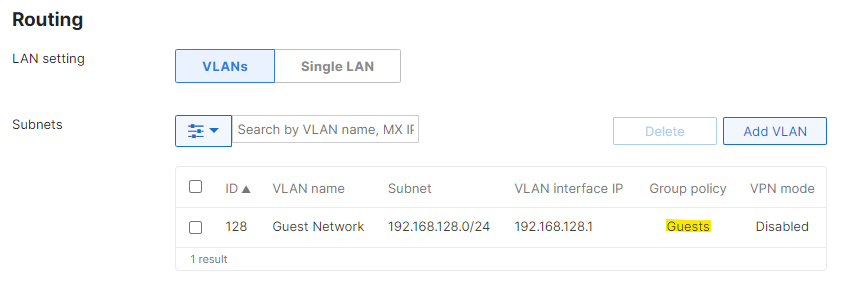
When a group policy is applied to a VLAN, that policy becomes the new "network default" for any other group policies applied to clients in that VLAN. Since this policy is the new "network default," the client devices still show a "normal" policy applied under Network-wide > Monitor > Clients.
For example, a group policy named "Guest Network" with more restrictive Layer 3 firewall rules than the network-wide configuration is applied to the guest VLAN, and a second group policy "Low Bandwidth" has a custom bandwidth limit, but is set to Use network firewall & shaping rules. If the Low Bandwidth group policy is applied to a client on the guest VLAN, the client will use the Layer 3 firewall rules configured on the Guest Network group policy, not the network-wide Layer 3 firewall rules configured on the Security & SD-WAN > Configure > Firewall page.
By Active Directory group
MX networks with advanced security licensing can use Active Directory groups to assign policies to clients. Refer to the article on configuring AD-based group policy for more information.
By RADIUS attribute
Wireless networks using RADIUS to authenticate clients can assign group policies via RADIUS attributes. Refer to the article on configuring group policies with RADIUS attributes for more information.
By Identity PSK (iPSK)
iPSK is available in two variants: iPSK with RADIUS and iPSK without RADIUS.
- iPSK with RADIUS authentication acts as a standard WPA2 PSK SSID to clients while authenticating clients to a central server based on their MAC address.
- iPSK without RADIUS allows a network administrator to use multiple PSKs per SSID without a RADIUS server. The feature allows you to assign group policies in the dashboard based on the PSK used by the client device to authenticate to the Wi-Fi network.
Refer to the article iPSK with RADIUS Authentication and/or iPSK Authentication without RADIUS.
Adding a device to the Allow list
Adding a device to the Allow list is a great way to determine whether the MX is blocking traffic to or from the device.
Allow listing a device allows it to bypass the following:
- Layer 3 and Layer 7 firewall rules
- AMP
- Most splash pages
- Bandwidth limits
- Traffic shaping rules
- Content filtering
IDS/IPS is not bypassed by allow listing a device.
After allow listing a device, confirm the MX configuration is up to date and wait five minutes before performing any testing.
- If traffic is not blocked or the resource is accessible after allow listing the device, a rule on the MX is contributing to the blocked traffic.
- If the traffic remains blocked or the resource is not accessible after allow listing the device, the MX security and filtering configuration is likely not the cause.
If traffic remains blocked after allow listing the device, complete the following additional steps:
- Check Security & SD-WAN > Monitor > Security Center to confirm IDS/IPS is not blocking traffic, as it is not bypass by allow listing a device.
- Test access to the resource from outside of the MX network such as a home network or hotspot.
- Test resource accessibility on different devices.
- Verify host-based firewalls, antivirus applications, or RADIUS, AD, or Mobile Device Management (MDM) policies applied outside of the MX
- Take packet captures on the MX LAN and WAN interfaces and analyze them for TCP RSTs, missing traffic, or drops.
Strategies and general guidelines
- In general, accessibility to the resource should be tested outside of the MXs network such as a home network or hotspot.
- This may not always be possible as some resources are only accessible from the LAN due to their location or security purposes. In that case, accessing the resource outside of the MXs network is not applicable.
- Use a top-down approach to troubleshoot blocked traffic. For example, the following components can be troubleshooted in order: group policies, firewall rules, content filtering, and threat protection.
- Ideally, traffic should be passed continuously so that logging for each component above can be reviewed more easily.
- If a large number of devices are unable to access a resource, two or more devices should pass traffic so that the components above can be reviewed.
- If a device is able to access a previously blocked resource after allow listing it (adding it to the "allow list" policy). What is a possible next step?
- Apply a custom group policy to the device and bypass each security/filtering component individually to narrow down which one is blocking the resource.
- For example, select Ignore network firewall & shaping rules in the group policy to bypass the Layer 3 and Layer 7 firewalls. .
- If the traffic is no longer blocked, one or more firewall rules are the cause. The remaining step includes tracking down the specific firewall rule.
- For example, select Ignore network firewall & shaping rules in the group policy to bypass the Layer 3 and Layer 7 firewalls. .
- Apply a custom group policy to the device and bypass each security/filtering component individually to narrow down which one is blocking the resource.

- This methodology can be repeated for Content Filtering, AMP, etc until the component that is blocking the traffic can be isolated.
Additional resources
- Creating and Applying Group Policies
- Troubleshooting Group Policies
- Block Listing and Allow Listing Clients
- Syslog Event Types and Log Samples
- Using Layer 3 Firewall Rules
- Creating a Layer 7 Firewall Rule
- MX Firewall Settings
- Content Filtering
- Site-to-site VPN Firewall Rule Behavior
- Threat Protection